Shared escalation rules
Find or create an approval rule that can be reused by supported CRM modules.
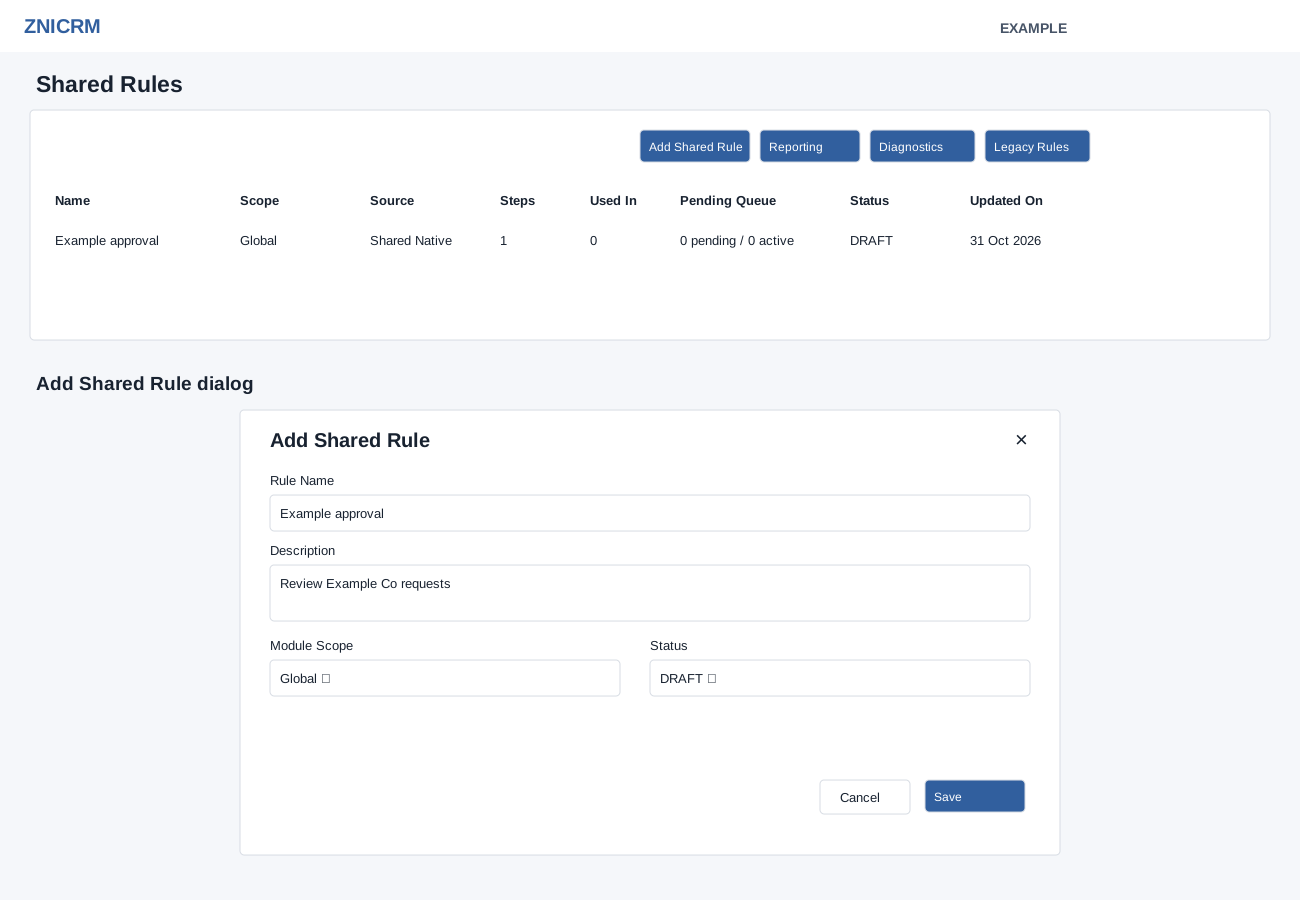
Find a shared rule
Administrators open Account Settings → Escalations → Shared Rules. The table shows Name, Scope, Source, Steps, Used In, Pending Queue, Status and Updated On. The list contains the latest version of each rule. Search, sorting and pagination apply to the loaded rules. Steps counts active steps; Pending Queue distinguishes pending assignments from active instances. Used In includes active bindings and any linked legacy usage. Select the rule name to open its detail and graph.
Reporting opens shared instances, Diagnostics opens readiness and runtime checks, and Legacy Rules returns to the original escalation list. Opening legacy list/action screens can synchronize records; it is not necessarily read-only. If required migration or storage warnings appear, review Upgrade Escalations and involve an administrator.
Create a shared rule
- Choose Add Shared Rule.
- Enter a Rule Name of at least three characters and an optional Description describing the decision, for example “Example Co request approval”.
- Select Module Scope: Global, Custom Forms, Helpdesk Tickets, Follow-up Intelligence or Checklists. The scope describes where the rule belongs; event bindings are configured separately.
- Choose Status: Draft, Active or Archived. Use Draft while preparing recipients, paths and bindings.
- Select Save, open the saved rule and follow Manage a shared escalation rule. Cancel dismisses the unsaved dialog. Verify the saved name, scope and status before configuring steps.
If Save fails, inspect the required name, access or storage error. A rule without a configured valid graph and binding is not proof of an operational approval route. The detail guide explains stored-only flags and notification limitations.