Manage a shared escalation rule
Define recipients, decisions, reminders and module bindings for a reusable CRM approval route.
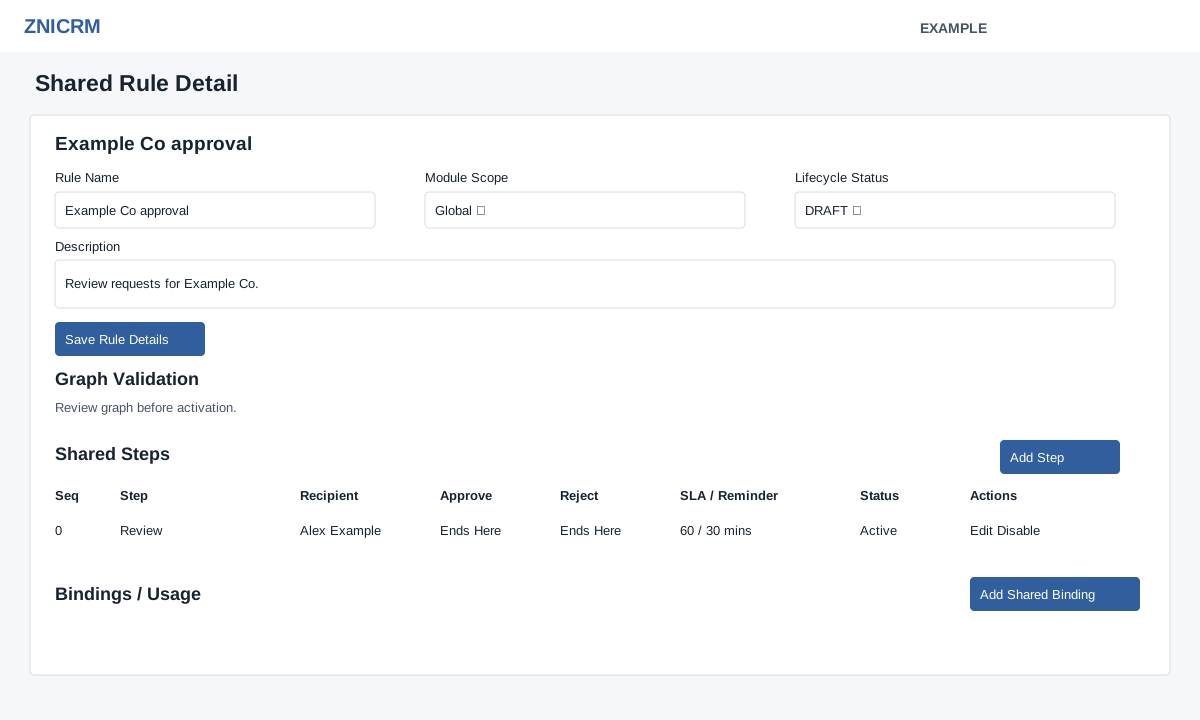
Open Account Settings → Escalations → Shared Rules, then select the rule name. Administrator access is required. Review the Rule Name, Description, Module Scope and Lifecycle Status, then use Save Rule Details to save those fields. Keep a new rule in Draft while configuring its graph and bindings.
Steps and paths
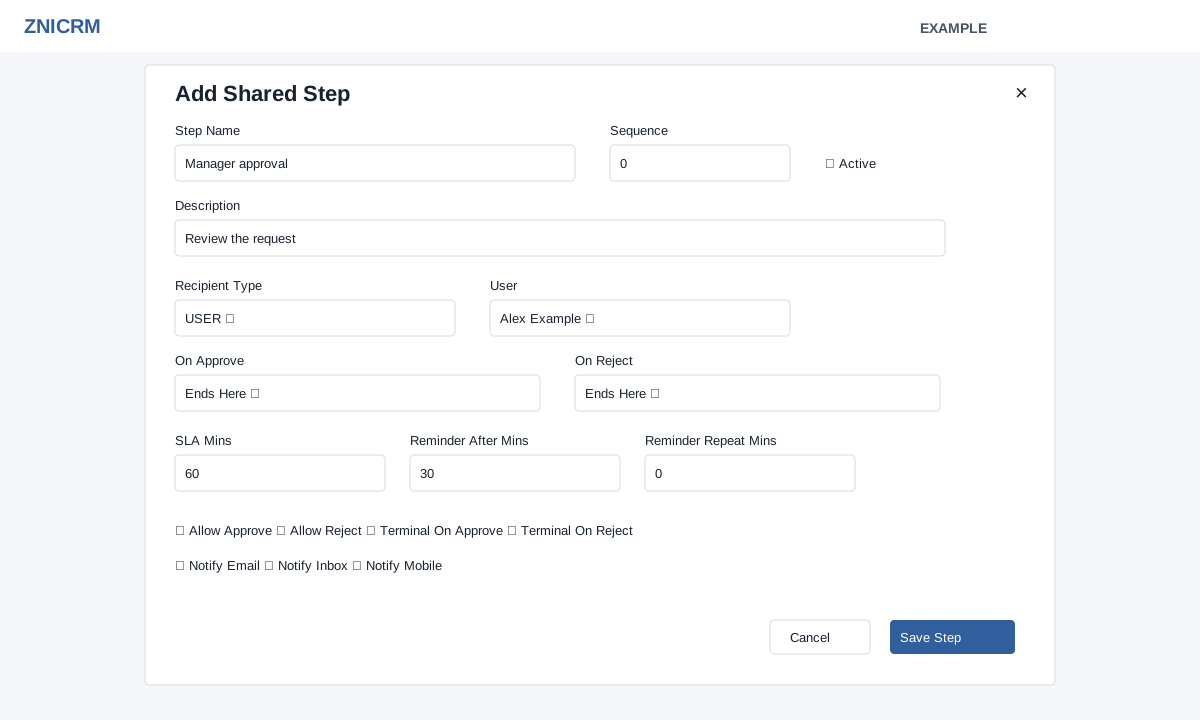
- Choose Add Step. Enter Step Name, Sequence, Description and Active status. Choose Recipient Type: ROLE, USER, MANAGER, OWNER_MANAGER, ADMIN or NONE. ROLE and USER reveal their respective selection fields.
- Set On Approve and On Reject to another step or Ends Here. Set SLA Mins, Reminder After Mins and Reminder Repeat Mins as needed; select Allow Approve, Allow Reject, Terminal On Approve, Terminal On Reject and notification channels Email, Inbox and Mobile as appropriate. These flags are stored, but the approval process does not enforce Allow Approve or Allow Reject, and step opening only sends the assignee notification when Email is enabled; Inbox and Mobile are not used there. Do not rely on those flags alone to restrict decisions or send those channels.
- Select Save Step. Use Edit to change an existing step or Disable to remove it from active use. Sequence 0 explicitly selects the start; otherwise the first sequence is used with a warning. Duplicate active sequences, self-links and missing active targets are errors; unreachable steps are warnings. Ends Here forces a terminal outcome. A terminal checkbox also ends that outcome even if a next step is selected. Disabling a step changes incoming paths to Ends Here; inspect and repair those paths before relying on the rule. Review Graph Validation for errors and warnings before activation.
- In Bindings / Usage choose Add Shared Binding, select Module, its Trigger Event, Department Scope and Priority, then save. The creatable modules are Helpdesk Tickets (critical priority, unassigned overdue, SLA overdue, action requiring approval, low CSAT), Follow-up Intelligence (unresolved alert), and Checklists (pending checklist details). Custom Forms bindings are synchronized by migration, not created from this dialog. Lower priority numbers match first; a matching existing rule/module/trigger/department binding is updated rather than duplicated. Enable or disable an existing binding in the table. Reopen the rule to verify its saved graph and binding.
ROLE resolves active role users; USER selects a company user; MANAGER and OWNER_MANAGER resolve the instance department manager, or the first owner department manager when no instance department is set; ADMIN resolves administrators. NONE resolves no assignee, leaving an opened instance waiting. SLA and reminder values are minutes; zero means no initial due time or reminder. Changing lifecycle, bindings or recipient paths affects future routing; review the module and audience before activating. If validation or saving fails, read the displayed error, resolve missing recipients and path issues, and save again. Shared diagnostics and reporting help inspect runtime activity.
Shared Rules list and creation · Legacy actions and synchronization