Billing overview and history
Administrators can open Account Settings → Billing → Billing Settings to review the CRM account’s plan, balances, storage, licenses and recent activity. This screen concerns your CRM account billing; invoices and receipts issued to your customers belong to the invoicing workspace.
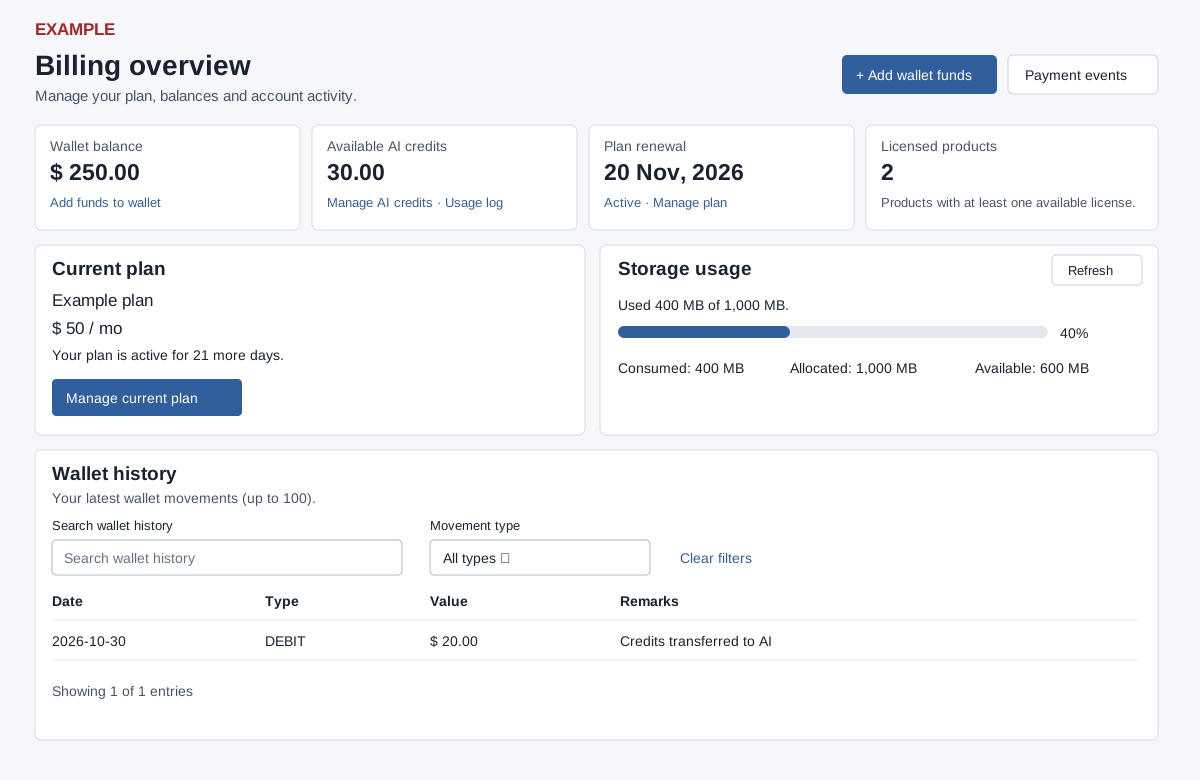
Read the summary and attention items
Wallet balance is the account wallet balance, displayed in rupees for an India company and dollars otherwise. Available AI credits is a separate balance. Plan renewal uses the CRM license expiry date. Licensed products counts product rows with a license quantity above zero, not individual seats. The Licenses table shows Product, Licenses and Expires for CRM, Helpdesk, Invoicing, Inventory, HRMS and Tracking when license details exist.
The Current plan panel shows the plan name, price and term when available. Its status is based on the CRM expiry and plan price: expired for a past date, renewal due for today through 15 days, active beyond 15 days, or plan details unavailable when the inputs are missing. Billing attention may show a subscription or renewal action, a wallet warning when its balance is zero or below, and an AI credits warning when its balance is zero or below. A clear attention panel is not a payment receipt.
Storage usage loads separately: Consumed and Allocated are in MB; Available is the difference, floored at zero. The percentage can exceed 100 even though the progress bar stops at 100. If capacity is zero, no percentage bar is shown. Select Refresh if loading fails or you need an updated reading; without JavaScript the panel does not load.
Choose an account action
The top buttons open Add wallet funds and Payment events. The account actions also open Manage current plan and licenses, Compare or change plan, Transfer funds to AI credits and the AI credit usage log. The summary cards repeat relevant links. On an unsupported host the Current plan panel displays a login-host warning instead of its management button; use an accepted login host shown there. Other links are still rendered, so follow the destination’s own access and host checks.
Filter recent activity
- In Transaction history, read Date, Type and Remarks. In Wallet history, read Date, Type, Value and Remarks. Each table loads up to 100 newest records by record ID, independently.
- With JavaScript enabled and rows available, use the table’s search box to match displayed row text, or select a loaded Transaction type or Movement type; All types removes the type restriction. Filtering is local to the loaded rows, case-insensitive for search, and combines the two controls.
- The first eight matching rows appear initially. Select Show all to expand matches, or Show fewer entries to collapse them. Changing a filter collapses the list. Clear filters resets both controls. No match means no loaded row matches, not necessarily that older activity does not exist.
For example, if Example Co sees a wallet debit after transferring credits, search its remarks in Wallet history and compare the value with the transfer and the AI balance. If it is absent, clear filters and check Payment events or ask billing support with the relevant date and reference; these tables do not search beyond their 100 loaded records.
Find payment details and receipts
History rows on this overview are plain text, with no statement, invoice or receipt drilldown, export, date range or pagination control. For a wallet funding order, open Payment events and select its CRM order reference to inspect payment status. Compare collection and CRM application before assuming funds or a plan change were applied. For a customer invoice and its receipt, use the separate invoice receipt workflow; it is not a receipt for the CRM subscription.