Settle invoice and receipt
Use this workflow
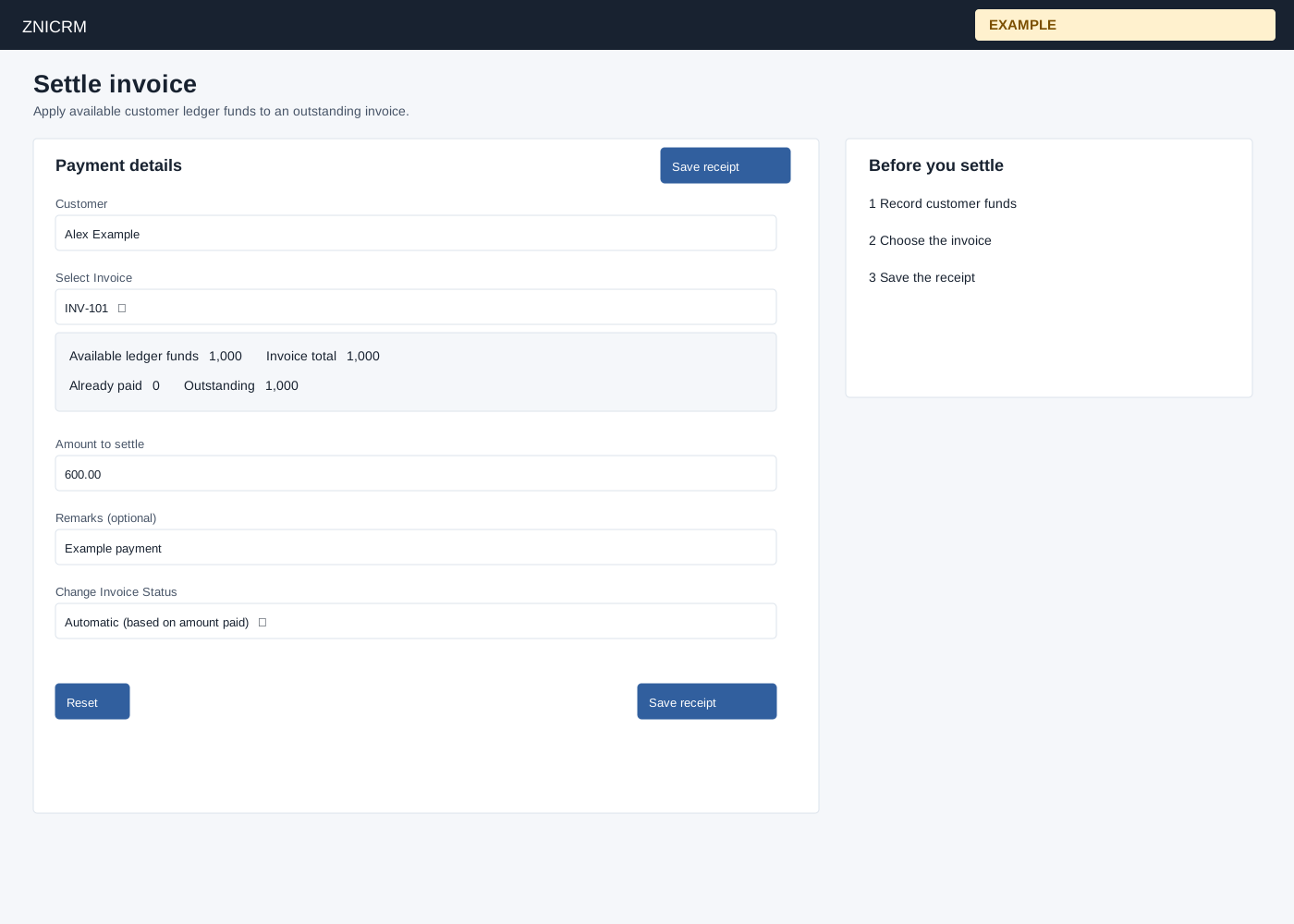
Open Invoicing → Invoices → a pending invoice → Settle invoice, or choose Settle invoice and select Customer then Select Invoice. RECEIPTS access is required. Record customer funds in Manage funds first. Review Available ledger funds, Invoice total, Already paid and Outstanding.
- For customer search, type at least three characters and choose a contact from up to ten suggestions; selecting an account is not accepted. Wait for pending invoices and ledger balance to load. Enter Amount to settle, at least 0.01 with at most two decimal places, no more than both available funds and outstanding gross. Enter optional Remarks.
- Choose Automatic, Pending, Paid or Void or Cancelled under Change Invoice Status. Save receipt. For a non-void receipt, the payment increases the receipt amount and marks the invoice Paid only when cumulative payment reaches gross; selecting Paid on a partial amount does not force Paid, and selecting Pending does not force Pending. Automatic, Pending and Paid all use the same amount-driven handling. Selecting Void cancels the invoice while the entered amount still debits the ledger. The receipt is created and ledger funds are debited. The ledger debit, receipt insertion and invoice update are separate writes, so an interrupted response can leave partial changes; check the ledger as well as receipts before retrying.
- After success the same page shows Receipt saved and disables the form; use Print receipt, Download PDF, View invoice or Settle another invoice. Verify the invoice’s Payments and receipts table and ledger transaction. Reset retains a preselected invoice but clears amount, remarks and status; without a preselected invoice it clears the customer and invoice selection too. If save cannot be confirmed, check invoice receipts before retrying to avoid a duplicate.
Example: Example Co has 1,000 available and an outstanding invoice of 1,000. Applying 600 leaves 400 available and normally 400 outstanding. If rejected, check the selected invoice, precision, outstanding and ledger balance; add funds first if necessary.