Add funds to the CRM wallet
Wallet balance pays for eligible CRM plan and service actions. Open Billing → Wallet or follow Add wallet funds from a plan quotation. You must be an administrator; online funding must be enabled for your company on a supported billing host.
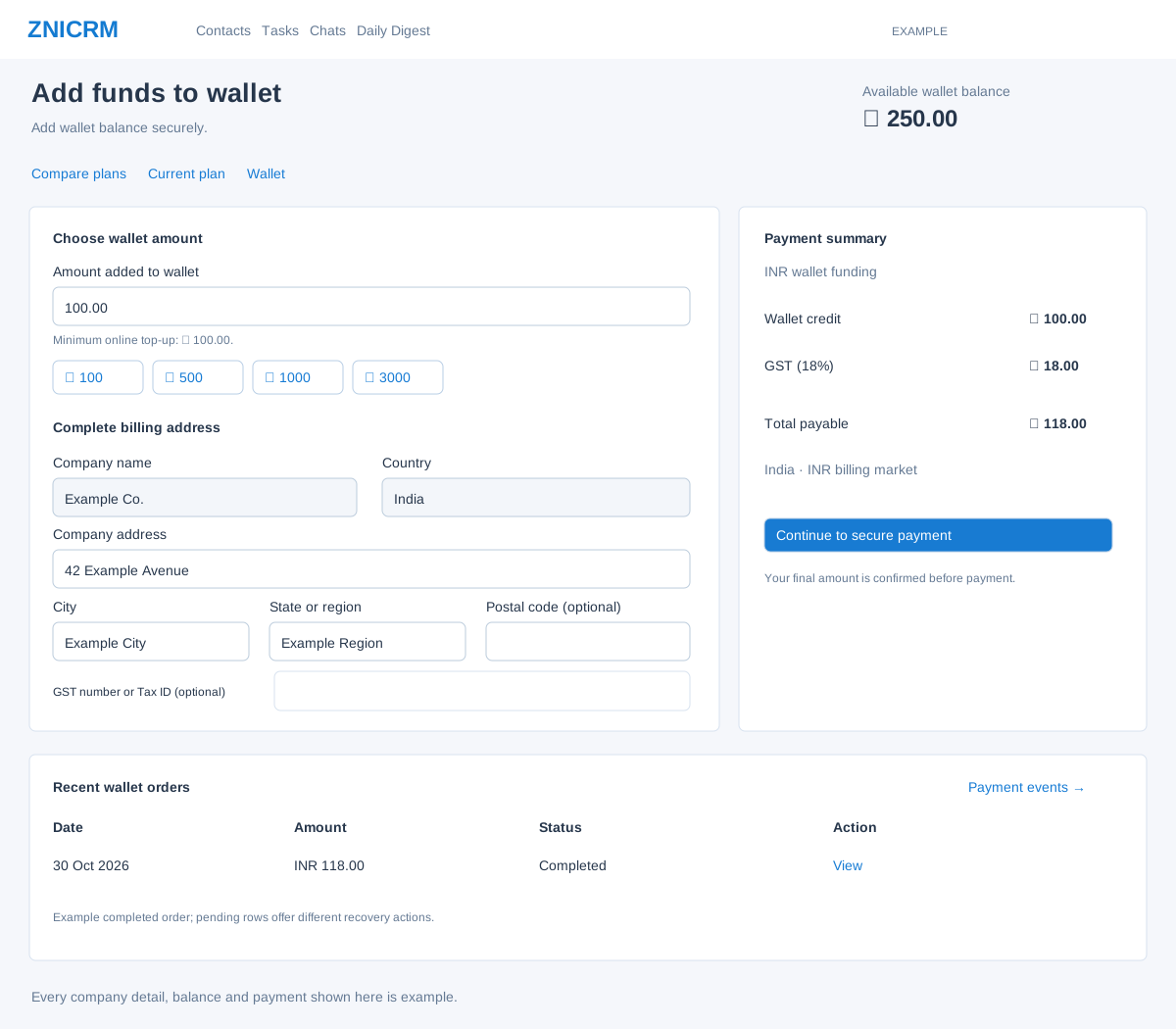
Prepare and verify a wallet payment
- Check Available wallet balance, billing currency and the action named at the top. Following a plan quotation can prepare funds for that specific upgrade, renewal or license change.
- For an ordinary top-up, enter Amount added to wallet within the displayed minimum and maximum, using up to two decimal places. Suggested buttons are 100, 500, 1000 and 3000 for INR, or 5, 10, 25 and 50 for other billing currencies. They populate the amount; they do not make payment.
- If the amount is fixed for a prepared billing action, review it without changing it. Any amount above the action’s shortfall remains in the wallet.
- Complete the billing-address fields when prompted, using the requirements below. The checkout start saves these billing details before preparing payment, so they can persist even if checkout later fails; enter your actual authorized business information in normal use.
- Check Wallet credit, Tax or GST, Total payable, country and currency. The amount charged can exceed the wallet credit because of tax.
- Select Continue to secure payment. Review the checkout and authorize the payment only once. The configured collection flow can differ by deployment; the older path opens the Secure wallet payment checkout.
- After return, check the payment status and wallet balance. If the payment was prepared for a plan action, also check Current plan for the intended quantity and validity. “Payment processed” alone is not proof that every requested plan action succeeded.
Complete billing address
| Field | Requirement and example |
|---|---|
| Company name / Country | Read-only in this form; review them before proceeding. Manage permitted company-profile changes separately. |
| Company address | Required, 5–1000 characters. example: 42 Example Avenue. |
| City | Required, 2–45 characters. example: Example City. |
| State or region | Required, 2–45 characters. Use the appropriate business region. |
| Postal code | Optional here, up to 45 characters. Company Profile has separate required-field rules. |
| GST number or Tax ID | Optional here, up to 45 characters. Do not copy a identifier into a real checkout. |
For later changes, see Billing address in company profile. If the profile is already complete, the inline address form is not shown.
Use Recent wallet orders
The table shows date, payable amount, status and action. For a non-pending row, View opens the order-tracking banner on Wallet. A pending central order offers Retry to reopen its checkout and Cancel to abandon the unpaid order. If the payment is already recorded centrally, the label becomes Paid · pending sync and Reconcile payment replaces those actions. Legacy pending orders offer Retry into the older payment flow and can also show Cancel.
Read the result of cancellation: a paid central order cannot be cancelled this way, and central provider unavailability leaves that order pending. Cancellation does not refund a paid transaction. Use Payment events for the precise retry and reconciliation behavior.
Understand tracking and a disabled Continue button
| Displayed condition | Next step |
|---|---|
| Payment verification in progress | The page checks status in the background and refreshes when it changes. Wait for confirmation before preparing another payment. |
| Payment processed | Read the completion message. Wallet credit may be applied while the related billing action needs review; verify both. |
| Payment order cancelled / Payment not completed | Read the result and confirm that no successful payment needs reconciliation before preparing a new order. |
| Previous wallet payment still pending | Use that order’s Retry or Cancel action first. Continue is disabled while a pending order prevents a new payment. |
| Previous payment recorded, awaiting wallet synchronization | Use Reconcile payment. Repeating payment is not the appropriate recovery action. |
| Online payments not enabled | Contact billing support. Ask which alternative payment methods your company can use. |
| Payment request no longer startable or invalid | Inspect its order activity and current plan. Review a fresh billing action only when the earlier request is resolved. |
Example: if a quote needs 300 of additional wallet balance, the locked funding amount may also reflect a minimum online payment. Review the displayed calculation; any excess remains in the wallet. Do not assume the card payment total equals the balance available for the plan.
The page states that wallet payments are normally non-refundable and provides a billing-support link. Review the applicable payment terms before authorizing a real payment.
Payment events and recovery actions · Payment status · Compare plans