Automation rule information
Check a rule’s trigger, configured steps and latest recorded outcome, then open the workspace needed for the next task.
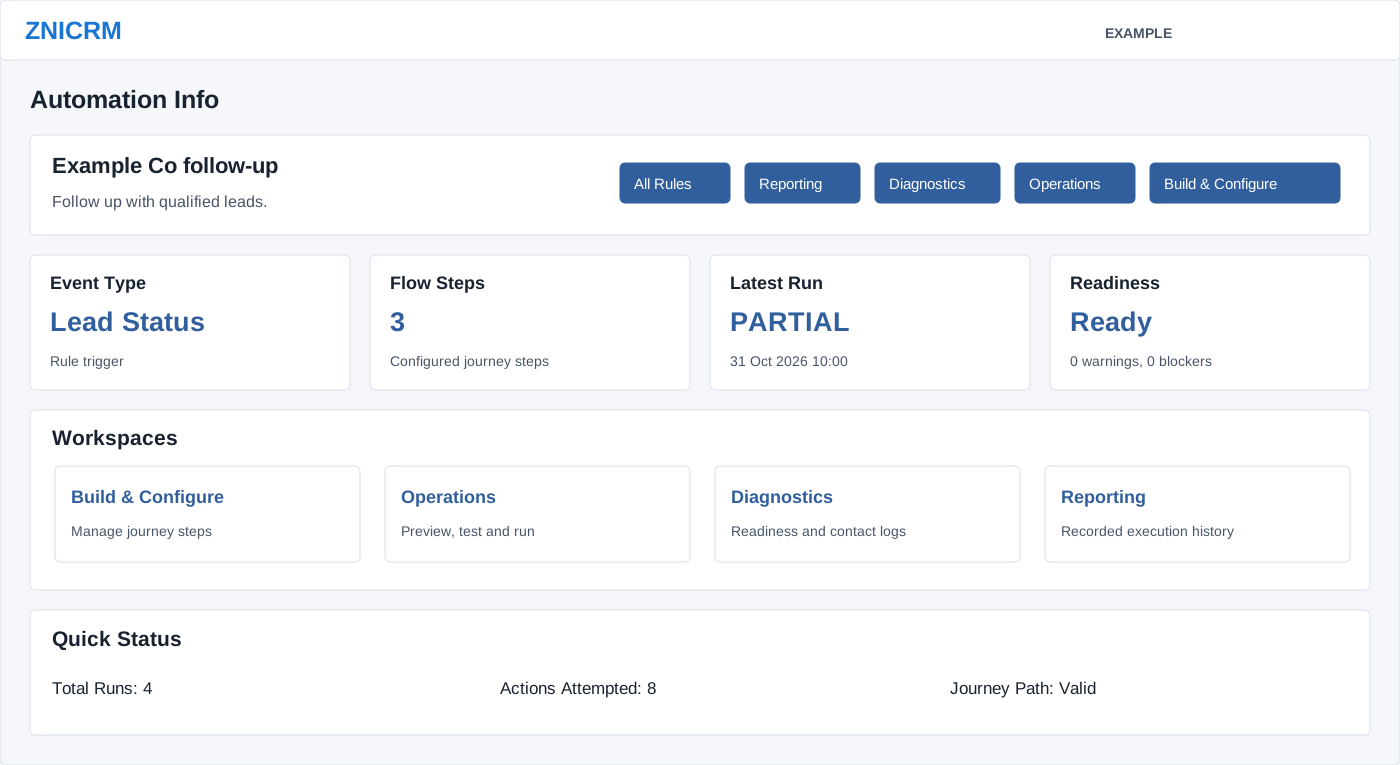
Open the overview
As an administrator, open Account Settings → Features Settings → Automation, open a rule, and choose Info. Rule links in the automation report also open this overview. The page requires a valid rule in the account. It shows the rule name and description; All Rules returns to the list.
Read the status
| Control | Meaning and use |
|---|---|
| Event Type | The configured trigger, such as Lead Status. Confirm that it matches the CRM process you intend to automate. |
| Flow Steps | Number of configured journey steps; this is not the number of customers or delivered messages. |
| Latest Run | Status and completion time from recorded run history. NO HISTORY and Never appear when those values are absent. |
| Readiness | Ready or Blocked, with warning and blocker counts. Open Diagnostics to investigate. Ready is a configuration check, not proof of delivery or enforcement of every displayed journey option. |
| Quick Status: Total Runs | Total recorded runs for this rule. |
| Quick Status: Actions Attempted | Actions attempted in the latest recorded run, not a lifetime total. |
| Quick Status: Journey Path | Valid or Needs Review from path validation. Builder-only nodes and stored runtime controls have the limitations described in the journey guide. |
Choose the next workspace
- For missing or incorrect steps, choose Build & Configure. Check the rule’s status and the active creation and preview limitations before editing.
- For audience or message previews, choose Operations. Preview tools require an active rule here; use an isolated demo setup for active testing. Run Now performs real actions after confirmation.
- For readiness blockers, failed or skipped actions and individual contact history, choose Diagnostics.
- For history totals across runs, choose Reporting. It opens with this rule selected; compare other rules from its selector.
The header and Workspaces cards offer the same four destinations. For example, if Example Co follow-up has three steps and a PARTIAL latest run, open Diagnostics, identify the failed step and inspect whether earlier steps already succeeded before considering a rerun. If expected history is absent, check the selected rule and history availability; zero totals alone do not establish that nothing happened.
Rule setup · Journey builder · Operations · Diagnostics · Reporting