Automation reporting
Compare automation execution and outcomes across rules or focus on a single rule.
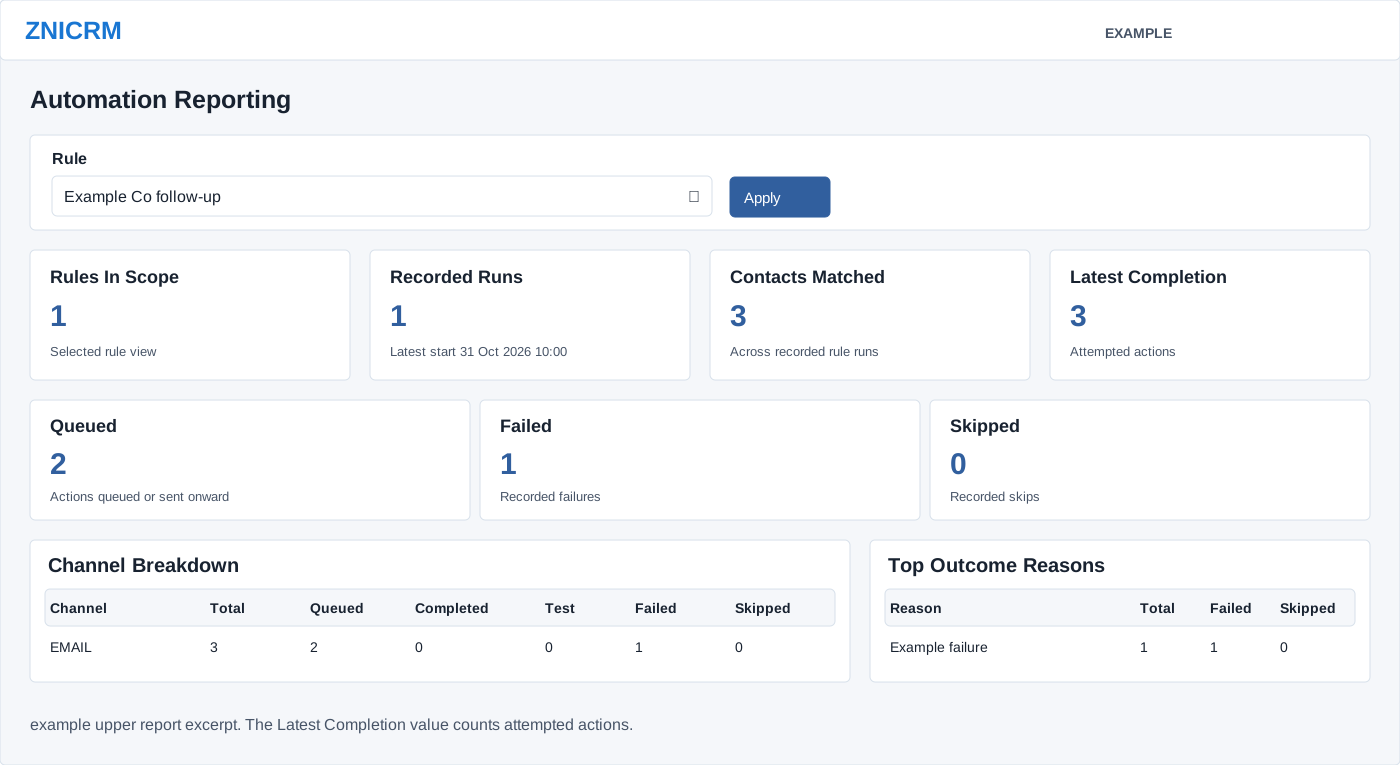
Read the report
As an administrator, open Account Settings → Features Settings → Automation → Reporting. Choose a rule or the all-rules view in Rule and select Apply. A rule’s Reporting link opens the same report filtered to that rule.
The summary cards show Rules In Scope, Recorded Runs, Contacts Matched across recorded runs, attempted actions summed across the selected recorded history under the label Latest Completion, alongside the latest completion time, and Queued, Failed and Skipped counts. These are history totals, not a promise that every queued action was delivered.
- Channel Breakdown: total, queued, completed, test, failed and skipped by channel.
- Top Outcome Reasons: reason with total, failed and skipped counts.
- Rule Summary: rule, event, status, flow count, runs, last result and completion, and latest failed/skipped counts. Open a rule link for details.
- Executions By Date: runs, matched, attempted, queued, failed and skipped by date.
- Recent Rule Runs: rule, status, timestamps and matched, attempted, queued, failed and skipped counts.
Investigate a report total
- Select the intended Rule and Apply. For Example Co follow-up, compare Recorded Runs with Rule Summary to establish which saved history is being counted.
- Compare Failed and Skipped with Top Outcome Reasons and Channel Breakdown. A queue count indicates handoff; inspect channel delivery history before treating it as receipt.
- Find the relevant run date and status in Executions By Date and Recent Rule Runs. Open the rule name from Rule Summary, then Diagnostics, to inspect the affected steps and contacts.
- Resolve the stated cause before considering a rerun; partial runs may already have performed some actions. Follow the Operations procedure.
Rule Summary initially sorts by Total Runs descending and Recent Rule Runs by Started descending. Both tables have search and pagination controls. Executions By Date sorts date descending and has no search or pagination. These controls act on loaded records; they do not retrieve history beyond the limits below. This report has no date-range selector or report-level export button. For contact-level CSV, open Diagnostics.
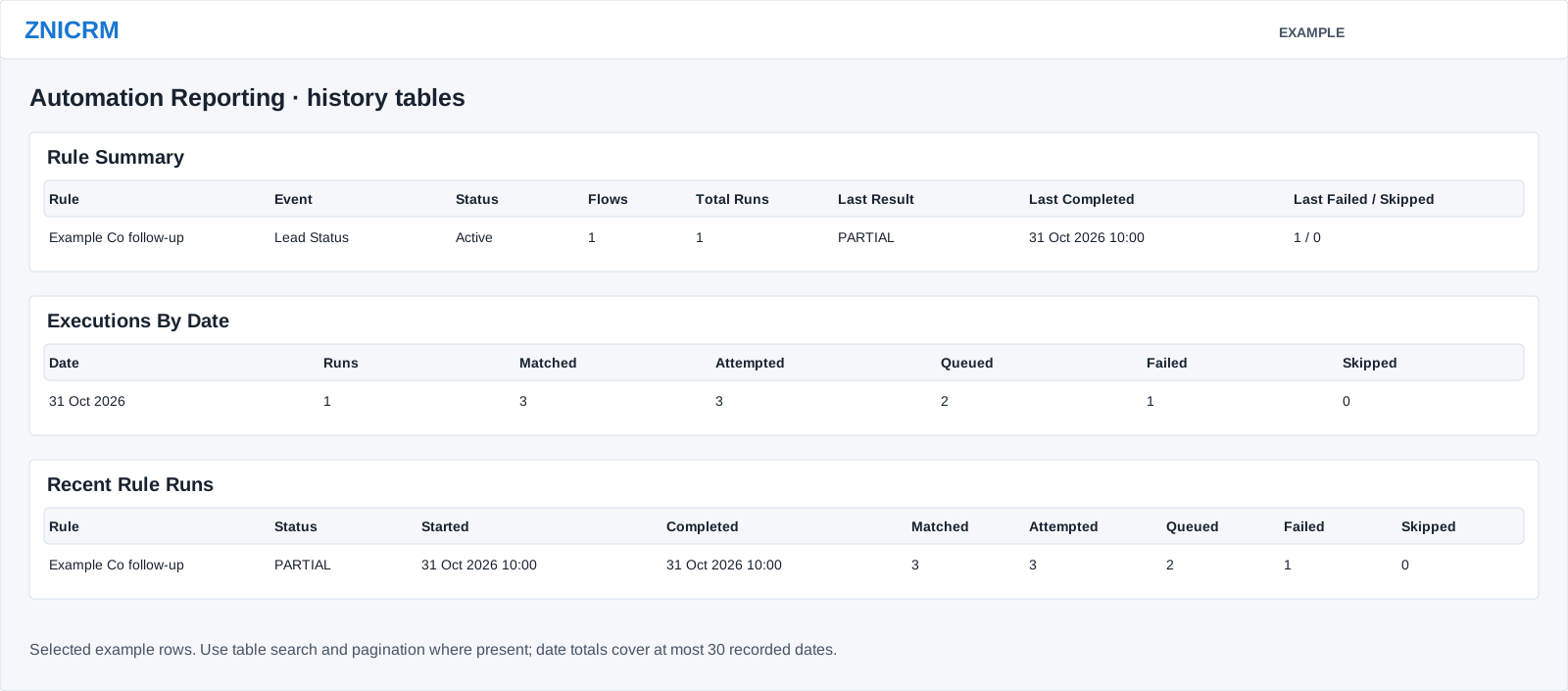
How counts are calculated: Contacts Matched sums the rows matched by each step and run; one contact can contribute more than once. Attempted counts actions reaching the action execution point. Queued in the run summary includes queued and successful actions; the channel table separately counts recorded QUEUED, SUCCESS (shown as Completed), TEST, FAILED and SKIPPED action rows. Step-level failures before an action row exists can make summary totals differ from channel totals. The report does not prove a customer received a message.
Top Outcome Reasons shows up to ten reason groups. Executions By Date shows up to 30 dates with recorded runs, grouped by run start date (or creation date if no start); Recent Rule Runs shows up to 100 runs. All-rules history includes company history even if a rule was later deleted, while Rules In Scope counts currently listed rules. Missing history tables can produce empty history or zero totals; investigate storage if this conflicts with known runs.
Use Diagnostics for per-step and contact reasons. Queued is not proof of delivery.