Automation operations and reporting
Preview a saved journey, inspect readiness and review execution outcomes before and after a run.
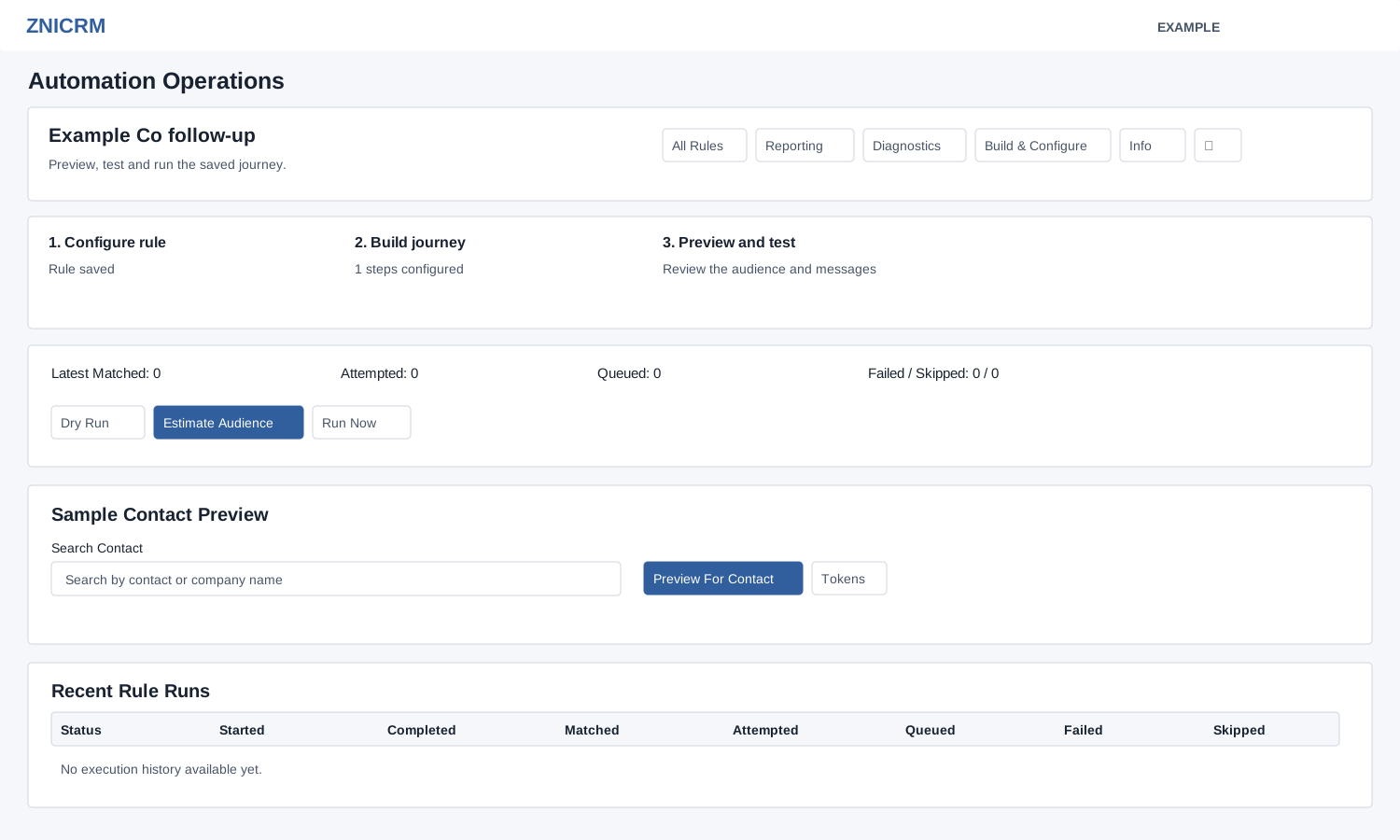
Preview and run
Open a rule under Account Settings → Features Settings → Automation, then Operations. Administrators can use Dry Run or Estimate Audience and inspect the Execution Result. Both use the same test-mode runner and return up to 25 preview entries; this limits the displayed sample, not necessarily the audience processed. Test mode simulates actions without sending messages, performing actions or writing run history. Its summary can count simulated TEST actions as queued; that is not actual delivery. Enter at least three characters of a contact or company name, then select a contact from the suggestions (up to ten are shown); changing the text clears the selection and prior previews. Choose Preview For Contact or Tokens to inspect the path and sample token values. The runner sums matched rows across steps, so the same contact may contribute more than once. It selects at most 10,000 rows per step. Review readiness and path warnings in Diagnostics before proceeding.
Run Now asks for confirmation and executes the saved configuration immediately. It can enqueue email, SMS or webhook requests, attempt WhatsApp delivery, send notifications or change records according to the steps; it is disabled in the Operations page when validation is not ready. Review the audience and configuration before confirming, and inspect the resulting run rather than assuming every action succeeded.
The rule management menu offers Clone and Delete, both with confirmation. Clone opens an inactive copy; delete removes the rule from the normal list and returns to All Rules. The confirmation says it cannot be recovered, so review the rule before deleting. Review the copy before enabling it.
Inspect results
Preview For Contact shows the selected contact, step references, recipient and gateway, rendered subject or body and warnings. Tokens groups token names with sample values and marks each Resolved or Context Needed. A missing context is a reason to check the contact data and the relevant step before running. Latest Matched, Attempted, Queued and Failed / Skipped describe the latest recorded run.
Open Diagnostics for readiness, failure reasons, step performance and contact log export. Open Reporting for summaries and recent runs.
If preview, run or export fails, inspect the displayed error and readiness issues, verify rule, channel, gateway and template setup, and retry only after correcting the cause. A missing email or SMS gateway can halt the rule; a missing template, WhatsApp setup or webhook can fail a step. A partial run may already have performed other actions, so inspect results before retrying. Queued means handed to a queue, not delivered. A webhook can show Queued even if queuing failed; check its activity and delivery records before retrying. A successful in-CRM notification, push or Slack status likewise is not proof that a recipient saw it.