Automation rules and setup
Create an event-based rule, select delivery channels and open its journey builder.
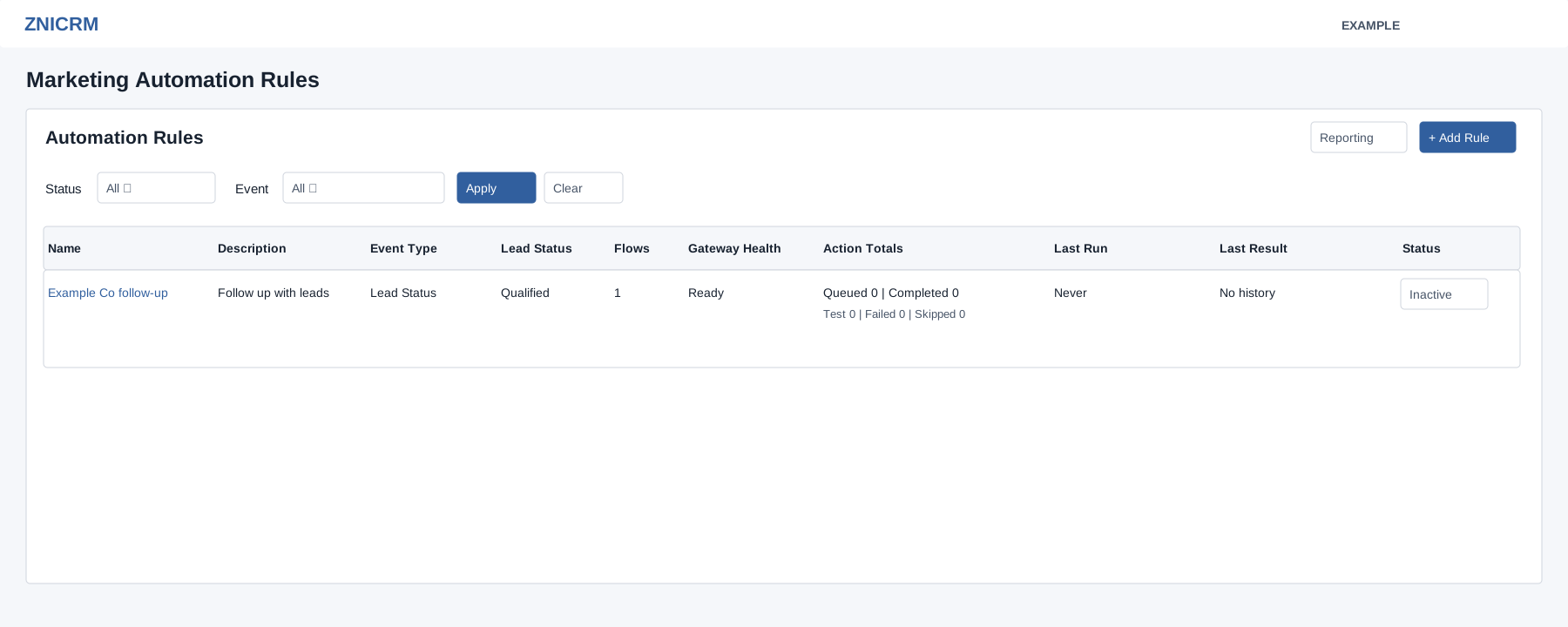
Find a rule
Administrators open Account Settings → Features Settings → Automation. Filter by Status (All, Active, Inactive) and Event, then Apply; Clear resets the filters. The table shows event, lead status, flow count, gateway health, queued/completed/test/failed/skipped totals, last run and result. A rule needing setup opens its builder; otherwise its name opens Operations. The Active/Inactive control changes status after a confirmation; choose Disable rule or Enable rule and verify the resulting label. Review readiness before enabling; an active journey can affect customers.
Create or edit
- Select Add Rule, or open a rule and choose Edit Rule. Enter a Name (5–45 characters on creation) and Description (5–160 on creation).
- Choose Event Based On: Birthday, Anniversary, Lead Status, Subscription Expiry, Lead Creation Date, Pending Invoice, Follow-up Due or Follow-up Overdue. For Lead Status select a specific status: although the list offers “Doesn’t matter, run anyway,” the current save validation requires a status.
- Select at least one delivery channel. For Email choose a gateway, Send Email As Lead Owner Yes/No and a From Email Address supported by the gateway. For SMS choose a gateway and Sender ID. For WhatsApp choose an active sending number; its template is selected for each step. Configure the gateways and templates first.
- Choose Create Rule or Update Rule. Success opens the Journey Builder. A new rule is already Active. It starts without steps, but newly saved steps can become eligible for scheduled execution. Return to All Rules, select its Active control, confirm Disable rule and verify Inactive before building the journey. Prepare the intended steps and delivery settings first so that this active creation interval is brief. Review the saved journey before deliberately enabling it.
Activation and preview limitation
There is no inactive draft preview . Dry Run and Estimate Audience do not load an inactive rule and may return a successful result with zero rules and actions; that does not establish an empty audience. Preview For Contact and Tokens return “Rule details could not be loaded” for an inactive rule. Use an isolated demo environment with approved test recipients when active preview is needed. Do not enable a production rule solely to bypass this limitation. Disabling affects future eligibility and is not a recall of actions already executing or handed to delivery queues. For an existing active journey, disable it before changing steps or recipients and verify its status before editing.
Field reference
| Field | Options and effect |
|---|---|
| Event Based On | Birthday, Anniversary, Lead Status, Subscription Expiry, Lead Creation Date, Pending Invoice, Follow-up Due, Follow-up Overdue |
| Lead Status | Specific configured status required for Lead Status event |
| Delivery channels | Email, SMS, WhatsApp; select one or more |
| Gateway, Send Email As Lead Owner Yes/No, From Email Address | |
| SMS | Gateway and Sender ID |
| Active sending number; choose template in each step |
Only administrators can submit these configuration changes. The number of enabled rules must be within the plan limit. Selected gateways and the SMS sender must belong to the account. Editing requires a valid rule and nonempty name and description; creation additionally enforces the stated length limits. If saving fails, correct the displayed field error or plan limit; an unavailable saved WhatsApp number must be replaced. Info summarizes the rule and links to Build & Configure, Operations, Diagnostics and Reporting. See Journey builder and Operations and reports.