Itinerary preview and sharing
Open the corresponding workspace from Travel CRM. Travel access and the specific action permissions described below are required. Create an itinerary before linking records to it.
Open preview
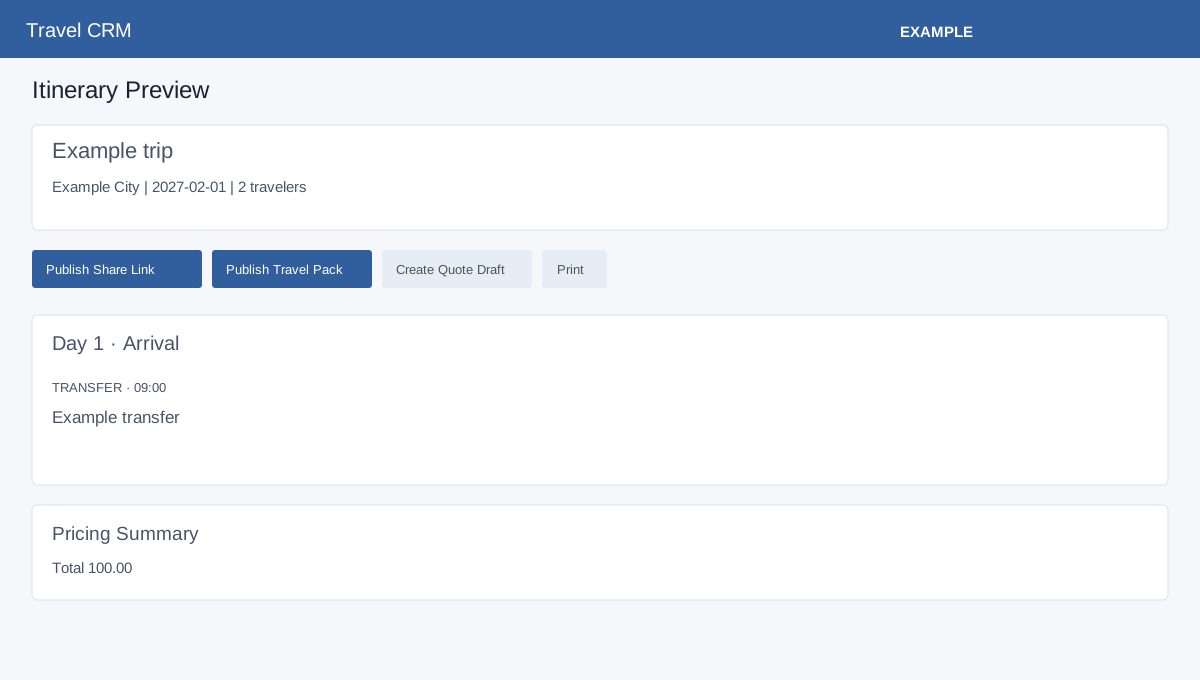
Open an itinerary in the builder and select Preview. Back returns to the itinerary list; Edit opens the builder when you have write access. Preview displays client-visible items and pricing according to the itinerary Pricing setting. Review the days, descriptions and amounts before sharing.
Share or create a quote
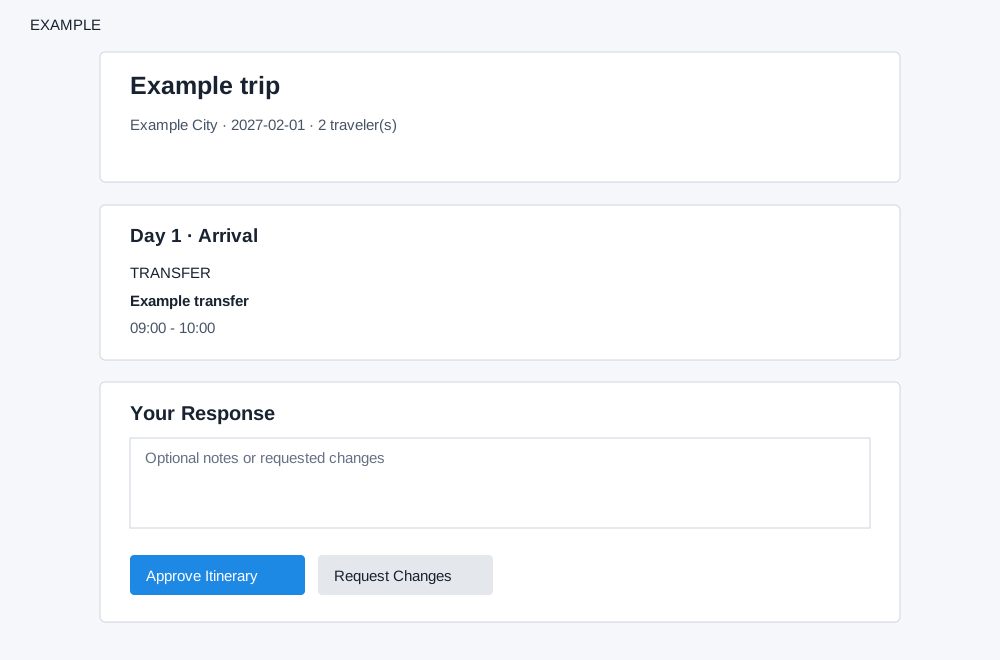
With builder write access, select Publish Share Link, then Copy to copy the resulting customer link. Publishing saves a snapshot and expires older active share links for that itinerary; provide the new link to the intended recipient. Opening a valid shared link updates its view count and last-viewed time. Publish Travel Pack appears when its storage is ready; publish and copy that link to provide the offline pack. Create Quote Draft requires a linked CRM contact, at least one client-visible product-backed item and no stale live flight or hotel offer; it creates a quote from eligible items and opens it. If item saving fails after quote creation, the draft may already exist: check quotes before retrying. Print opens your browser print dialog. The separate customer itinerary response guide explains the public page. A customer opening the share link can enter optional notes and select Approve Itinerary or Request Changes. Submitting approval sets the itinerary to APPROVED and records an approval version; requesting changes sets CHANGE_REQUESTED and records a version with the optional message. Confirm the correct recipient before sharing and review the customer response in the itinerary workflow. Invalid or expired links display an error.
If publishing fails, read the error and check builder permission and storage readiness. Print / Save PDF on the pack uses the browser print function.