Build and share an itinerary
In the Travel sidebar, select Build Itinerary.
Before you begin
Open Travel CRM → Build Itinerary, or open an itinerary from the list. Travel access and the builder permission are required. Choose an existing CRM contact if the trip should appear in its workspace; deals are loaded for the selected contact. The foundation storage must be installed by an administrator.
Create and plan
- Enter a required Title. Destination, Start Date, End Date, Travelers (nonnegative), Currency and Budget Max (nonnegative) provide trip context. Find a contact by phone or email and choose a result; optionally select its CRM Deal. Select Create and Open Builder. The new builder opens.
- Edit the header and choose Pricing: Hidden, Total Only, Category Total or Detailed. Select Save and check the success message. Select Add Day, then Edit Day to set required Day Title and optional Date and Summary. Save reloads the planner.
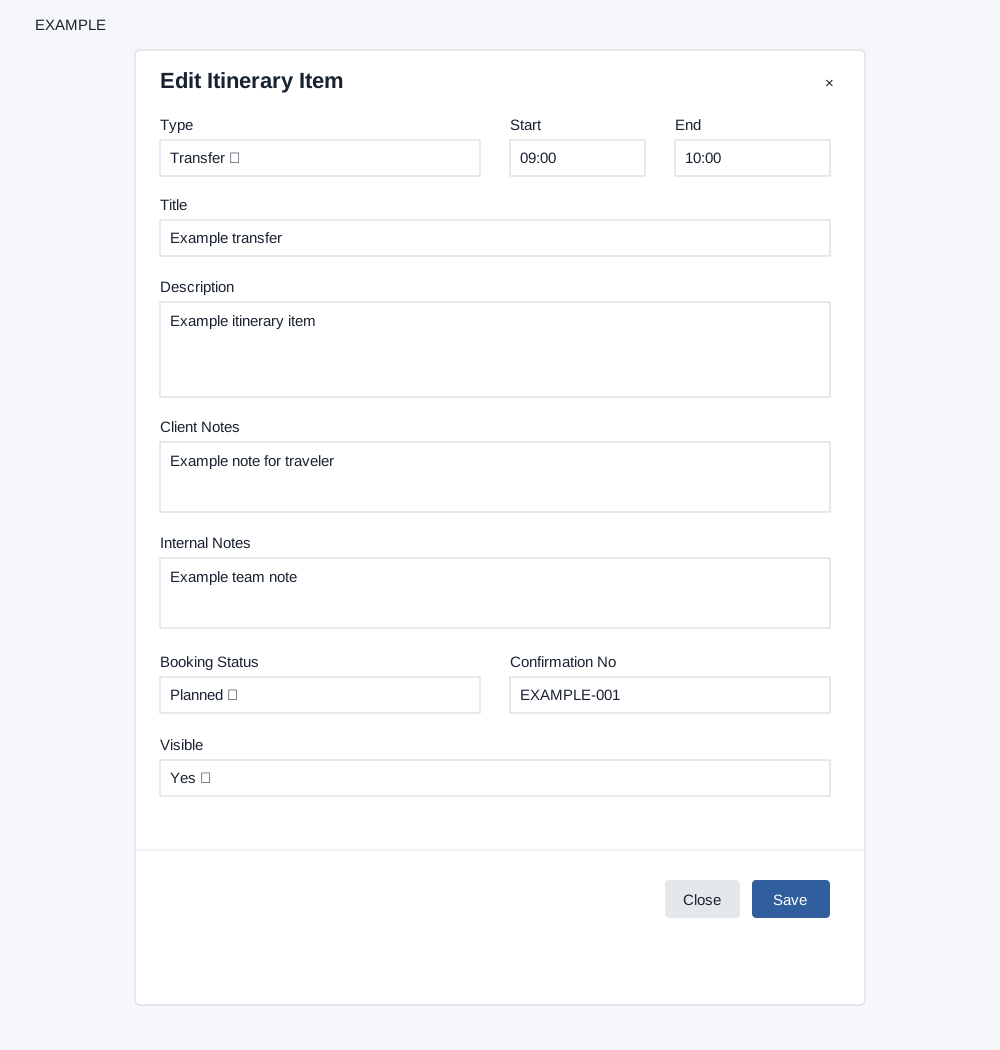
- Choose Add Manual Item on a day: select Type, enter required Title, and optionally enter Start, End and Description. Save reloads the day. Edit adds Client Notes, Internal Notes, Booking Status, Confirmation No and Visible. Delete asks for confirmation. Drag an item to another day to move it.
- Search the Product Library by text and type, then drag a result onto a day. For live options select Flights or Hotels: flights use origin and destination IATA, departure and optional return dates; hotels use city IATA, optional hotel IDs, check-in and check-out. Set adults and currency and search; drag an offer onto a day. Live search needs configured aggregator providers and integrations permission. A failed search directs you to aggregator setup and logs.
Builder field reference
| Control | Values and purpose |
|---|---|
| Title | Required text for the itinerary. |
| Destination, Start Date, End Date | Optional destination text and date fields for the trip. |
| Travelers, Currency, Budget Max | Nonnegative traveler count, currency text and nonnegative maximum budget. New itineraries default to two travelers and the user's currency. |
| Contact Phone / Email; CRM Deal | Find and select a contact. The deal picker loads deals for that contact; both links are optional. |
| Pricing | Hidden, Total Only, Category Total, or Detailed controls customer pricing presentation. |
| Edit Day | Day Title is required; Date and Summary are optional. |
| Add Manual Item Type | General, Hotel, Flight, Transfer, Activity, Meal or Custom. Title is required; Start and End are time fields and Description is optional. |
| Edit Item Type | General, Hotel, Flight, Transfer, Activity, Cruise, Rail, Insurance, Visa, Meal or Custom. Title is required; Description, times, Client Notes and Internal Notes are optional. |
| Booking Status | Planned, Requested, Confirmed, Waitlisted or Cancelled. Confirmation No is optional. Visible Yes includes the item in customer preview; No excludes it. |
| Live Search | Flights: origin and destination IATA, departure and return dates. Hotels: city IATA, optional Hotel IDs, check-in and check-out dates. Both use adults (minimum one) and currency. |
| Product Library | Search text and type: All Types, Hotel, Flight, Transfer, Activity, Cruise, Rail or Custom. Drag a result into a day. |
AI and customer preview
AI Planner offers Itinerary Draft, Validate Itinerary, Revise Itinerary, Destination Content, Customer Summary, Supplier Message and Live Option Summary. Enter a brief and select Run AI; the action sends itinerary context to the AI provider, records a run and can deduct credits. Review the displayed cost, balance and five most recent runs; check history and balance before retrying an uncertain result. AI requires the feature enabled by an administrator, AI role permission and its storage prerequisites. Verify suggestions before using them.
Select Preview to inspect client-visible items and pricing. With builder write access, Publish Share Link creates a snapshot and customer link, expiring older active share links; Copy copies it. Publish Travel Pack appears when its storage is ready. Create Quote Draft requires a linked contact, a client-visible product-backed item and fresh live flight/hotel offers; a draft may already exist if item saving fails, so check quotes before retrying. It opens the resulting quote; Print uses the browser print dialog. Customers can approve or request changes with optional notes on the share page. Check item visibility and pricing before sharing. Clone opens a new builder for the copy.
If a title is missing, the screen asks for it. If saving or publishing fails, read the displayed message and check access, configuration and the selected record with an administrator.
Itinerary list · Contact travel dashboard
If loading or saving fails, ask an administrator to check the deployment; do not assume a blank result establishes that no records exist.
Live offer search automatically chooses the first active provider matching the requested scope; it does not necessarily choose Production or a verified integration. See provider selection, rate and cache limits before searching.