Contact travel dashboard
Open the page
Contact conversation → Travel
Review travel activity
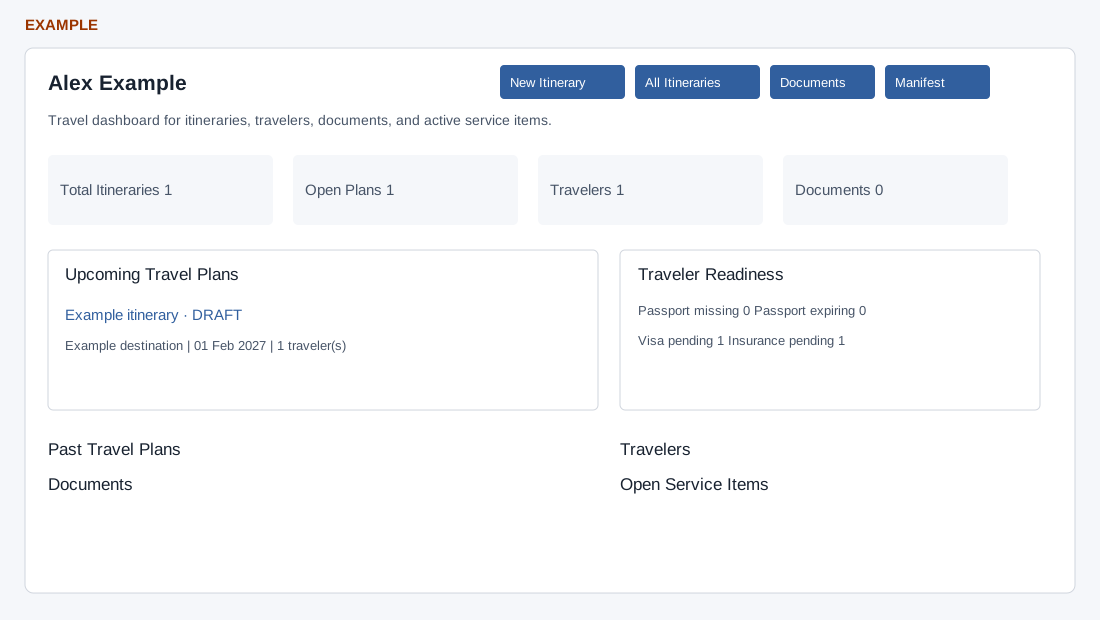
- Review total itineraries, open plans, travelers, documents, upcoming and past plans, traveler readiness and open service items. Open the itinerary or document link for its source record.
- New Itinerary opens the creation workflow; All Itineraries, Documents and Manifest are available according to permissions. Saving new travel data changes records.
Contact scope, calculations and links
Travel CRM access and read permission plus a valid company contact are required. New Itinerary is shown with builder permission and passes this contact; All Itineraries opens the general list, Documents requires documents permission, and Manifest requires operations permission. These open separate travel pages. See the Travel workspace guide for their actions.
Total Itineraries and Open Plans come from the contact summary. Itinerary lists load up to 50; documents, manifest travelers and service cases load up to 80 each. Travelers and Documents counts are counts of those loaded lists. Completed or cancelled itineraries, those with an end date before today, and those with no end date but a start before today appear under Past; others appear under Upcoming. Cards show title, status, destination and dates, plus traveler count for upcoming. Open a title to inspect its itinerary.
Documents shows Document/type, Itinerary, Status, Expiry and an optional File link. Traveler Readiness counts missing passport expiry, expiry on or before six months from today (including already expired), visa status other than NOT_REQUIRED or APPROVED, and insurance other than NOT_REQUIRED or ISSUED. Travelers show name, type, itinerary, room, visa and insurance. Open Service Items can include service cases of any status, so check each displayed status.
For example, review Alex Example’s upcoming itinerary and readiness before a trip; open the source itinerary or document to verify details. Missing required travel feature setup can produce warnings or empty sections; limits and permissions can also affect what appears.