Customer itinerary response
Review a published travel plan and record approval or requested changes for the CRM travel team.
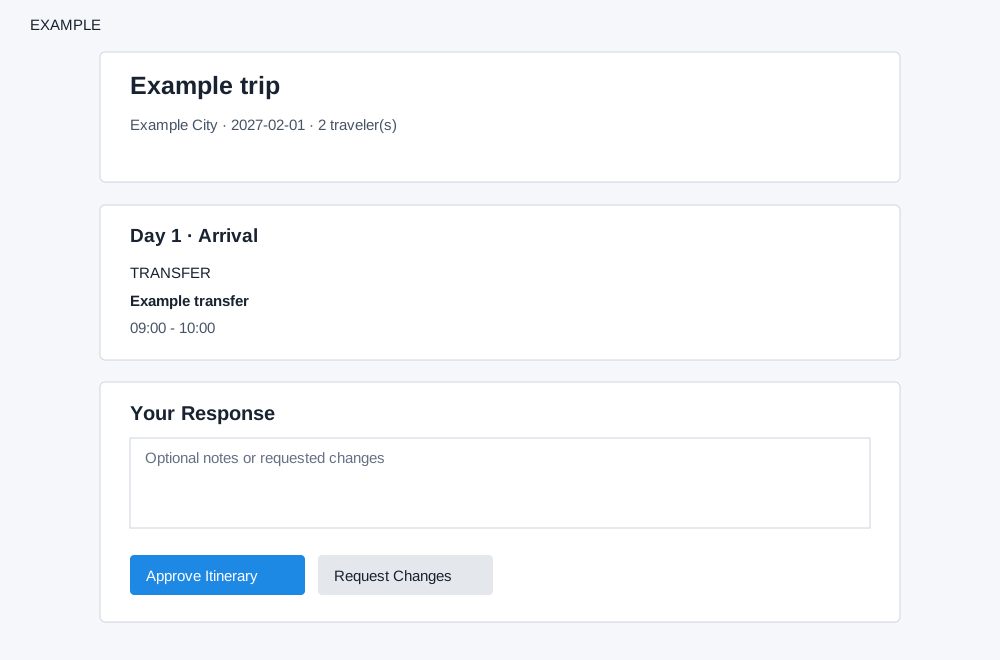
Open and review the itinerary
- Open the customer link supplied by the travel team. This page uses the link token; it does not require a CRM staff sign-in. Keep the link with its intended recipients because it grants access to the plan and response form.
- Check the trip title, destination, travel dates and traveler count. Review each day’s title, date and summary, then the visible items, times, descriptions and client notes.
- Review any displayed pricing. Hidden omits pricing; Total Only shows the positive total; Category Total adds category totals; Detailed also shows positive individual item prices. Confirm any unclear inclusions with the travel team.
The link normally displays the snapshot saved when published. The system falls back to the current itinerary if that snapshot cannot be loaded. Opening a valid link increments its view count and updates its last-viewed time. Republishing from the CRM expires older active share links.
Approve or request changes
- Under Your Response, optionally enter notes or requested changes. For example: “Please move the museum visit to the second day.”
- Select Approve Itinerary to record approval, or Request Changes to ask the team to revise the plan. The button submits immediately; review the intended response before selecting it.
- Check the displayed success or error message. Approval updates the itinerary to APPROVED and records an approval version; a change request updates it to CHANGE_REQUESTED and records a version with the optional message.
The response records a CRM itinerary decision; it does not itself purchase travel or confirm supplier bookings. The form remains available while the link is valid, so avoid resubmitting merely to dismiss the page. A later response can change the itinerary status again. The response records the status and version but does not send a separate message. Contact the travel team if you need to discuss your request.
Invalid links and uncertain responses
If the page reports an invalid or expired link, ask the travel team for its current link. If saving fails or the response is uncertain, ask the team to verify the itinerary status before repeating the submission.
The browser’s print function can print the displayed plan; the response form is hidden in print.
Internal preview and publishing · Itinerary builder · Customer travel pack