Real Estate: Property parties and marketing files
Open an existing property from Real Estate → Properties and use Parties or Marketing files to jump to the section. Relationships use existing CRM accounts; public marketing files present material intended for sharing. See Property details for the rest of the property record.
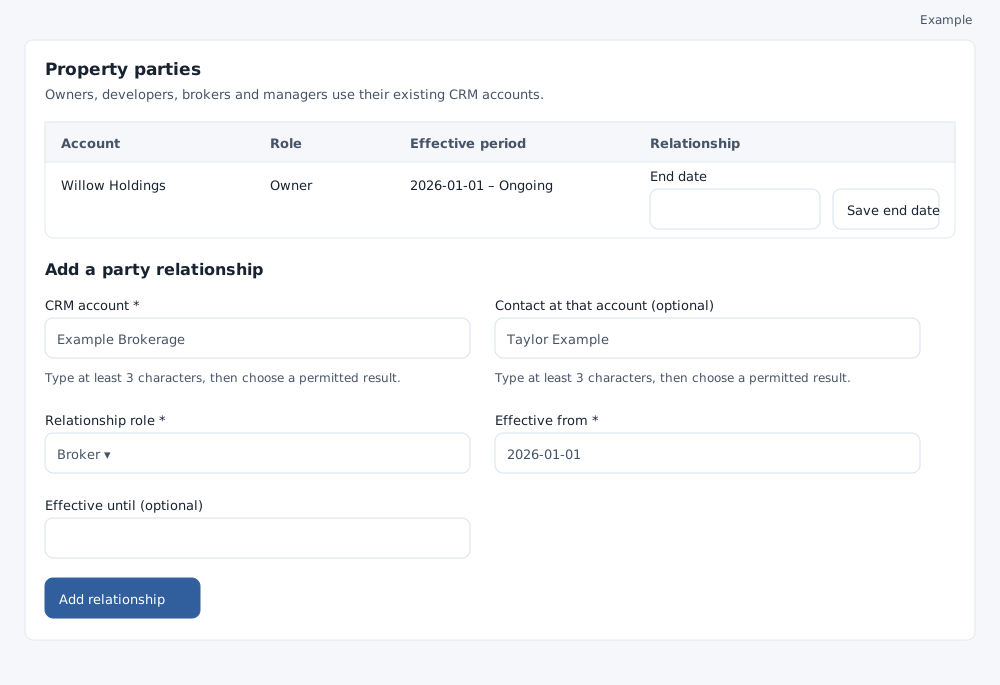
Add a party relationship
Parties is visible with requirements read access. Adding a relationship on an active property requires catalog and requirements management, account lookup and access to the selected account. Contact lookup and permission to manage the selected contact are also needed to select a contact.
- In Add a party relationship, type at least three characters in CRM account and select a permitted result. The account is required; simply typing its name does not select it.
- Optionally search Contact at that account with at least three characters and choose a permitted result. It must belong to the selected account. If this control is unavailable, the relationship can be recorded without a contact.
- Choose a required Relationship role: Owner, Developer, Broker or Manager. Enter required Effective from; it defaults to today. Optionally enter Effective until, which must be later than the start date and is excluded from the period.
- Select Add relationship and verify the account, role and effective period in the table. Overlapping periods for the same property, account and role are not accepted. A selected contact also receives a reference on its CRM timeline.
End a relationship
In the row, enter the required End date and select Save end date when the control is available. Ending a relationship also requires permission to manage its linked contact when present. The end date must follow the start date and cannot overlap another relationship for the same account and role. First close or change linked open listings. An owner relationship must cover committed tenancy service and preserve existing dated owner financial attribution. If a save is rejected, review the linked records and owner statement before choosing the date. The relationship remains visible as history. Reload and review it if another user changed it. Archived properties cannot receive new relationships.
Upload and review public marketing files
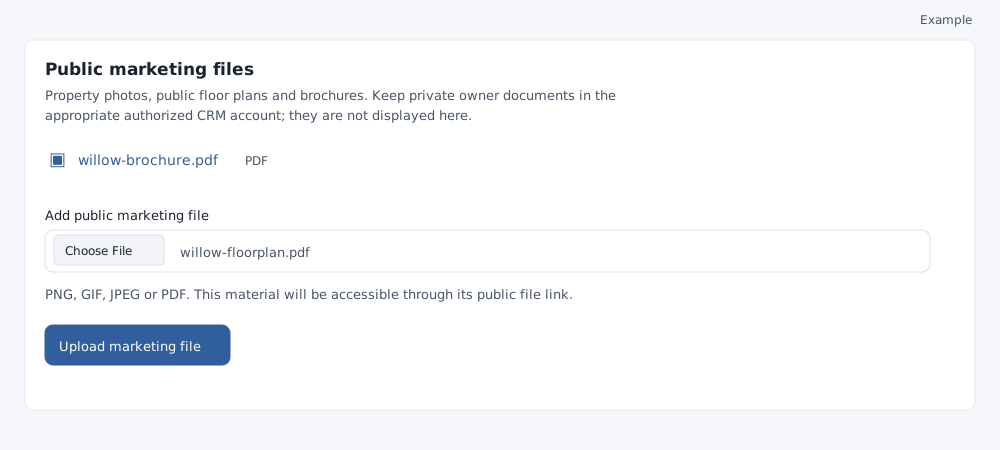
- On an active property, a user with catalog management and inventory product file management access chooses Add public marketing file. Select a PNG, GIF, JPEG or PDF photo, floor plan or brochure.
- Select Upload marketing file. When the upload completes, confirm that the file appears in the list, then select its name to open it in a new tab. Its public link can be accessed by others; keep private owner documents in the appropriate authorized CRM account.
- If the file uploaded but its link was not confirmed, use the displayed Link uploaded file button to retry linking that file. If the upload itself is not confirmed, check the existing files before trying again. Reload an expired form and check the file type and your access if the upload fails.
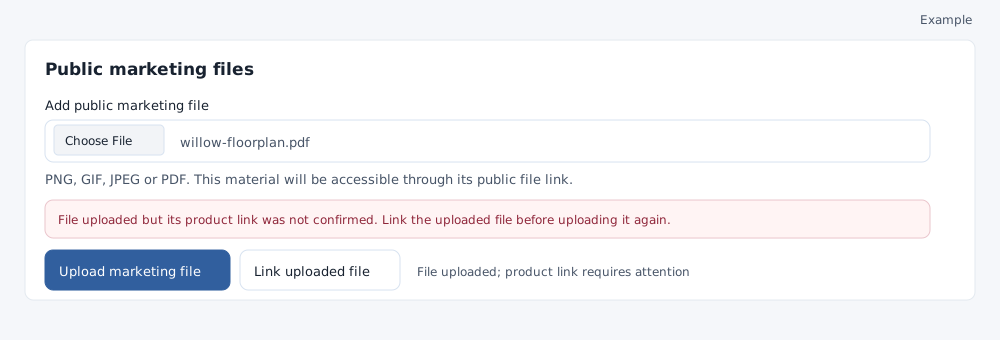
If a relationship or file action is missing, check whether the property is active and ask an administrator to check the required permissions and CRM access. If an account or contact search has no results, check the name and access; select an actual result before saving.