Contact deal detail
Maintain the opportunity’s summary and inspect its health and linked records.
Open and review
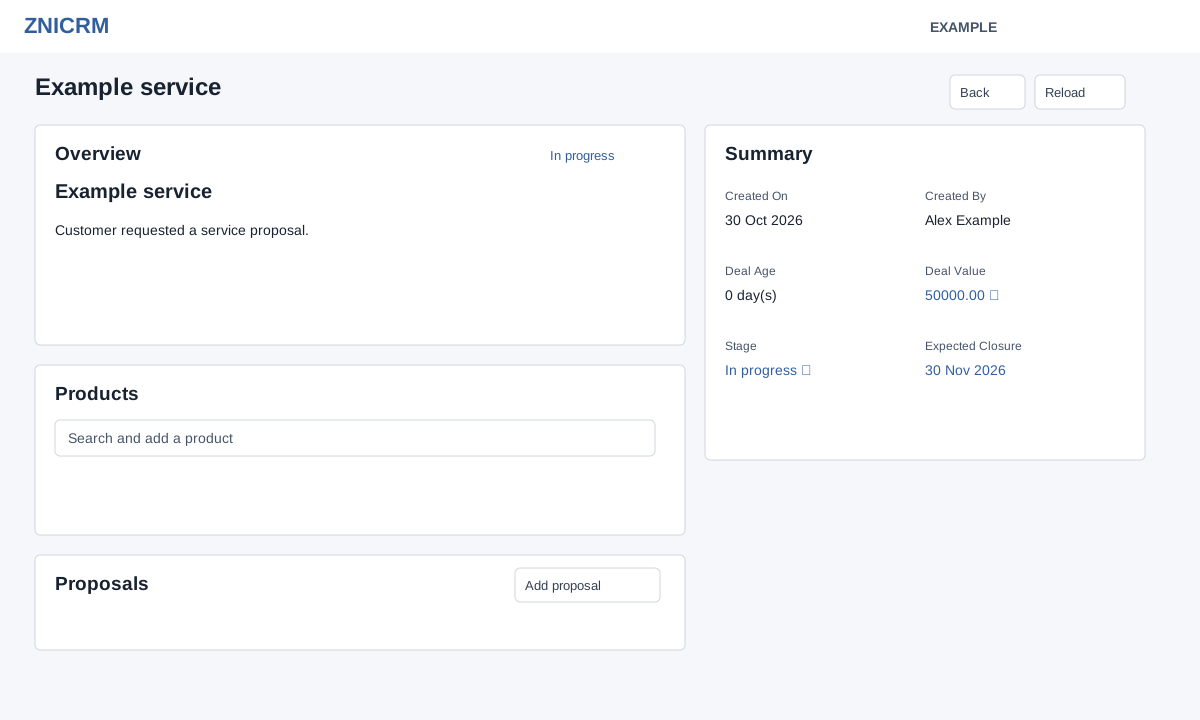
Open Contact conversation → Deals, then select a deal name or View deal details. The page requires CRM access and a valid company deal. Back returns to the deal list; Reload refreshes it. Summary shows Created On, Created By, Deal Age, Deal Value, Stage and either Expected Closure for an in-progress deal or Closed On for a closed deal; Primary Quote appears when present.
Edit name, description, value and date
- In Overview select the deal name or description; type a nonempty replacement and press Enter or leave the field to save. Name permits up to 45 characters; description is sanitized to 120 characters by the service. Descriptions that are too long may be shortened; reload and verify the saved text. Empty or unchanged text restores the prior display.
- In Summary select Deal Value, type a numeric value and press Enter or leave the field. The system checks its range and may reject an empty or zero value. A failed save restores the previous display. Reopen or reload to verify the stored result.
- For an in-progress deal, select Expected Closure, choose a valid date and submit the inline editor. A closed deal shows Closed On instead. Only the deal owner can reliably change the date. If the contact owner attempts the change, a success message may appear without changing the date; reload and verify the persisted value, and ask the deal owner to update it if needed. It also attempts to record date-change activity.
- The refresh icon beside value is labeled Sync value with active quotes. It changes the deal value immediately; the calculation sums approved quotes. Review linked quotes before using it, then verify the displayed value.
Stage and analytics
Select Stage and an available configured stage. Stage updates require the signed-in user to be the deal owner or current contact owner. With advanced analytics enabled, a lost stage requires a configured Lost Reason; Notes are optional. Cancel leaves the change unsubmitted. See stage changes and reopening for effects. Deal Health appears for an in-progress deal when analytics and data are available, with score, recent activity, last outbound, next suggested step and reasons. Loss Summary appears for a lost deal with saved reason, source, summary and notes. These signals are advisory; inspect the contact timeline for the underlying activity.
Products and linked records
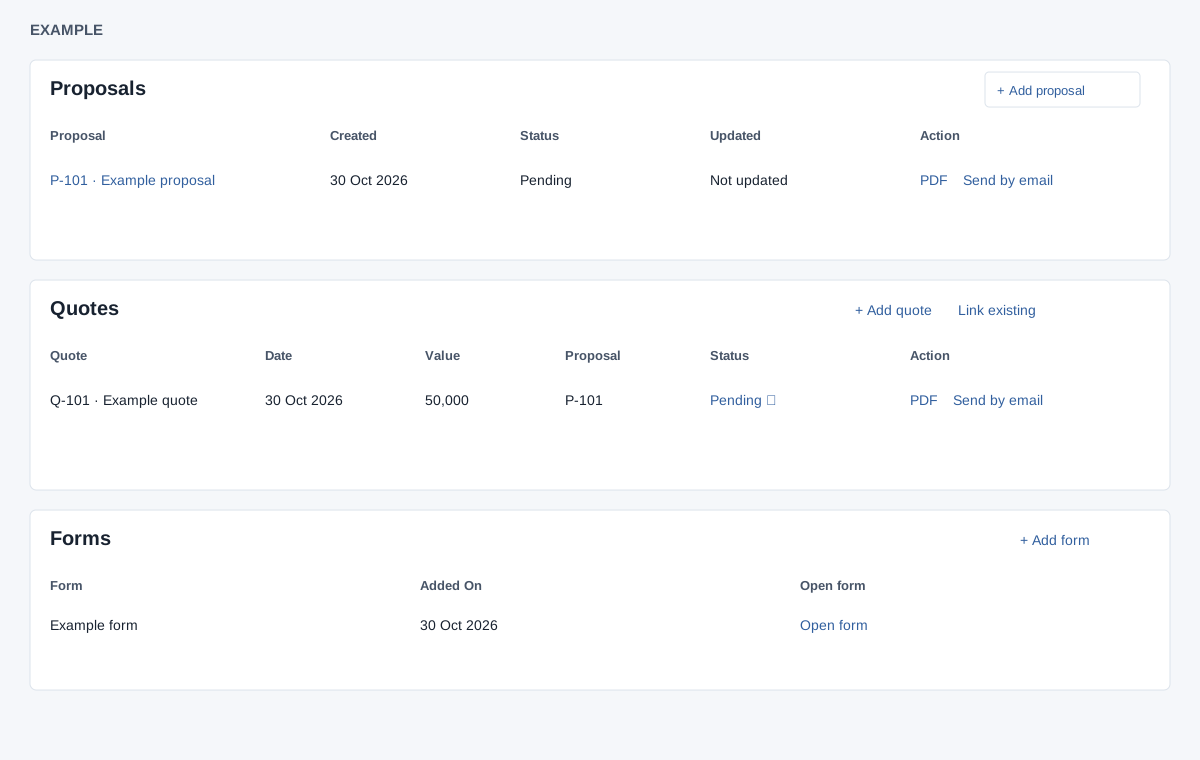
In Products, type a product name and select a suggestion to add it immediately; remove a product chip to submit its removal. Confirm the displayed result and reload if an error occurs. On removal failure the client attempts to restore the chip in a different control, so the visible chip state may not reflect the saved result. Proposals list Proposal, Created, Status, Updated and Action; use the proposal name to open it, PDF to download, or Send by email. Quotes show Quote, Date, Value, Proposal, Status and Action; use Add quote or Link existing, select Status to update it, or use PDF and Send by email. Forms show Form, Added On and Open form; Add form starts a related form. Sending is a separate action and may contact the customer. see proposals, quotes and forms for their workflows. Example: update the Example service opportunity’s expected date after the customer agrees to a revised decision date, then confirm it in Summary.
If an edit or stage change fails, check the displayed error, deal ownership and access, and reload before retrying.