Contact deals and deal details
Review a contact’s opportunities, create a deal and update its stage.
Open and find
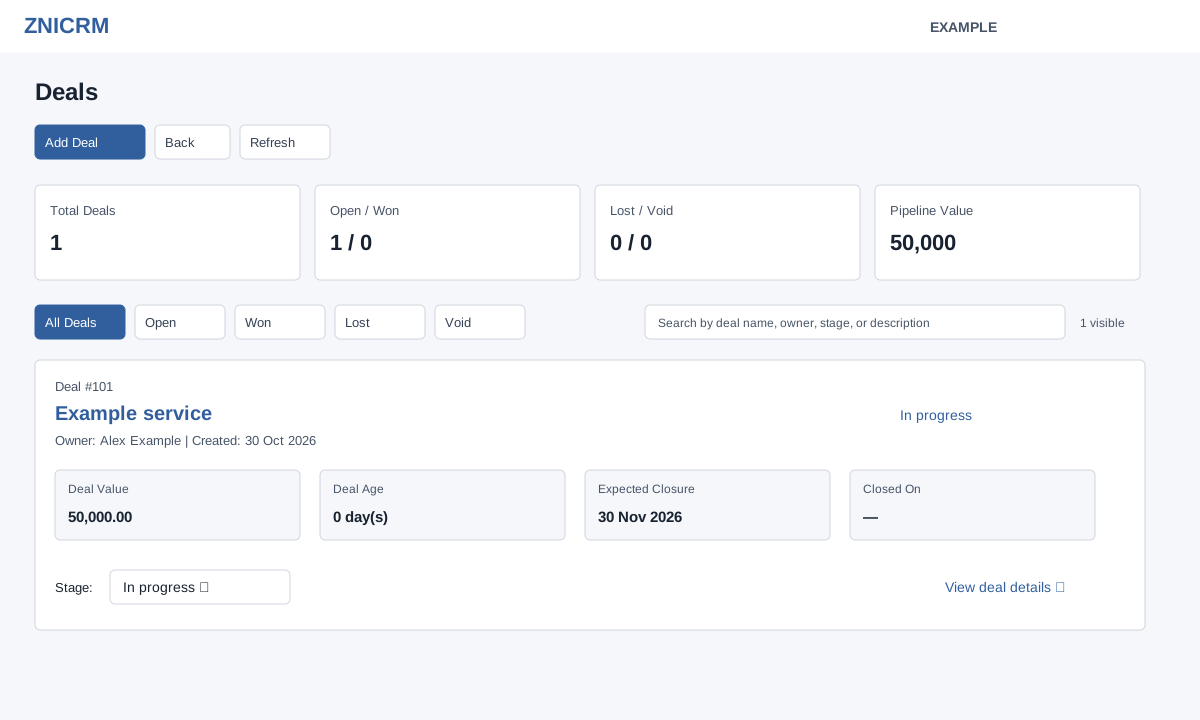
Open a permitted contact conversation and choose Deals. CRM access is required; stage changes require the signed-in user to be the deal owner or current contact owner. The list loads up to 250 contact deals, newest first. Total Deals, Open / Won, Lost / Void and Pipeline Value summarize the loaded set. Select All Deals, Open, Won, Lost or Void and search by name, owner, stage, description or available loss reason and summary; the visible count changes, while the summary remains based on the loaded set. Refresh reloads; Back returns through the contact workspace.
Cards show owner, creation date, value, age, expected closure, closed date and stage. If advanced deal analytics is enabled and available, an open deal can show health, suggested action and reasons; a lost deal can show loss context or a recommended revival action. These are information, not a revival button.
Create a deal
- Choose Add Deal. Enter Deal Name (less than 45 characters), a positive numeric Deal Value and an Expected Closure Date; all three are required.
- Choose Save changes. Success closes the dialog and refreshes the Deals frame. Check the new card and contact timeline. Creation records a conversation event and can trigger a configured Deal Created workflow.
Change stage or reopen
- On a card, select its stage and choose an available configured stage. Alternatively open the deal detail and use its stage selector. The stage list is account-configured; types include in progress, won, lost and void.
- When advanced deal analytics is enabled, selecting a lost stage opens Close Deal As Lost. Choose a valid Lost Reason; Notes are optional. Select Save And Close Deal, or Cancel to abandon the change. Without that feature the normal stage update does not show this reason dialog.
- Check the success message and reloaded card. The change is recorded in the contact timeline and a won or lost selection can trigger the corresponding workflow, even if the same stage is selected again. A real stage change also queues lead-score processing, and a Facebook transition capture may be attempted when configured. To reopen, select an available in-progress stage, subject to the same ownership check; review the current status afterward. A suggested revival action does not itself reopen or message the customer.
If saving fails, check the fields, configured stages and deal ownership, then read the displayed error. See Deal detail for value, dates and related records.