Contact proposal editor
Open a proposal
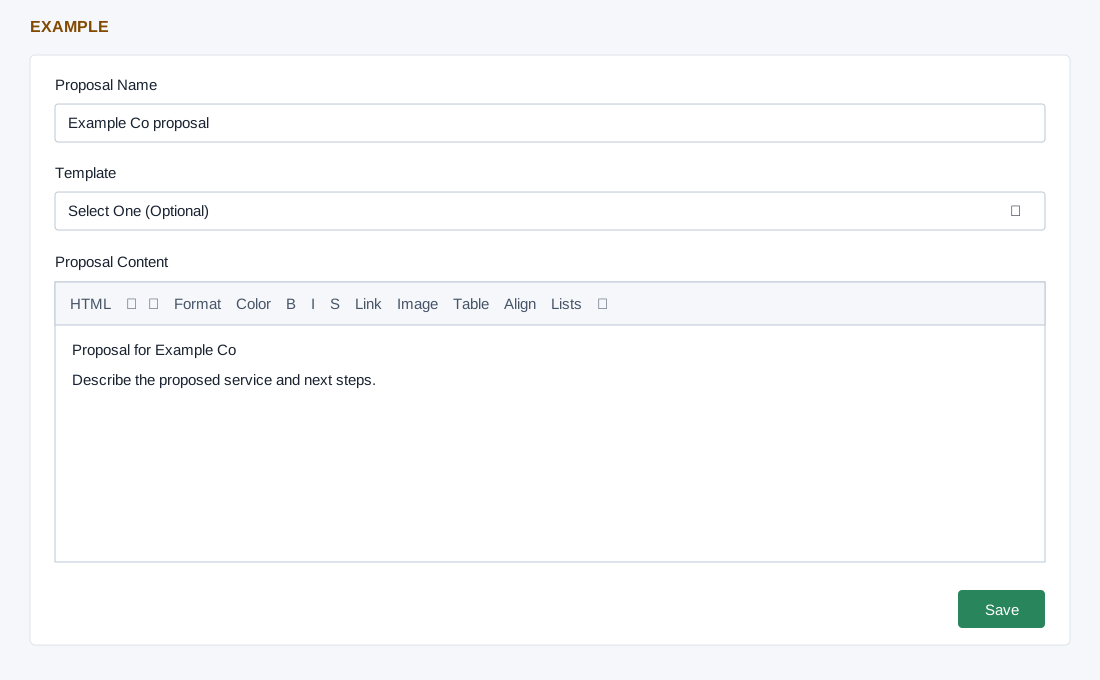
Open the contact’s deal detail and use Add Proposal or select an existing proposal name. CRM access and a valid contact are required. A new proposal opened from a deal is intended to link to that deal after creation; verify the link separately because creation and linking are separate operations.
Write and save
- Enter Proposal Name. On the new form, Template offers “Select One (Optional)” and available proposal templates. Selecting one reloads the editor with its content: choose it before writing, since unsaved work can be lost.
- Enter Proposal Content. The rich editor supports formatting, colors, lists, links, image insertion/upload, tables, HTML view, undo/redo and fullscreen. See the toolbar and upload limitations below.
- Select Save. Both name and content are required. The page can show an error for empty details or a failed update. Refresh the deal’s proposal list and reopen the proposal to verify content and the intended deal association.
Proposal content toolbar
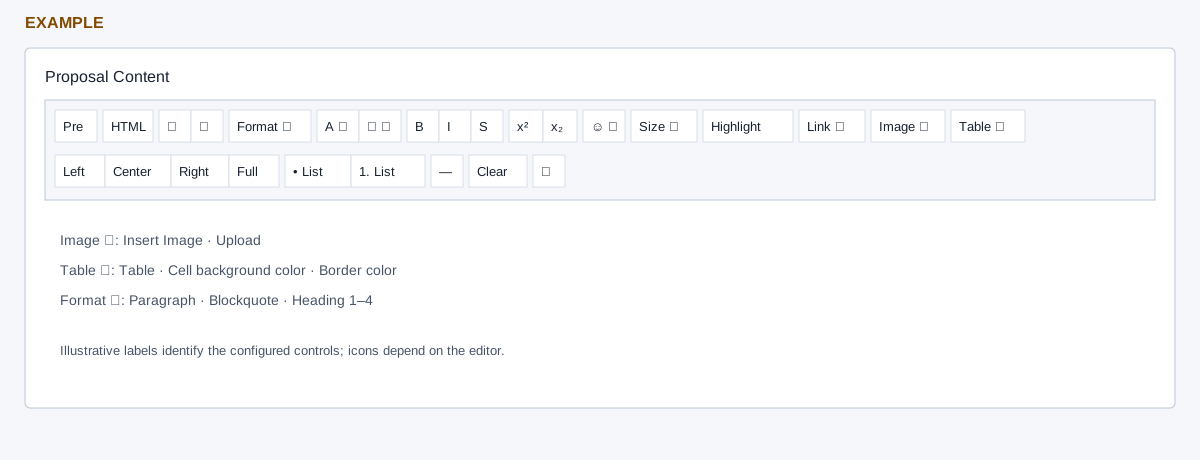
Use the controls in order: preformatted inserts a preformatted block; HTML view switches source view; undo and redo reverse or repeat edits; formatting offers paragraph, blockquote and headings 1–4. Foreground and background colors change text styling; bold, italic and strike-through, superscript and subscript alter selected text. Emoji, font size and highlight provide further styling.
The Link menu offers Create Link and Unlink. The Image menu contains Insert Image and Upload; Table contains table insertion, cell background color and border color. Alignment offers left, center, right and full justification; unordered and ordered lists, horizontal rule, remove formatting and fullscreen complete the toolbar. The separately defined text-format menu is not included in this toolbar. Images can be resized using the configured 256-pixel minimum and 16-pixel steps.
Image upload and recovery
Upload opens an image file picker and description field. Its picker asks for images; the system accepts filename extensions png, gif, jpeg and jpg as well as several non-image document, audio and video extensions, which are not necessarily useful as editor images. Browser and system upload limits may apply. Upload stores a file separately from saving the proposal.
Known limitation: an uploaded image can be reported as an error and not inserted. Check the file library before retrying to avoid duplicate uploads; use Insert Image with an appropriate accessible image URL if available.
Example and recovery
For Example Co, start from the deal, select the approved proposal template, replace the example text, and save. If it appears on the contact but not on the deal, verify the deal link rather than creating a second copy. A template change reloads the page and can discard unsaved edits; save first or copy the work elsewhere.