Contact proposals
Purpose and access
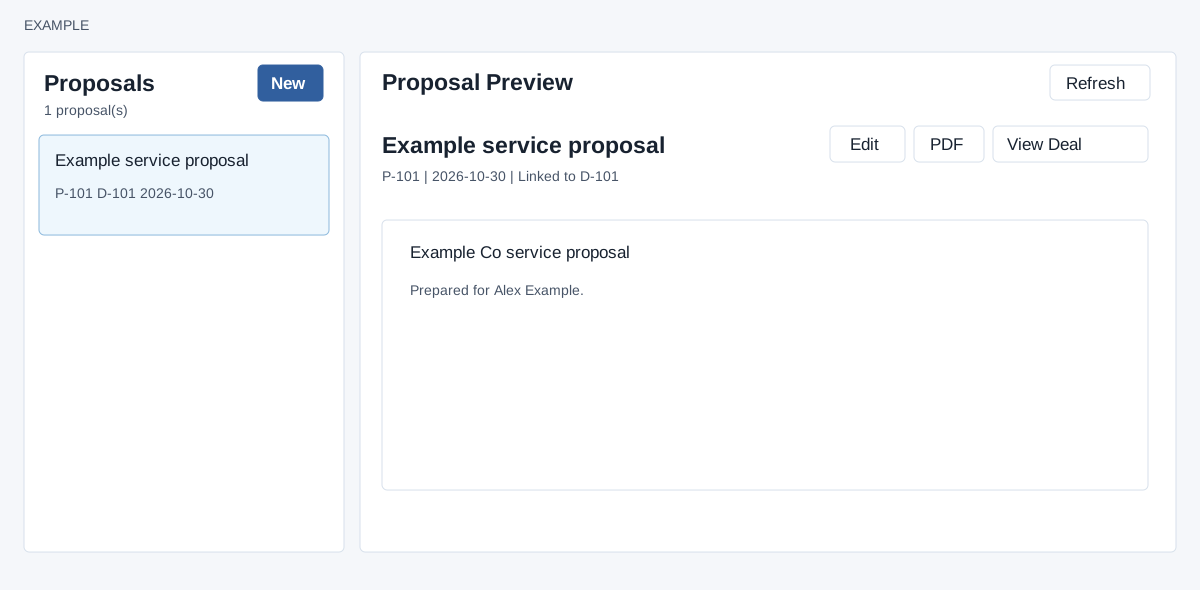
Open Contact conversation → Proposals. CRM access and a valid contact are required. The left panel lists up to 500 proposals for the contact, with name, P-number, date and linked D-number or No deal. Select an item to preview it. The initial selection is not necessarily the newest. New opens the editor. Refresh reloads the frame and can discard unsaved edits.
Preview and open
The preview merges available contact values into the content and sanitizes its HTML. Edit opens the editor; PDF opens an export in a new tab; View Deal appears when linked and opens that deal in the frame. PDF generation is not a send action. The frame has no direct send, share or delete button. Check the merged output before sharing it through your organization’s chosen channel.
Create or edit
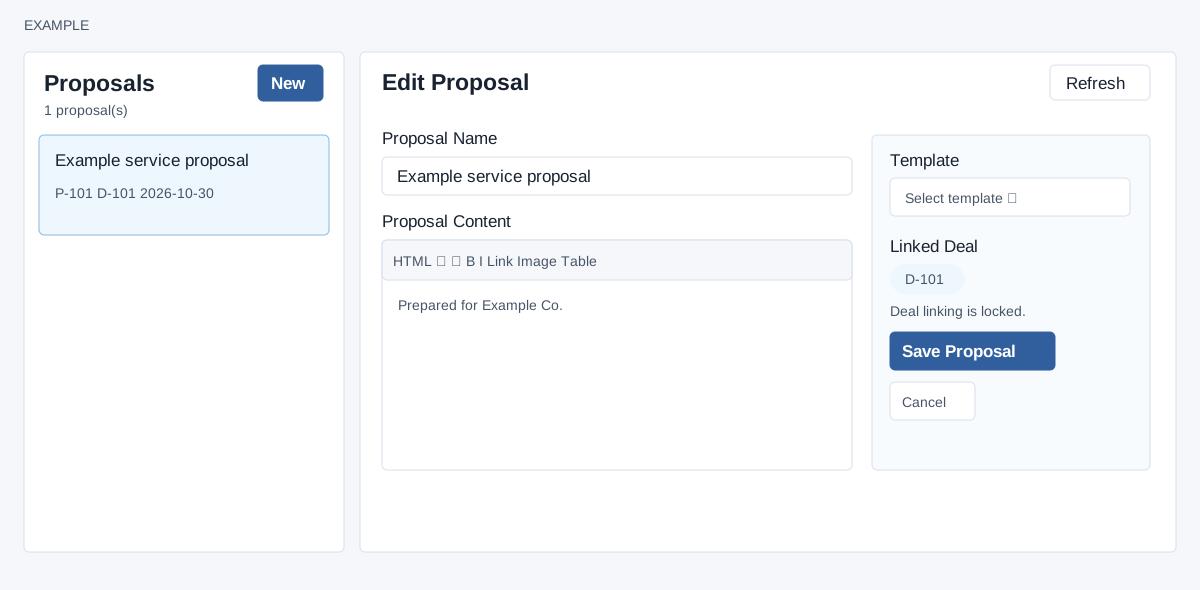
- Select New, or select a proposal and choose Edit. Enter a nonempty Proposal Name and Proposal Content, for example “Example Co service proposal” and the proposed scope.
- Optionally choose a Proposal Template. Its content replaces the current editor content, including unsaved text. The empty Select template option does not load content.
- Use the toolbar for HTML view, undo/redo, formatting, text/background colors, bold, italic, strikeout, superscript/subscript, emoji, font size, links, image insertion or upload, table and cell/border colors, alignment, lists, horizontal rule, remove formatting and fullscreen. Uploading an image stores a file separately.
- For an unlinked proposal choose an available open deal under Linked Deal. Existing linked proposals show a locked deal badge. Select Save Proposal. Existing proposals also have Cancel, which returns to preview without saving current edits.
Deal selection and side effects
The selector offers INPROGRESS deals among up to 100 deal-history rows returned for the contact, showing number, name and value. An older open deal may not appear in that limited set; if no deal appears, do not assume the contact has no open deal before creating a default one. If there are open deals, select one before saving an unlinked proposal. If none are available, saving creates and links a default deal named “Proposal: ” plus the proposal name (limited to 90 characters), with value 0 and expected closure 30 days later. Review that deal afterward.
An unlinked preview offers Link Proposal To Deal: select an open deal and choose Link To Deal, or, if none are available, choose Create Deal & Link. The latter creates the same default deal. Once linked, the editor locks the selection.
Check and recover
Name and content cannot be empty. A validation failure re-renders from saved data rather than restoring the submitted text; when a new proposal fails, the frame can select the first existing proposal. Keep a copy of unsaved content before submitting and check the selected proposal before retrying. If saving reports a deal-selection or linking error, the proposal may already have been saved; default deal creation may also have succeeded before a link failure. Refresh and inspect both proposal and deals before retrying to avoid duplicate records. If a template fails to load, check access and choose again; preserve any needed text first. Confirm the saved preview, linked deal and PDF rather than assuming an error rolled back earlier steps.