Contact form responses
Open the page
Contact conversation → Forms
Review and add forms
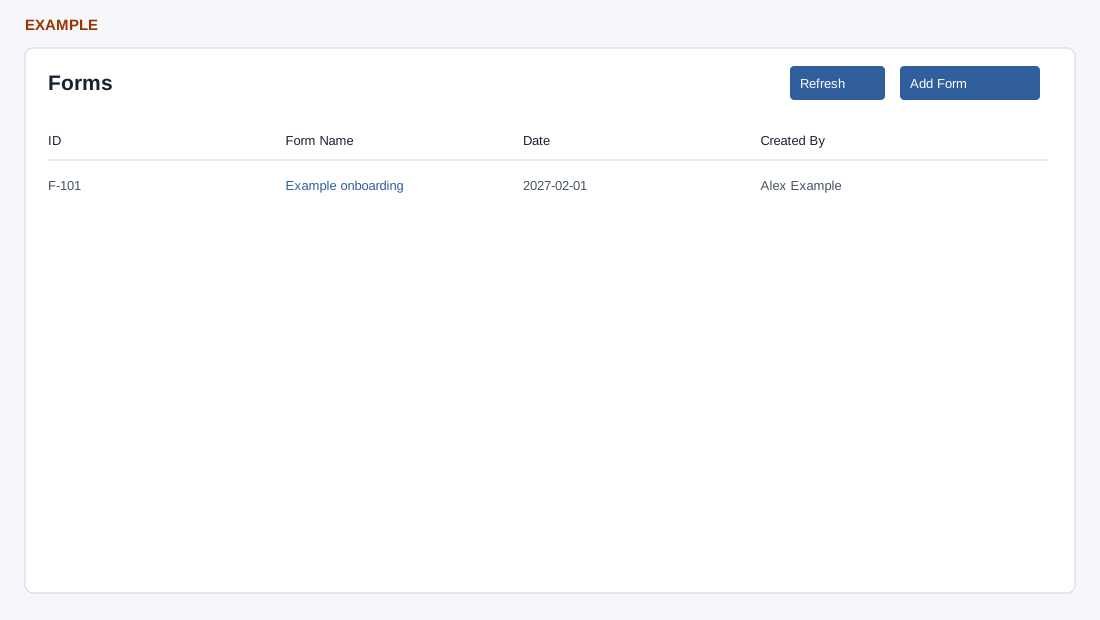
- The Forms panel shows ID, Form Name, Date and Created By. If there are no responses, it displays No forms yet and an Add Form button. Refresh reloads the list.
- Choose Add Form to open the active-form selection; select a form, complete the required fields and save when ready. Use a row action to open an existing response. Saving creates a response for the contact.
- If the embedded panel times out, use Open in new tab in the report recovery panel.
Public contact form administration
Response list and handoff
CRM access and a valid company contact are required. The table lists up to 100 of that contact’s saved form responses, newest first: ID, Form Name, Date and Created By. Select the linked Form Name to open that response in a separate form window. Add Form opens the form-selection workflow with this contact context; the empty state provides the same Add Form action. Refresh reloads only this frame. See form entry and response detail for the subsequent controls.
For example, add the appropriate onboarding questionnaire for Alex Example, save it in the form workflow, then Refresh and confirm the new response row. If it does not appear, check the contact, form availability and save result; an opened form is not yet a saved response.