Manage a recurring CRM subscription
Use this page to increase licenses on an eligible recurring CRM subscription, investigate pending provider confirmation or schedule cancellation. From Billing → Current plan, select Open subscription management or Manage subscription when offered. Central Billing management requires an administrator and an existing company subscription.
Opening this page refreshes the provider snapshot and can update the CRM’s stored subscription status. If the provider refresh fails, the page can display the previously stored snapshot without a specific refresh error. Refreshing the snapshot alone does not apply wallet credit or license entitlement; those require separate authenticated billing-event processing. It is not a purely static statement.
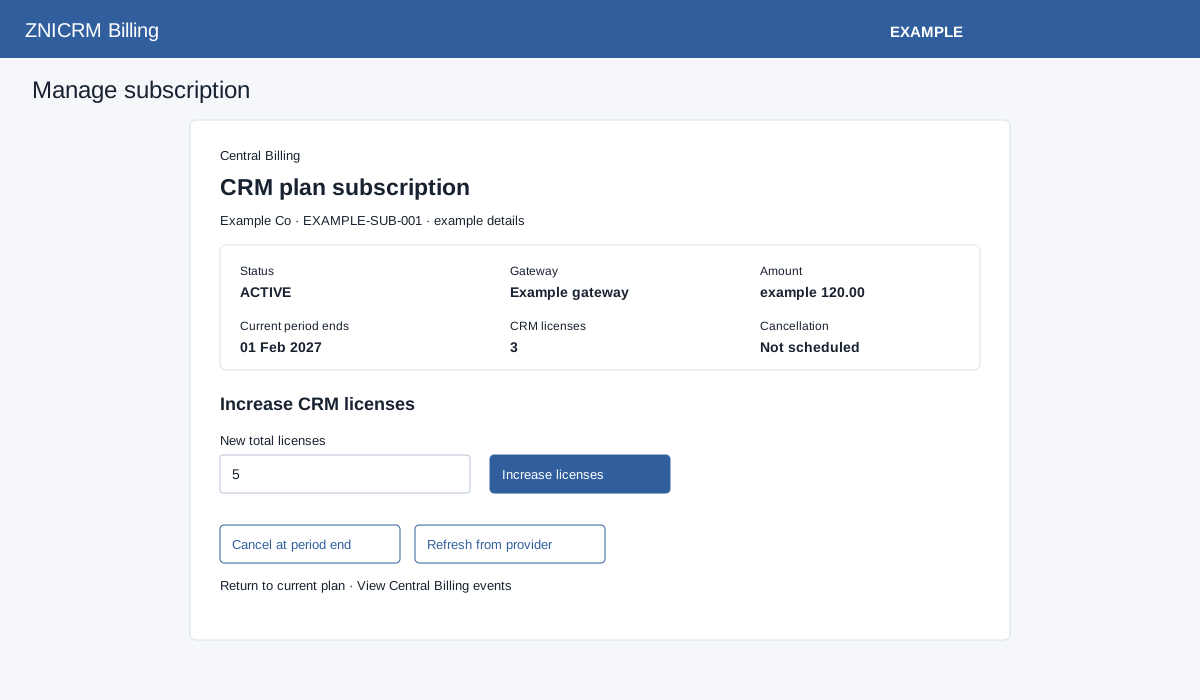
Read the subscription summary
| Field | Meaning |
|---|---|
| Status | The latest available central state. A failed request is closed; a pending authorization is not an active paid subscription. |
| Gateway / Amount | The recorded collection provider and subscription amount in the displayed currency. Use the actual quote and provider confirmation for charge details. |
| Current period ends | The recorded period end, or Pending confirmation when absent. Check Current plan separately for CRM validity. |
| CRM licenses | The quantity currently reflected in the CRM subscription record. An increase can be pending before this changes. |
| Cancellation | Not scheduled or Scheduled for period end. Scheduling cancellation does not mean the current billing period has ended. |
Increase licenses
- Confirm that the subscription is active, no cancellation is scheduled and no earlier quantity change is pending. The increase form appears only when the provider quantity and CRM licenses agree.
- Enter the desired New total licenses, not the number to add. It must be a whole number greater than the existing CRM quantity and no more than 100000. For example, increasing a subscription from 5 to 8 requires entering 8.
- Select Increase licenses. The confirmation warns that the provider charges the prorated balance for the rest of the current billing period immediately. Cancel the dialog if that is not the intended purchase.
- After confirming, read the result. The new licenses become available after the signed provider confirmation arrives; a request message alone is not proof that they are available.
- Check the updated CRM license count and Current plan before adding users who need the new capacity.
Handle a pending quantity change
When a quantity change is pending, the page shows the target total and Retry pending confirmation instead of a fresh increase form. Use that control to retry the same target and request key; it can still fail if the stored retry state is invalid or the subscription is no longer eligible. Do not enter another target elsewhere to work around the pending state. Cancellation is refused while a quantity update is pending.
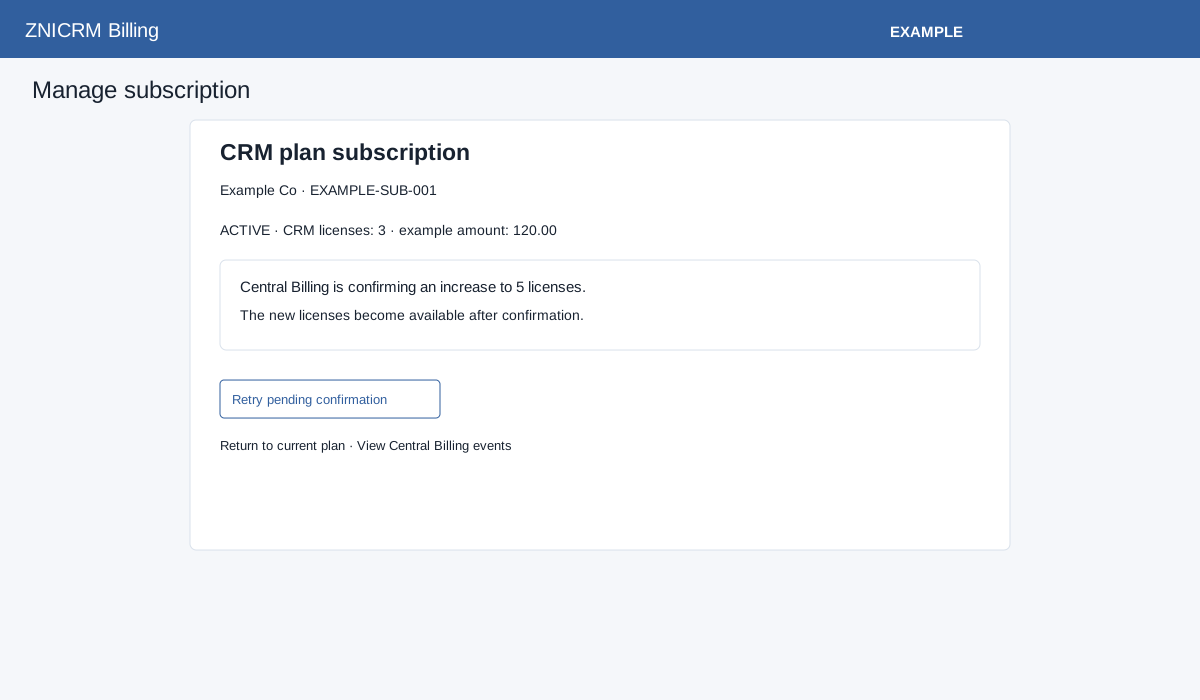
If the page reports that the last license increase was not completed, it also states that no licenses were added and supplies a billing reference. Check the quantity and contact billing support with that reference if the result remains unclear.
Cancel the appropriate request or subscription
| Control | When available and what to verify |
|---|---|
| Cancel at period end | Offered when the subscription is not closed, has no pending increase and does not instead require pending-request recovery. Select it and confirm the period-end cancellation. Verify that Cancellation becomes Scheduled for period end. This is not an immediate refund or an immediate termination of the current period. |
| Cancel pending request | Offered for a central request still being created when no subscription payment has been applied. Confirm only if abandoning that request. On success, a new plan request may be prepared. |
| Resolve and cancel stale request | Offered for an unresolved creation retry without a recorded central subscription identifier and without an applied payment. For an uncertain remote creation, the action recovers the original request before cancellation; a request known to be unavailable can instead be closed locally. Read the result before creating another request. |
| Choose a plan | Offered for a failed request when that state is displayed. It returns to the plan chooser; selecting a plan is separate from authorizing its payment. |
This page has no decrease-licenses form and no control to undo a scheduled cancellation. Use the current-plan support process for reductions and ask billing support about an intended cancellation change.
Refresh from provider and confirm the outcome
Refresh from provider is offered for eligible non-closed subscriptions when there is no pending quantity change or pending-request recovery action. It requests reconciliation; success means the request was accepted, not that every payment or license change has already been applied. Recheck the summary and open View Central Billing events to investigate the corresponding subscription reference.
If the subscription cannot be found or management is temporarily unavailable, return to Current plan and use the visible billing reference when contacting support. A session-verification error requires refreshing and checking the current state before repeating an action. Avoid repeated purchase or cancellation clicks while the result is uncertain.
Payment events and reconciliation · Subscription payment status · Review a new plan