Itinerary templates and playbook tasks
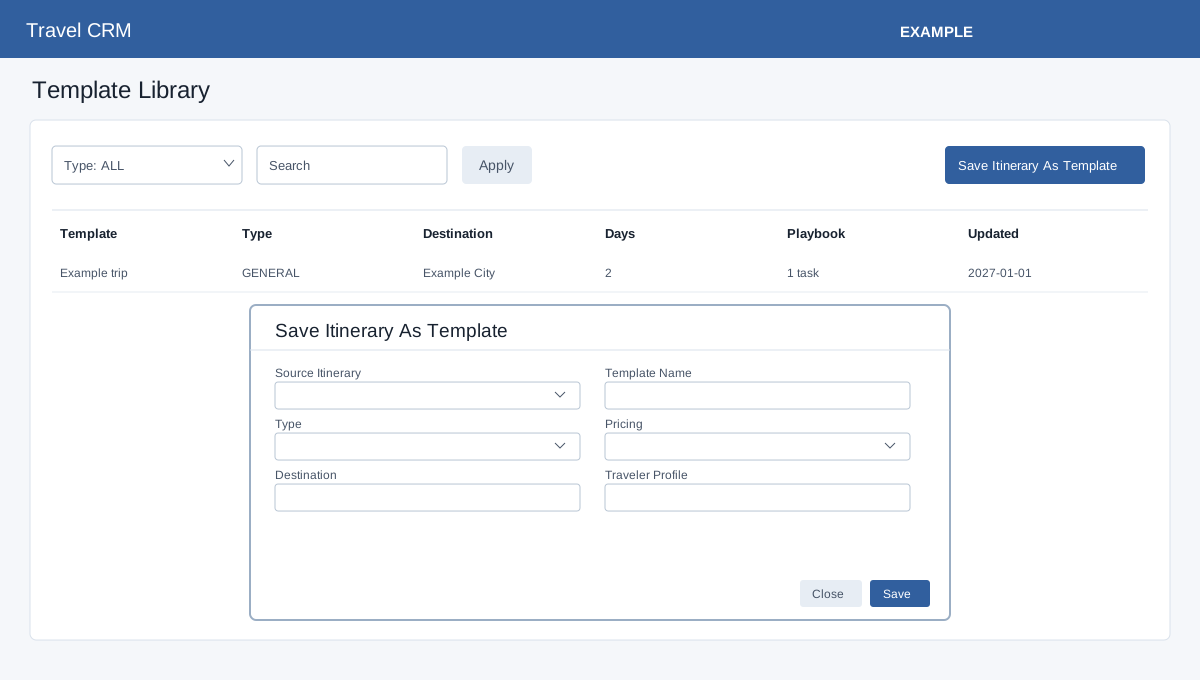
In the Travel sidebar, select Templates.
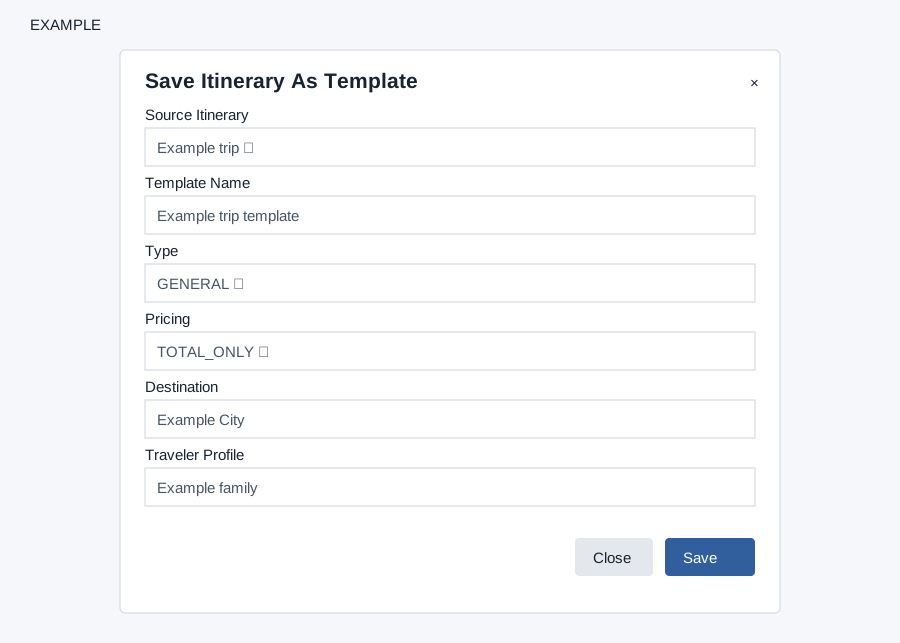
Find or save a template
Open Travel CRM → Templates, including via the builder’s Templates button. Travel access and template storage are required; template permission enables changes. Filter by Type and Search, then Apply. Save Itinerary As Template requires a Source Itinerary and Template Name. Choose Type (General, FIT, Group, Cruise, Family, Honeymoon, Corporate, Pilgrimage, Adventure or Luxury) and Pricing (Hidden, Total Only, Category Total or Detailed), and optionally enter Destination and Traveler Profile. Save reloads the library; check the new entry.
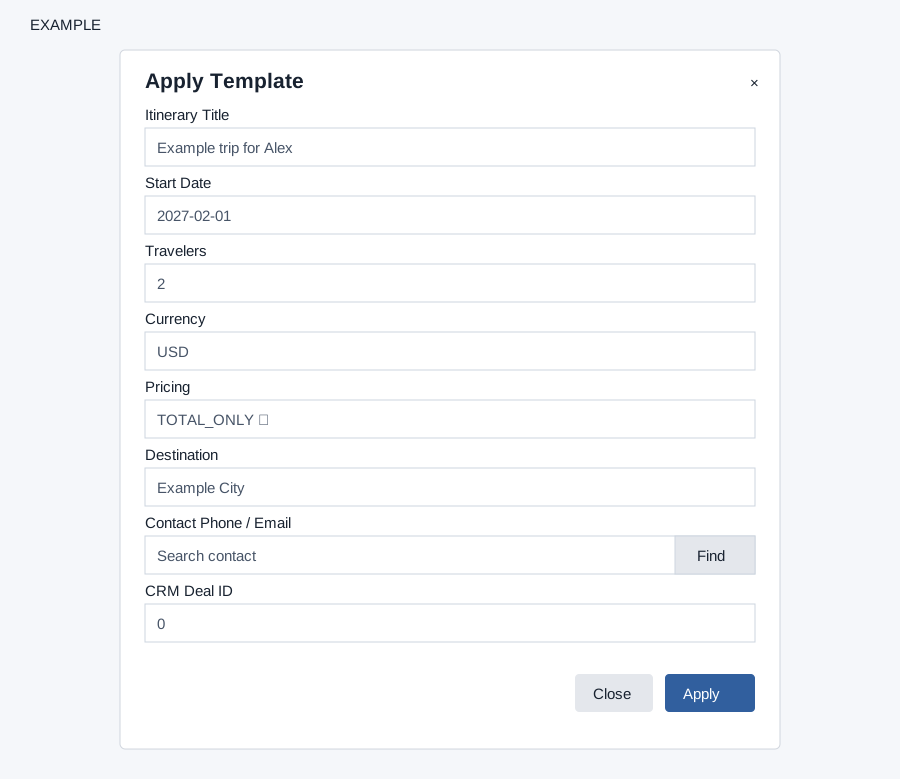
Apply and refine
Select Apply on a template. Enter the required Itinerary Title; optionally set Start Date, Travelers, Currency, Pricing, Destination, contact found by phone or email, and CRM Deal ID. Apply opens the new itinerary builder. Review the copied plan and customer visibility before sharing it. Delete asks for confirmation and marks the template inactive; it does not erase the stored template row.
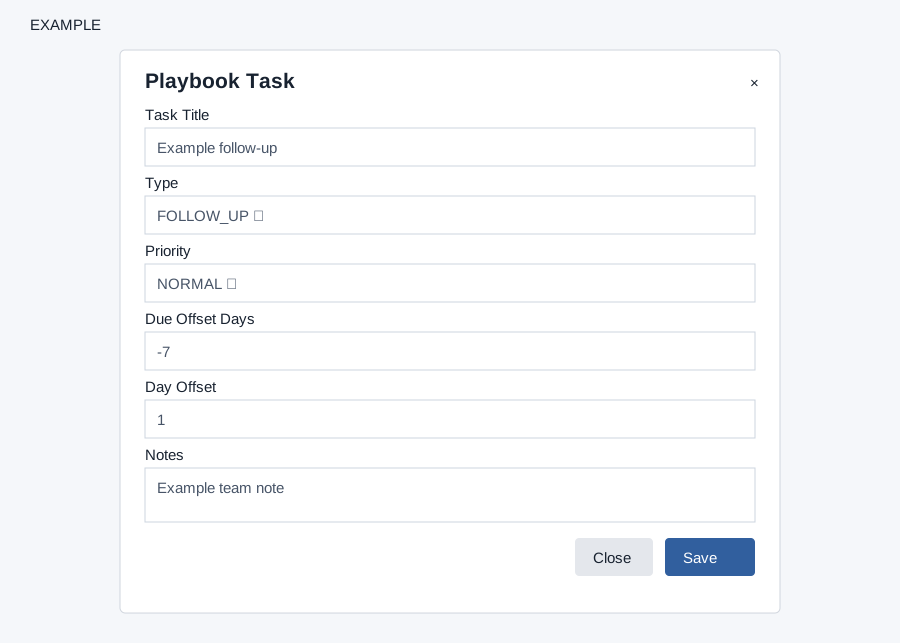
Playbook tasks
Select a template in the library to view its Playbook Tasks. Add Playbook Task requires Task Title; select Type (General, Payment, Supplier, Document, Visa, Passport, Insurance, Ticketing, Customer or Follow Up) and Priority (Low, Normal, High or Urgent), and enter Due Offset Days, Day Offset and Notes as appropriate. The form defaults to −7 due-offset days and day offset 1. Save reloads the library; inspect the task under the selected template. Edit or Delete a task using its row controls. Deleting a playbook task marks it inactive. Missing source itinerary, template name, itinerary title or task title produces a specific error; check permission and the displayed message for other failures.
How applying a template creates work
Saving a template also seeds default preparation tasks, including supplier allocation, document checklist, traveler details, final payment and readiness review. Group and Cruise templates add their specific tasks. Review this playbook before applying the template.
Applying creates a new Draft itinerary, copies days and items, and creates Open operations tasks from the active playbook. A start date shifts day dates and sets the end date from the template duration. Each task’s Due Offset Days is relative to the itinerary start: −7 means seven days before departure. Without a start date the task has no due date. Day Offset is stored but is not used by task creation. Do not rely on it to move the task’s due date or attach it to a particular itinerary day.
For example, an Example Co trip starting 20 November with Due Offset Days −7 produces a task due 13 November. After Apply, verify the copied days, visible items and generated tasks. If copying days, items or tasks fails, the new itinerary may be partially populated. Inspect the created itinerary before retrying and creating another copy. Linked CRM tasks may also be created under the operations synchronization rules.
Itinerary list · Contact travel dashboard
Setup check limitation: If loading or saving fails despite no setup warning, ask an administrator to check the deployment and permissions.