Travel operations tasks
Assign and track preparation work for an itinerary, such as supplier confirmation, ticketing or document collection.
Open Travel CRM → Travel Operations. Travel access is required to view the page; operations permission enables task actions. Create the itinerary first.
Find a task
- Select Status: All, Open, In Progress, Completed or Overdue, then choose Apply. The default is Open.
- Review Task and notes, Itinerary, Type, Due, Priority, Assignee and Status. Select an itinerary link to open its builder. The page loads up to 300 tasks and 200 itinerary choices.
- Check the due date when deciding priority. The list orders dated tasks first, then undated tasks. Overdue means an incomplete task due before today; a task due today is not in that overdue filter.
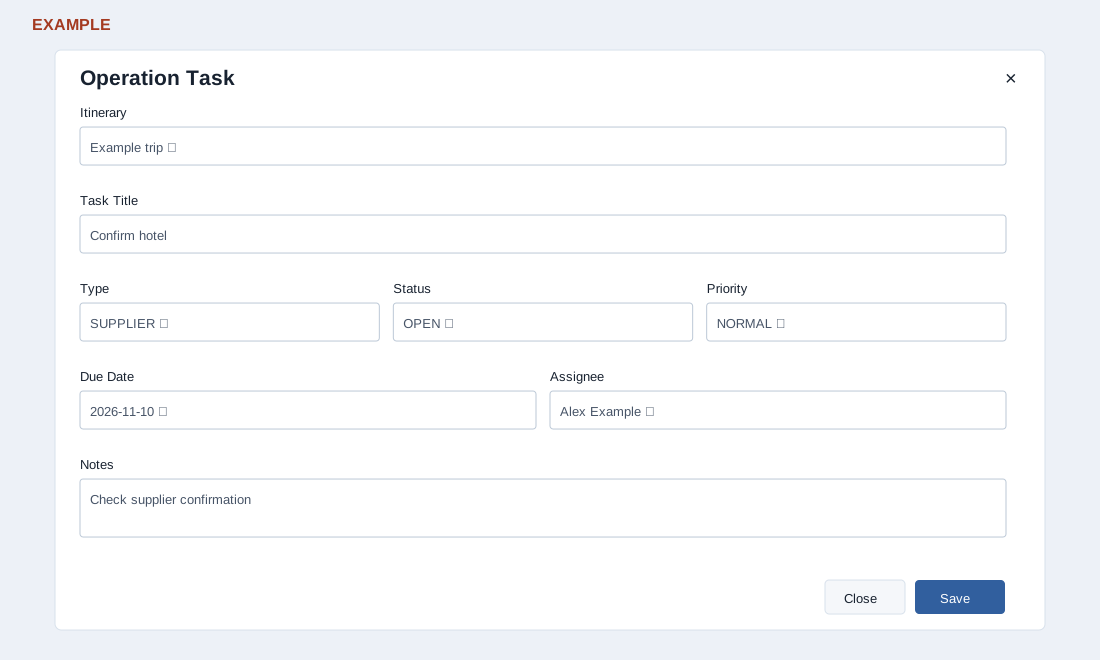
Create or edit a task
- Select New Task, or a row’s Edit.
- Select the required Itinerary and enter a required Task Title, such as “Confirm Example Hotel booking”.
- Complete the fields below, then select Save. The list reloads; find and reopen the task to verify its stored values. Close dismisses the editor.
| Field | Available values and use |
|---|---|
| Type | General, Payment, Supplier, Document, Visa, Passport, Insurance, Ticketing, Customer or Follow Up. |
| Status | Open, In Progress or Completed. Choose the actual state of the work. |
| Priority | Low, Normal, High or Urgent. This describes urgency separately from the due date. |
| Due Date; Assignee; Notes | Optional date, responsible user and supporting instructions. |
Complete or delete a task
Complete appears for a non-completed task. Selecting it immediately records completion time and user without a confirmation dialog. Verify the result using the Completed or All filter. Delete asks for confirmation and removes the Travel task; verify the intended itinerary and title before confirming.
Check the linked CRM task
When platform integration is ready and the itinerary has a contact and the task has a due date, saving may create a CRM task due at 09:00. Completion updates its status and deletion requests its removal. Existing linked CRM task updates synchronize the due date or completion, not every edited field. Verify both records after changing a title, assignee or other details; a Travel success response does not establish that synchronization succeeded.
If Save fails, check the required itinerary and title, permissions and displayed error. Check existing tasks before retrying an uncertain creation.
For customer issues and post-trip outreach records, use the separate Travel service and follow-up guide.