Travel reports
Availability depends on your account configuration and permissions.
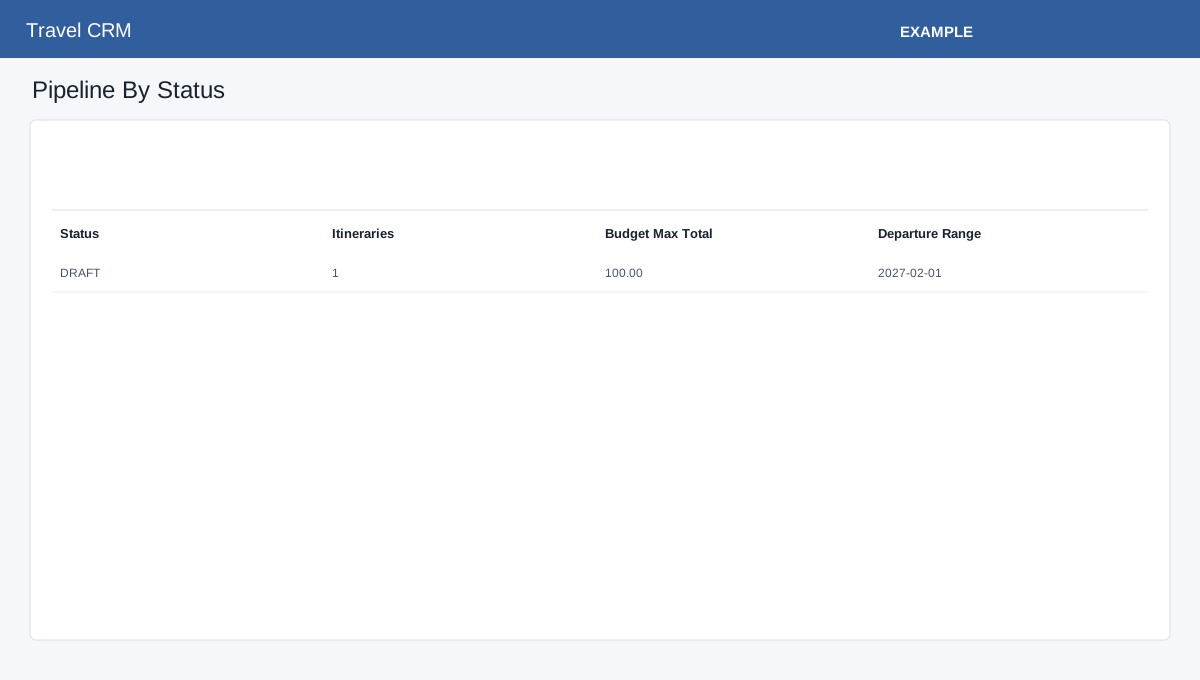
Compare itinerary activity, product usage and operational monitoring to decide which travel records need attention.
Open and read
Open Travel CRM → Reports. Travel access and foundation storage are required. Additional panels depend on the corresponding advanced, aggregator and AI storage. This page does not offer date or agent filters; each panel uses its own scope below.
| Panel | Scope and meaning |
|---|---|
| Pipeline by status | All company itineraries grouped by status. Budget Max is the sum of stated maximum budgets, not revenue. |
| Agent activity | Itineraries grouped by owner with total, approved, booked and upcoming counts. Upcoming means start date today or later, regardless of status. |
| Upcoming Departures | Up to 100 itineraries departing today through the next 90 days, earliest departure first. Open an itinerary title for its builder. |
| Product Performance | Up to 50 product/item groups. Counts item uses and confirmed booking statuses. Current price total sums the linked catalog price for each use; it is not the historical booked amount or revenue. |
| Aggregator Usage | Last 30 days of request logs, grouped by provider and request type. Shows requests, successes, failures, average latency and last request. Local credential-test logs can be included; a success count is not proof of provider connectivity. |
| Flight Monitoring | Up to 100 LIVE flight items with itinerary day (or itinerary start if absent) within the next 30 days. CHECKED means the saved check timestamp is no older than 30 minutes; absent, invalid or older timestamps produce RECHECK_DUE. Viewing this panel does not refresh a flight. |
| AI Usage | Last 30 days of GENERATED runs grouped by feature, with credits used and latest run. Failed and billing-failed runs are excluded. |
| Advanced summary | Manifest travelers, readiness risks, open service cases, pending supplier payments and commissions, and post-trip follow-ups due. See the dashboard for count definitions. |
Investigate a result
- Identify the relevant panel and confirm its time window; the panels do not all cover the same dates.
- For a departure or flight, follow its itinerary link and inspect the travel dates and booking details. For a provider or product group, open the corresponding integration or product records.
- For example, if an Example Co trip shows RECHECK_DUE, inspect the stored flight-check timestamp before arranging an authorized availability recheck. This report alone does not confirm a seat is still available.
- If a count is unexpected, check record status, owner, source type and the panel’s row limit. Resolve storage warnings with an administrator. Do not interpret a missing panel or zero as proof that no operational work exists.
See Departure Calendar for selectable 90-, 180- and 365-day windows.
Itinerary builder · Contact travel dashboard
If loading or saving fails, ask an administrator to check the deployment; do not assume a blank result establishes that no records exist.