Travel service cases and follow-ups
In the Travel sidebar, select Service.
Open Travel Operations or Travel Service from Travel CRM. Travel access is required. Operations permission is required; service permission also controls whether service editing controls appear. Create the itinerary first.
In-trip cases
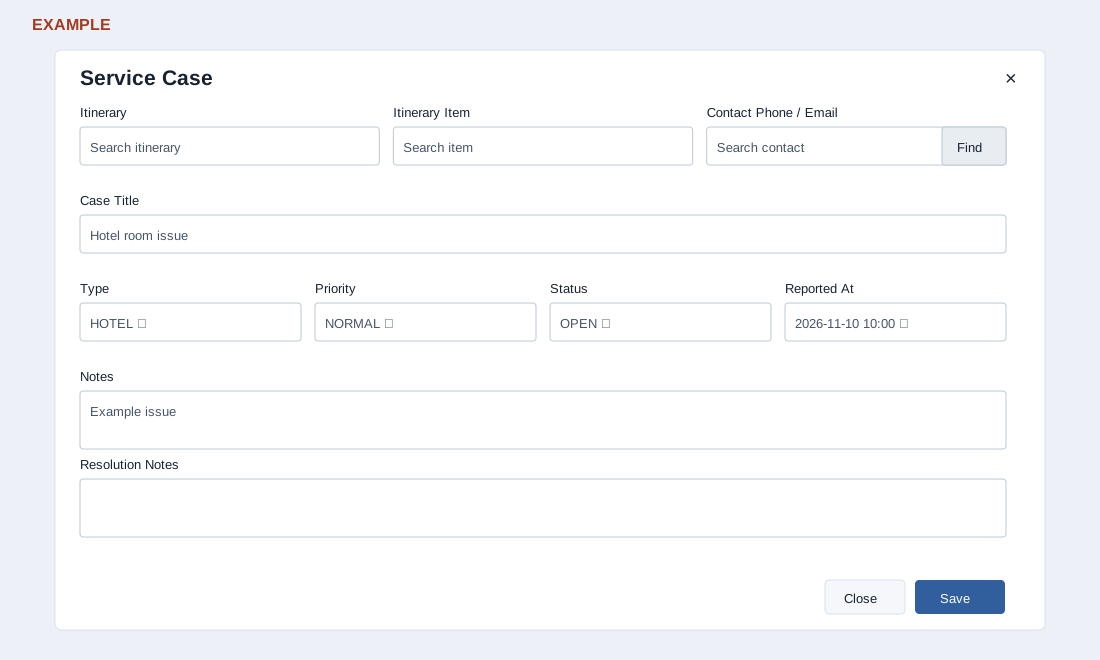
In Travel Service filter by Itinerary, Case Status and Follow-up Status and select Apply. Filters default to Open cases and Pending follow-ups; the page loads up to 300 cases, 300 follow-ups and 300 itineraries. Case rows show Case and notes, Itinerary and optional item, Contact, Type, Priority, Status, conditional Helpdesk, Reported and row actions. Follow-up rows show type and feedback, Itinerary, Contact, Scheduled, Rating and interest, Status and actions. The itinerary link opens the builder. New Case requires an itinerary and Case Title. Search for the itinerary and select the result; optionally select its item and find a CRM contact by phone or email. Choose Type (General, Flight, Hotel, Transfer, Activity, Document, Payment, Medical, Supplier or Customer), Priority (Low, Normal, High or Urgent) and Status (Open, In Progress, Waiting Supplier, Resolved or Closed); Reported At, Notes and Resolution Notes capture context. New cases default to General, Normal and Open. Save reloads the list; the selected itinerary must be chosen from suggestions and an item must belong to it. Edit opens saved fields. Close appears only for cases other than Resolved or Closed; it prompts for resolution notes, and Cancel aborts. Submitting sets Closed and the resolution time. Delete confirms, removes the case, and attempts to mark a linked Helpdesk ticket Deleted. Verify the outcome in both systems.
Helpdesk link and partial success
If Helpdesk is configured, saving a case with a linked CRM contact and an active category can create a ticket; subsequent saves update linked ticket priority and status. Waiting Supplier maps to On Hold, Resolved or Closed to Closed, and other case states to Open. The Helpdesk column shows the linked ticket and synchronization status, or an error when no ticket is linked. Saving the case can succeed even if synchronization fails. Check the column and investigate configuration, contact and category before retrying; a ticket link opens Helpdesk in a new tab and opening it records viewing activity. Ticket-side status changes can also update the case.
Post-trip follow-ups
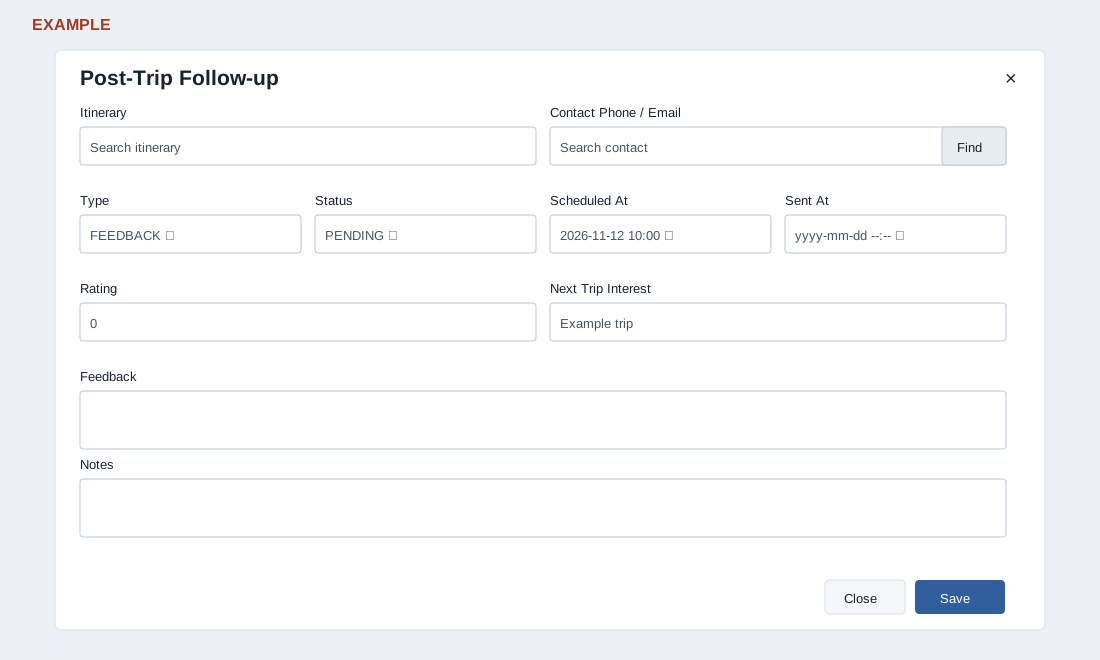
Select New Follow-up and choose the required itinerary. Optionally find a contact. Choose Type (Feedback, Review, Referral, Repeat Travel, Thank You or Issue Recovery), Status (Pending, Scheduled, Sent, Completed or Skipped), Scheduled At and Sent At; enter Rating from 0–5, Next Trip Interest, Feedback and Notes as appropriate. Save reloads the list. The filter also offers All and Overdue; Overdue means Pending or Scheduled with a scheduled time before now. Complete appears except for Completed or Skipped and prompts for a 0–5 rating; Cancel aborts. Completing sets Completed and fills Sent At if empty, but also clears existing Feedback and Next Trip Interest because the prompt sends only the rating. Preserve that information and use Edit to set Completed if it must remain; verify the refreshed record. Delete asks for confirmation and removes the follow-up. Rating is normalized to an integer 0–5. Recording Sent or completing a follow-up does not send a message.
If a required itinerary or title is missing, the form reports it. On other save failures, use the displayed message and check permissions and the itinerary. For example, record a hotel issue for Example Co, verify whether its Helpdesk link synchronized, then select All case statuses to confirm the closed case. Reports and the Travel dashboard summarize open cases and follow-ups due.
If a list or save fails, ask an administrator to check setup and permissions.