Contact Real Estate workspace
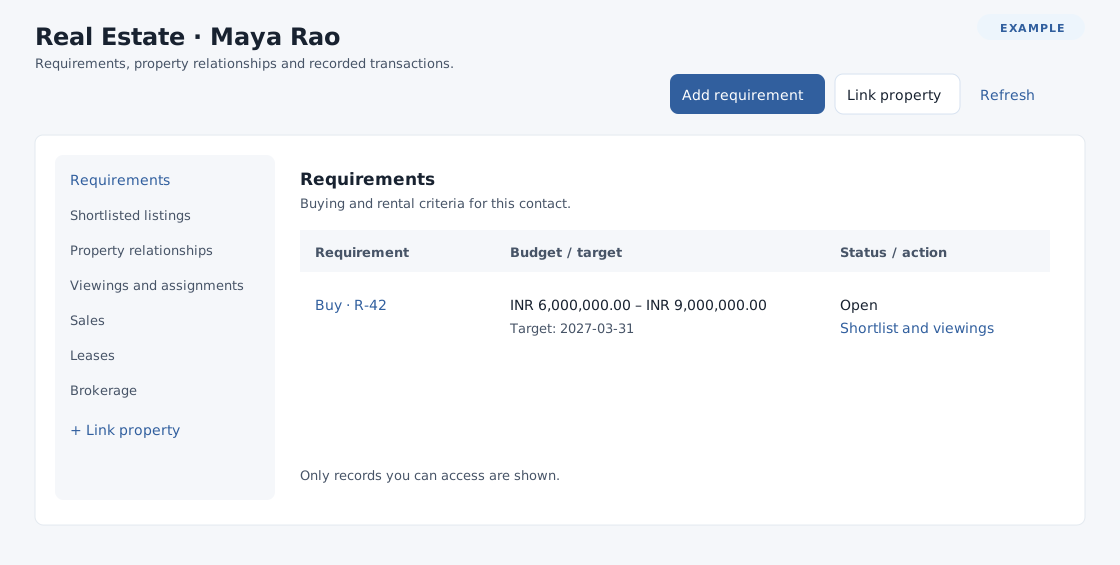
Open a contact conversation and select Real Estate. This customer-specific view brings together needs, relationships and recorded transactions. It shows only records you can access; sections and actions depend on permissions. Refresh reloads the view. On a narrow screen use Real estate section and Open section; on a wider screen use the section links.
- Requirements shows Buy or Rent, budget, target and status. Open the requirement or Shortlist and viewings. Add requirement opens a new tab with the customer selected when you have access.
- Shortlisted listings shows the property, listing status, asking amount and decision; Open requirement leads to its shortlist.
- Property relationships shows the property, the contact's owner, developer, broker or manager role, and effective dates. Open the property to review its parties.
- Viewings and assignments shows the assignment, scheduled date, status and customer outcome. Open either the assignment or its requirement.
- Sales shows property, agreed amount, status and hold expiry in company time. Leases shows the contact's relationship, term, status and rent per period; the end date is excluded. Brokerage shows the contact's relationship, source, due event, status and agreed fee. Select the record to inspect it.
Each section has its own previous and next controls when needed; ten records are shown per page. If a page has no accessible records, use the adjacent page controls. Links to detail records open in a new tab. Section choices change the displayed panel; the browser Back and Forward controls return to the previous or next selected section.
Link a property relationship
- Choose Link property when available. Under Find a property, enter Find an active property and select Find properties. Use Previous properties or Next properties for more choices.
- Under Review the relationship, choose Property and select Review relationship. The property opens in a new tab; choose the role and effective dates there and save the relationship. Review the saved party on the property, then return and select Refresh in the contact view.
If the view is unavailable, reload and check access to the contact. If a section or action is missing, ask an administrator to check the applicable feature permissions and CRM scope. No active properties on a page may mean a different search or page is needed.
Customer requirements · Property details · Viewing assignments