Invoicing taxes
- As an administrator, open Account Settings → Invoicing → General Settings → Taxes. The table shows Tax name, Description, Percentage, Applicability, Country, State, Default and Actions.
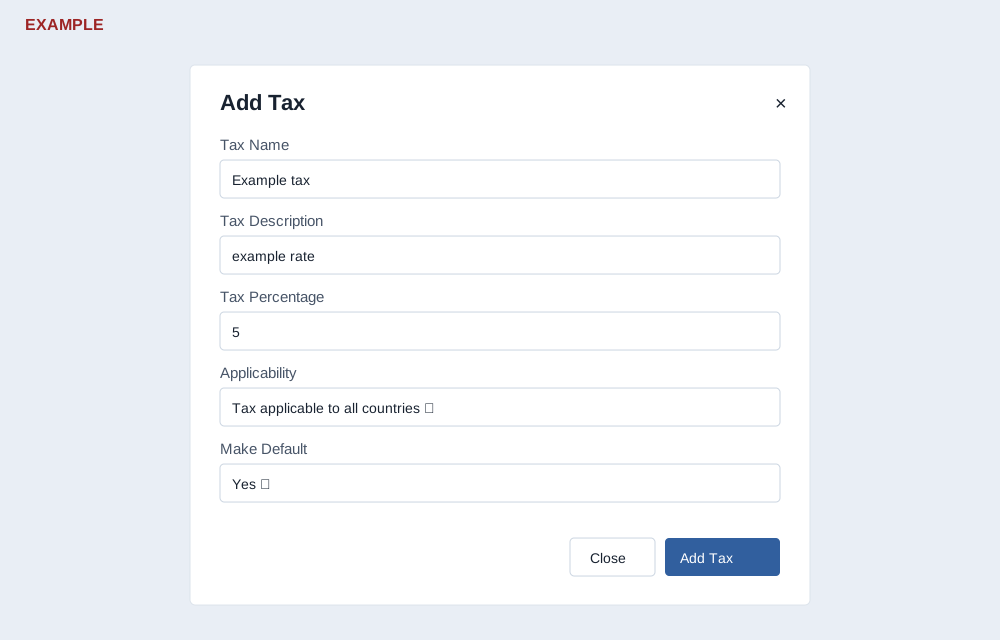
- Select Add new tax. Enter Tax Name, Tax Description and a numeric Tax Percentage greater than zero. The stored rate is rounded to two decimal places.
- Choose Applicability: Tax applicable to all countries or Tax is country specific. For country-specific, select Country; State may remain All States. Choosing a country resets the displayed state selection. Choose Make Default Yes or No; Yes is initially selected.
- Select Add Tax. Close or × closes the dialog. On success reload to verify the country, state and default: the immediately inserted row is a local summary with dashes in the location columns. Default taxes are added when applicable using customer or linked office address; inspect the final document lines.
- To remove a rate, select its Delete action and confirm. The page warns it cannot be recovered; the tax is marked inactive. Reload to verify. Review effects on future documents before removal.
If rejected, check name, description, positive rate and the selected country. If a response is uncertain, reload before retrying. Example: create an Example tax at 5% for all countries and verify its row; the example is not a tax recommendation.