Write and edit a knowledge base article
Turn a repeated support answer into a reusable article. Agents can find it in the knowledge base and use article suggestions when replying to tickets.
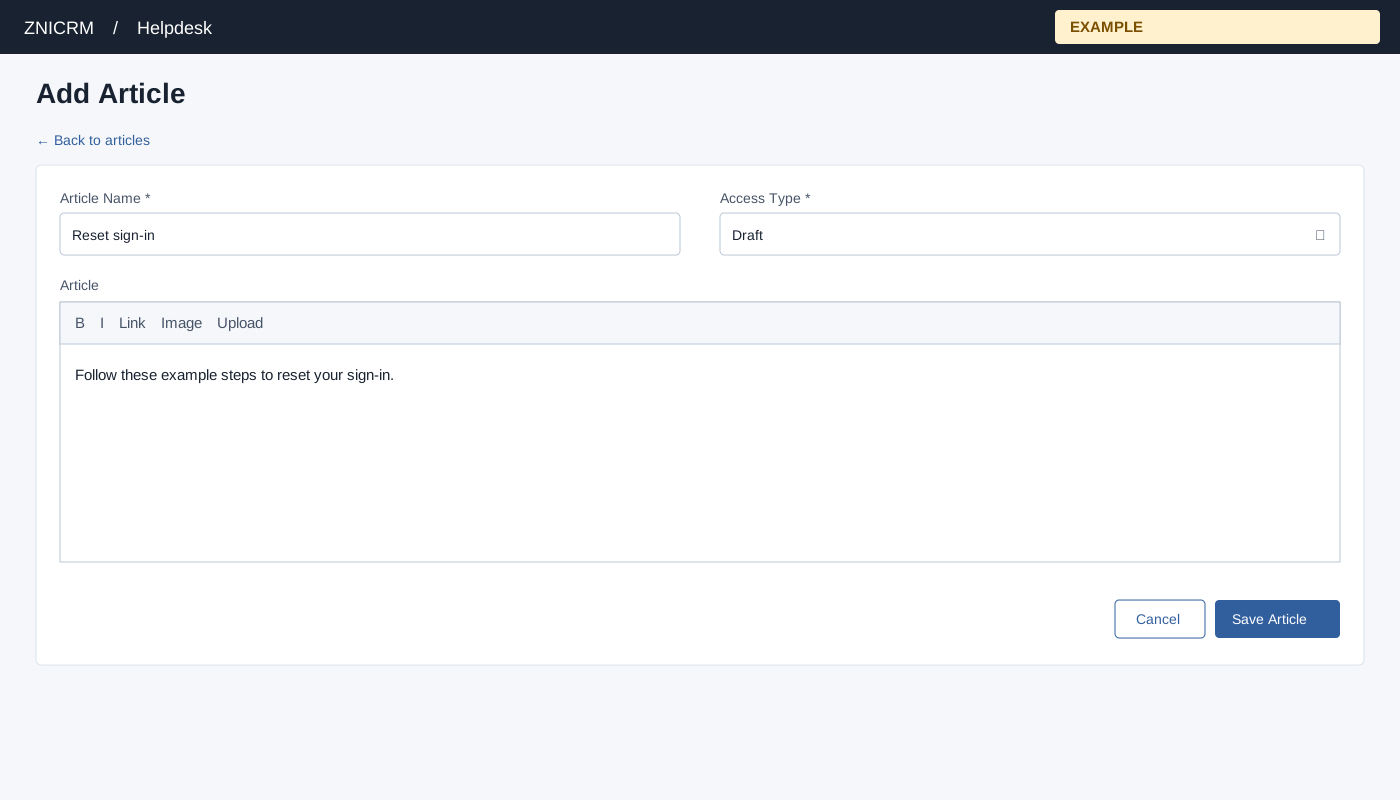
Create or edit an article
Open Helpdesk → Knowledge Base, choose a category and select Add Article. To revise an answer, open its article and choose Edit Article. These buttons are shown to ADMIN users. Helpdesk access and a valid company category are required.
- Enter an Article Name describing the reader’s task, such as “Reset a sign-in”. Both a name and nonempty body are required.
- Choose Access Type: Public, Private or Draft. New articles default to Public; deliberately select Draft during review. The public portal requires both the category and article to be Public. Private and Draft articles are excluded from its public listing; these labels do not make uploaded images private.
- Write the Article with its purpose, prerequisites, numbered procedure, expected result and recovery steps. Structure it with the controls below.
- Choose Save Article. The editor stays open with a success or failure banner. Use Back to articles, open the saved title and verify its rendered content. Reopen Edit Article to check Access Type.
After creating an article, the returned form still targets creation. Open the saved article before further editing. Submitting the same name again is rejected by the category’s duplicate-name check; changing the name and submitting the returned form can create a second article. Refreshing a submitted page may ask to resubmit it. Use Back to articles instead.
Updating an article also updates its displayed author and date; these are not immutable creation history. Renaming an existing article does not regenerate its stored URL slug. Cancel returns to the article when editing or the category when creating. It does not save text changes or undo an image already uploaded.
Use the article toolbar
Select text before applying a text style; place the cursor in a paragraph, list or table before applying its layout controls. Buttons can appear as icons or in menus.
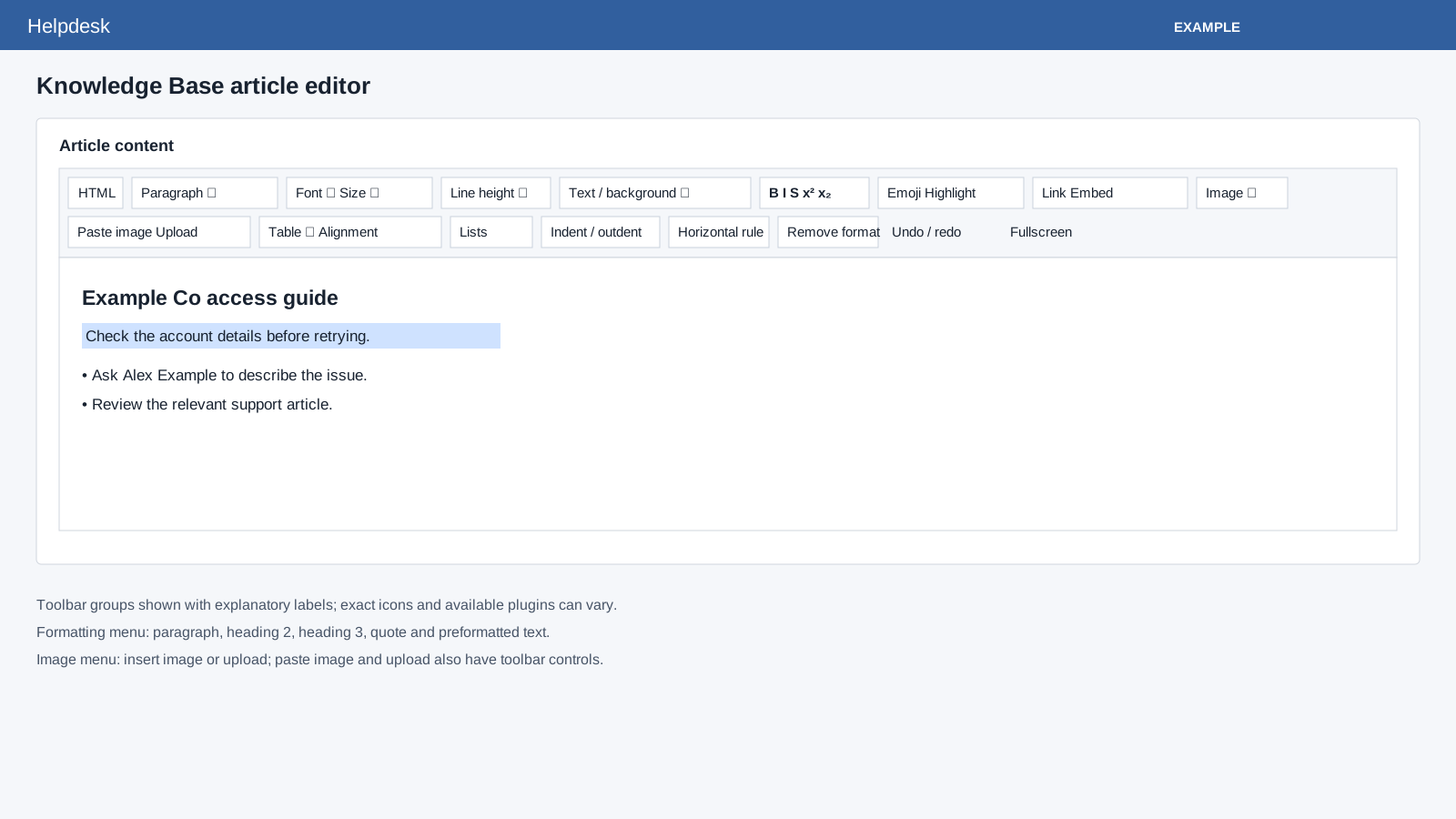
| Controls | Use in a support article |
|---|---|
| View HTML | Inspect markup, then return to the visual editor and read the result before saving. |
| Formatting | Choose paragraph, Heading 2, Heading 3, blockquote or preformatted text. Use headings for task sections and preformatted text for short literal examples. |
| Font family, size and line height | Adjust selected text or its paragraph. Keep ordinary instructions consistent and check wrapping after saving. |
| Text and background colors | Emphasize a phrase. State its meaning in words so color alone does not carry an instruction. |
| Bold, italic, strikethrough, superscript and subscript | Emphasize control names or format symbols. Strikethrough changes appearance; it does not delete text. |
| Emoji and code highlighting | Insert a symbol or format a code example. Retain a plain-language explanation. |
| Link, embedded content and paste embed | Add a destination or supported embedded item. Check the destination and rendered result; external content depends on its provider and reader access. |
| Image menu, paste image and Upload | The menu offers image insertion and upload; separate paste-image and upload buttons are also configured. Upload stores a file immediately, separately from saving the article. |
| Table | Insert tabular information; the menu also offers cell-background and border-color options. Use tables for field/value or symptom/recovery comparisons. |
| Left, center, right and full justification | Align the current paragraph. Left alignment suits procedures; verify other layouts in the saved article. |
| Bullets, numbering, indent and outdent | Use numbered lists for steps and bullets for alternatives. Indent or outdent changes the current paragraph or list level. |
| Horizontal rule and remove formatting | Insert a separator or remove styling from selected text. Check headings and lists afterward. |
| Undo and redo | Navigate in-memory edits. History is configured for up to 100 steps; it is not saved article version history and does not reverse file uploads. |
| Fullscreen | Expand the editing area, then leave fullscreen to review the form and save. Fullscreen itself does not save. |
Insert and verify an image
- Prepare a or sanitized image. Article image uploads accept PNG, GIF, JPEG and JPG extensions.
- Place the cursor at the insertion point, choose Image → Upload or the separate Upload button, and select the file. Wait for its upload result.
- Check the image appears. Image resizing uses a minimum size of 256 and a step of 16; check text readability when resizing.
- Add explanatory text, save the article and reopen it to inspect the image and instructions.
Images are uploaded with Public file visibility before Save Article. Cancel, undo, and Draft or Private article access do not undo that upload or change file visibility. Use images without real contact details, credentials or account identifiers.
Verify and troubleshoot
| Symptom | Next step |
|---|---|
| Unable to save | Supply both name and body, verify the category and search for an existing title. Duplicate checks use a normalized title slug, so capitalization or spacing changes may not produce a distinct name. |
| Paste or embed looks different | Inspect the editor and saved article. Paste-cleaning and embedding plugins can affect the result; do not assume copied formatting remains unchanged. |
| Upload fails | Check the supported extension and upload result. Verify the file is sanitized before selecting another. A failed article save does not prove an earlier upload was rolled back. |
| Article absent from the public portal | Check both category and article access. An internal save does not confirm public availability; inspect the intended reader’s permitted view. |
| Edits created another article | Return to the category and open the intended saved article before editing. Avoid continuing in a creation form left open after the first save. |
For the “Reset a sign-in” article, use Draft, a Heading 2 for the procedure, a numbered list and an image with data. Save once, reopen it and review the procedure before publishing.
Browse category articles · Read and rate an article · Use articles in ticket replies · All nested settings guides