Ticket fields and reply assistance
Update ticket context and prepare a customer reply from approved material.
Category, priority and owner
- Open a ticket in Helpdesk. Select Category and confirm the change; the system records a system message. Select Priority inline: Low, Medium, High, Urgent or Critical, then confirm. A successful priority change also adds a system message.
- Select the assigned agent from the category’s support users. When prompted for a transfer reason, enter a nonempty reason; otherwise confirm the transfer. The system checks a valid company ticket, support-department membership and assignment scope. On success the workspace returns to the Helpdesk index; reopen the ticket to verify the owner and transfer history.
Tags and additional fields
Add a tag in the Tags control or remove its chip; each change posts immediately. The input trims names and allows up to 20 characters. A failed removal restores the chip; check the error and refresh to verify. Open Additional fields for ticket and CRM fields. An unfilled text field saves on leaving it; an unfilled dropdown saves on selection. Empty values are not submitted. A successful control becomes disabled, and existing populated values are displayed as text, so this view does not provide a general edit or clear operation. CRM custom fields update the related account’s CRM custom data; ticket fields update the ticket. Ask an administrator about configured labels and corrections.
Reply assistance
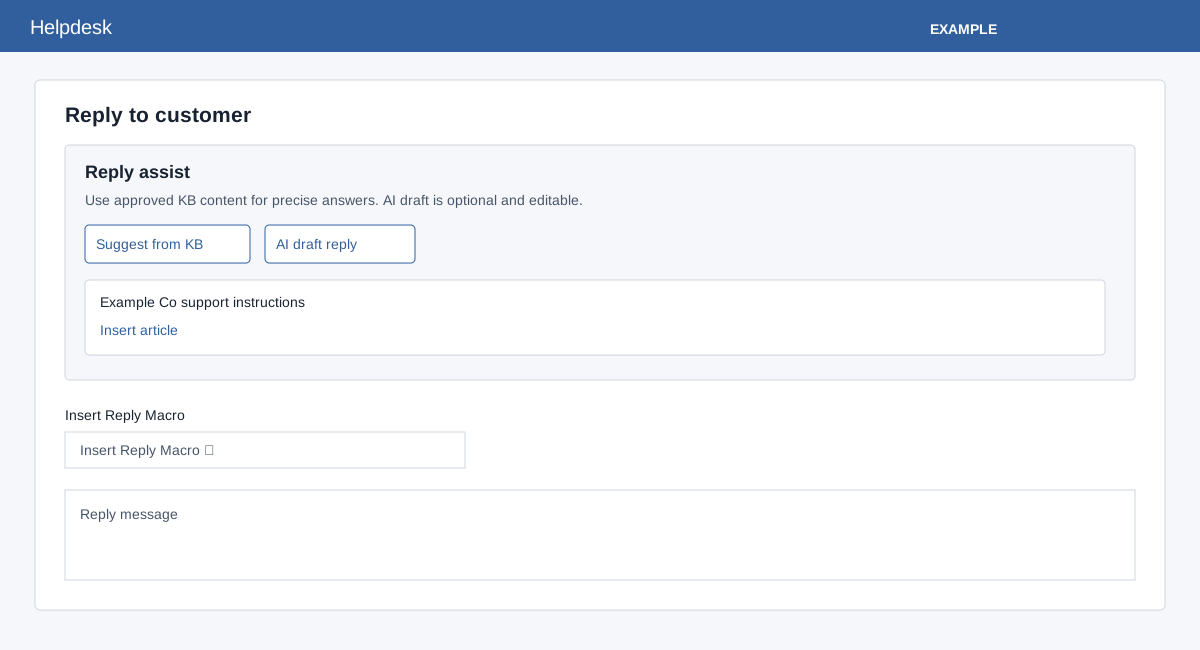
- In Conversation, choose Suggest from KB when available. The service searches ticket context and returns up to five matching articles. Open an article to review it, or select Insert article to append its content to the draft. The suggestion can also be inserted or used to replace the draft where those controls appear.
- Choose AI draft reply only when enabled and a valid AI chatbot and sufficient credits are available. The interface states three credits for a generated draft; actual service cost comes from feature billing configuration and is deducted after a valid draft is generated. Review the generated content, then choose Insert to append or Replace draft to overwrite the current draft. Neither sends the reply.
- When available, select Insert Reply Macro. It expands ticket context tokens and appends the template to the current draft, then resets the selector. Review and edit the content before using the normal reply action.
If suggestions fail, read the message: KB may be disabled or have no matches; AI may need its required feature setup, preference, active AI-enabled chatbot or credits. The reply editor’s image menu offers Insert Image and Upload. Upload accepts png, gif, jpeg and jpg, and stores the image before the reply is sent; it is not the Attachments tab. Review the image and draft before sending.