Complete a contact or deal form
Open the page
Contact conversation → Forms → Add Form, or deal details → Forms → Add form
Choose and fill a form
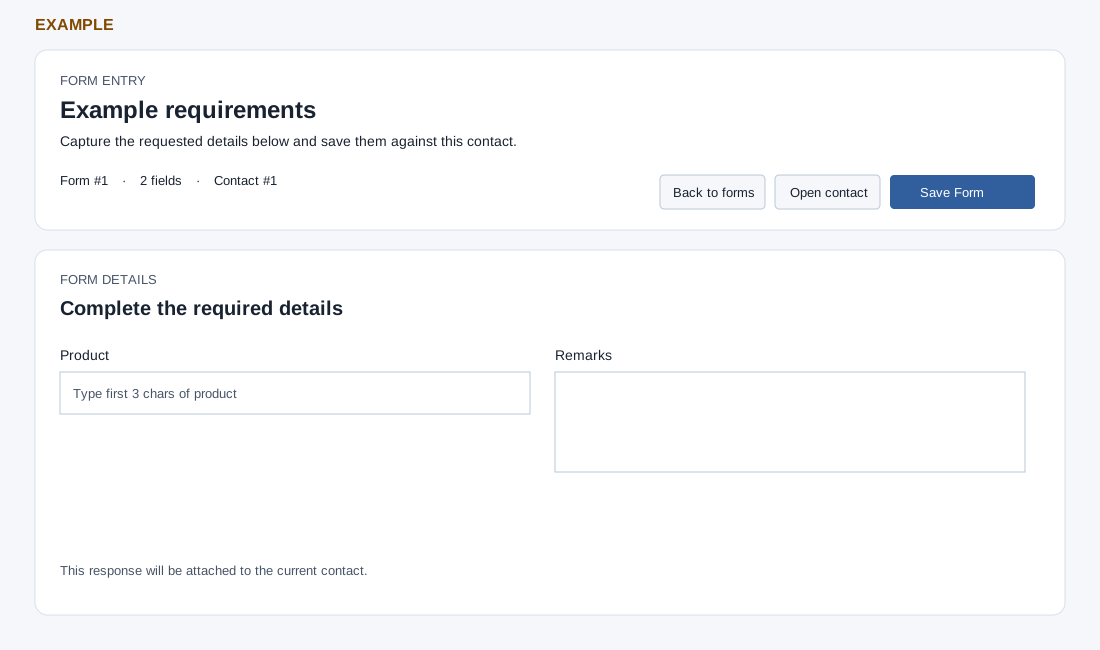
- Select an active form from All active forms. Complete the fields shown, including required fields, then choose Save Form. Field labels and requirements are configured by the administrator.
- Controls can include text, email, phone, date and time, long text, rating from 1 to 5, product search, product-item search and selection fields. Product searches prompt for the first three characters.
- Example: submit a requirements form with an example product and a short description. Saving creates a form response linked to the contact or deal context.
Verify and recover
The list shows active company forms, their name and description, contact and optional deal context, a count and Open contact. The entry screen provides Back to forms, Open contact and Save Form. If a required visible field is empty, the page highlights it and shows an error. On success the save button remains disabled: refresh the contact Forms frame and open the response to verify before trying again. A missing form or inactive form can show “Form not found”; ask an administrator to check its configuration. A saved response refreshes the contact checklist. Deal linking is attempted separately after response creation, and its result is not returned as the save result; verify the response under that deal as well as the contact before repeating.