Review a form response and escalation
Open the page
Contact conversation → Forms → open an existing response
Review the response
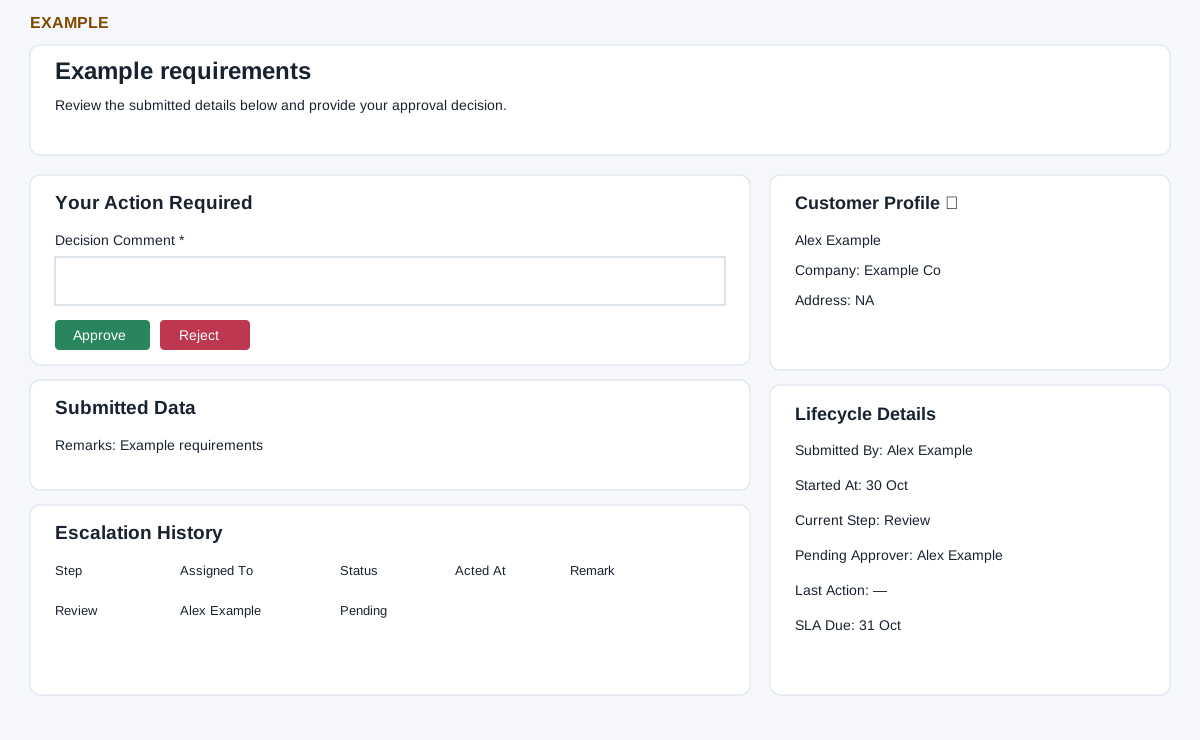
- Read Submitted Data and the customer context, then review Escalation History for Step, Assigned To, Status, Acted At and Remark where shown.
- If Your Action Required is displayed and you are authorized to decide, enter the required Decision Comment and choose Approve or Reject. This records a decision and may advance the escalation; review the request and consequences first.
- Example: an authorized reviewer can check a price exception and explain the decision in the comment.
Decision and verification
The customer panel shows name, contact ID, company and address; its link opens the contact. Lifecycle Details shows Submitted By, Started At, Current Step, Pending Approver, Last Action and SLA Due when available. A shared-engine action requires a trimmed comment of at least two characters; the legacy approval or rejection requires at least five. Decision controls are disabled during the request and restored on error. After success, inspect the updated status and history before acting again. The legacy path records its legacy action before attempting to update the shared engine, and an engine exception is swallowed; a success message alone cannot prove both histories agree. The shared path can also record the legacy action before the engine action, so a later failure can leave a partial result. Inspect both histories before retrying or contact an administrator. “Response not found” means this response could not be loaded for the contact; check the contact and response rather than creating a replacement automatically.