Invoicing settings controls
Set defaults and maintain tax rates and payment labels.
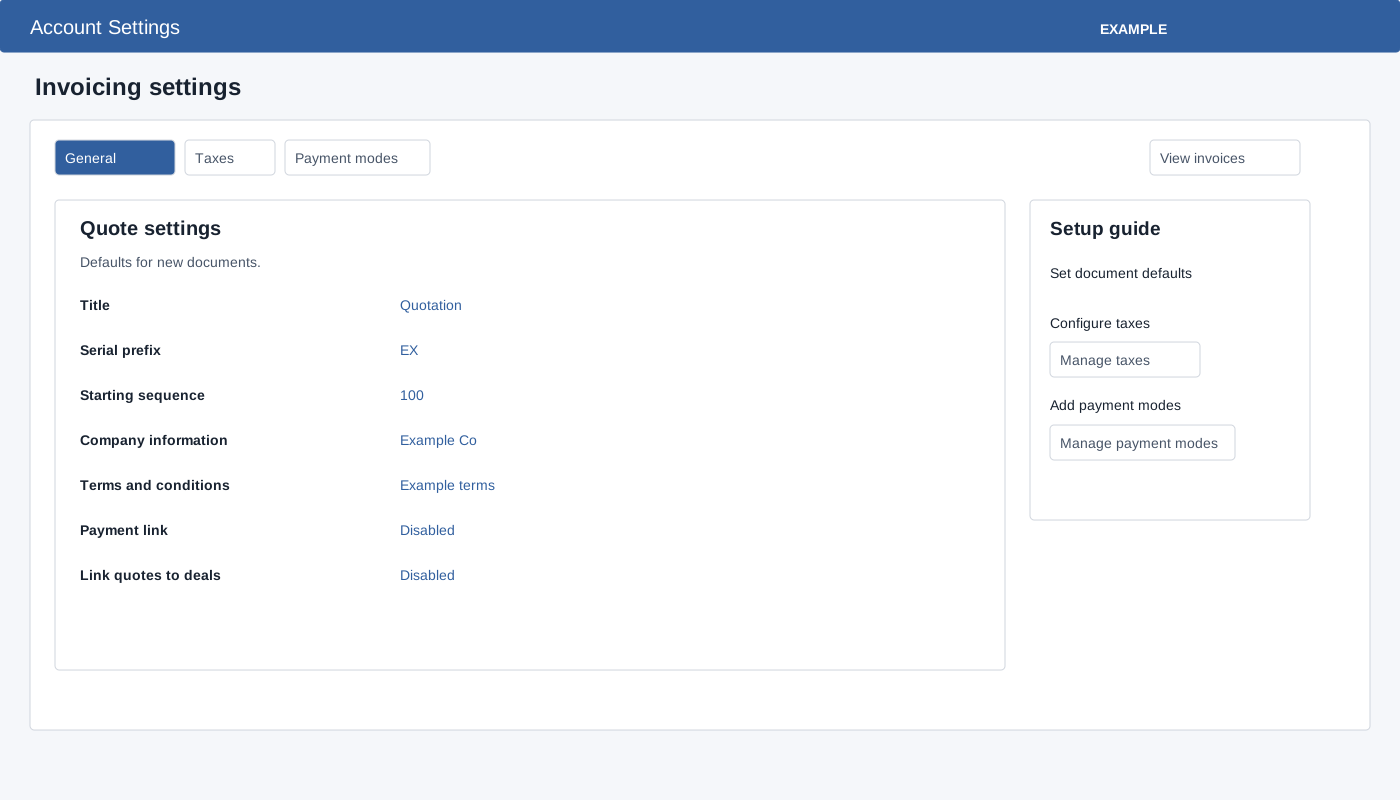
General, taxes and modes
Administrators open Account Settings → Invoicing → Settings. General has a document logo gallery and quote and invoice defaults: title, serial prefix, starting sequence, company information, terms and payment link. Quote settings also offer Link quotes to deals. For example, select the quote title, enter “Example Co quotation” and confirm. Click a value, enter its replacement and confirm its inline editor: each field posts independently. Reopen to verify; a later field failure does not undo earlier saves.
Under Taxes, choose Add new tax, enter Name, Description and a percentage greater than zero, choose all countries or country-specific and select country when required, optionally supply state, choose Make Default Yes/No, then Add Tax. The table’s Delete action asks for confirmation. A country-specific tax requires a country in the form. After adding, reload to verify the country, state and default values because the inserted row is only a local summary. Under Payment modes, choose Add new mode, enter Name and Description and select Bank, Payment Gateway, Cash or Other; save or use Delete with confirmation. A mode is a payment label, not a gateway connection. Review document impact before removal.
View invoices and quote links appear when invoicing access is enabled; Settle invoice and Manage funds require receipts access. If a save fails, check the displayed error, required name and description, positive rate and administrator access; reload to confirm the last successful state before retrying. See Invoicing settings for the detailed workflow.
Detailed procedures: Document defaults · Taxes · Payment modes.