Company settings and service access
Maintain your CRM workspace's identity, regional preferences and billing address, and inspect the services available on its plan.
Open Account Settings → Billing → Account Profile. The Profile tab contains two independent forms: Company Account and Company Profile. Each has its own save button. Saving one does not save unsaved changes in the other. The Access tab displays service availability.
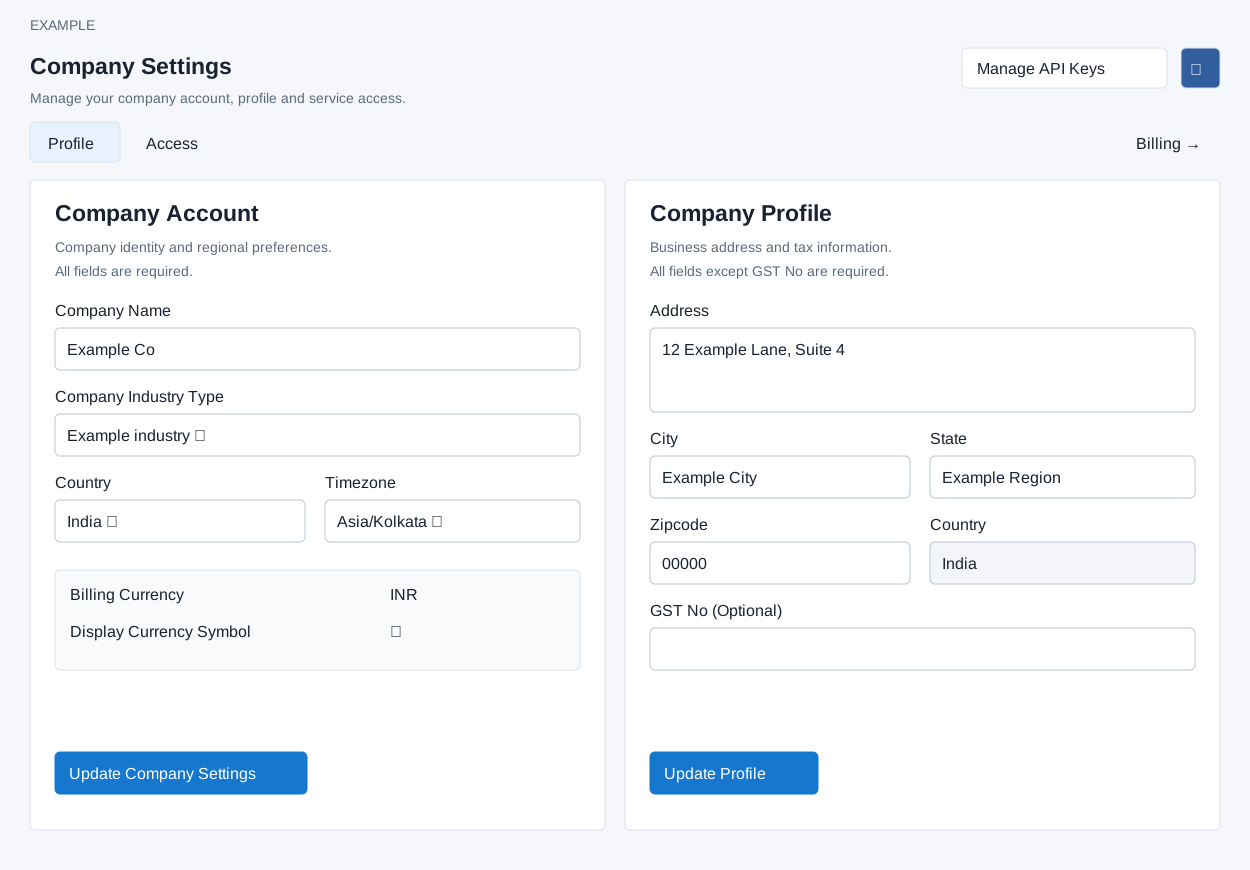
Update company identity and region
Use Company Account when setting up a workspace or correcting its name or industry. Select the country and timezone before creating operational records: the application locks those choices as the workspace starts being used.
| Field | What to enter or check |
|---|---|
| Company Name | Required, at most 45 characters. For a training workspace, use a name such as Example Co. A name that duplicates another company after normalization is rejected. |
| Company Industry Type | Required. Choose an applicable entry from the configured industry list. Available entries can differ between installations. |
| Country | Required searchable selection. Determines the available timezones and derived currencies. A lock icon and explanation appear when it cannot be changed. |
| Timezone | Required searchable selection. After Country changes, the existing zone is retained if available; otherwise the first returned zone is selected. If the country has no configured zones, the system supplies Asia/Kolkata. Review the actual selection for suitability. |
| Billing Currency / Display Currency Symbol | Read-only values derived from Country. They cannot be entered independently; the symbol is not a currency-conversion control. |
- On Profile, check Company Name and choose Company Industry Type.
- If available, select Country, wait for currency and timezone choices to refresh, then check Timezone explicitly. For example, a company in India can select India and Asia/Kolkata; choose the appropriate region for your workspace.
- Review the currencies and any lock explanations. Do not remove records or spend wallet funds merely to work around a lock.
- Select Update Company Settings. Success displays Settings Updated and reloads the page after a short delay.
- After reload, verify the saved identity and regional values. Also check Country in Company Profile, which follows the account country.
Country and timezone locks
| Workspace state | Country | Timezone |
|---|---|---|
| Nonzero wallet balance | Locked; billing currency also cannot change | Wallet balance alone does not lock it |
| At least one non-deleted lead | Locked | Locked |
| More than one active user | Locked | Locked |
The system rechecks these conditions when saving. Account and profile-country updates are separate writes. After an error, interrupted request or unclear response, reload and check both forms before retrying. A failed country-details lookup must be resolved before relying on the displayed currency and timezone choices.
Update the business address
Company Profile holds the workspace's business address and optional tax identifier. It is separate from an individual CRM contact's address.
| Field | Requirement and use |
|---|---|
| Address | Required multiline business address. example: 12 Example Lane, Suite 4. |
| City / State | Both required. Enter the business city and state or region. Illustrations use Example City and Example Region. |
| Zipcode | Required postal-code text. Use the appropriate postal code for billing. |
| Country | Required but read-only here. It follows Company Account. |
| GST No | Optional. Leave blank if not applicable. Supplied text is converted to uppercase; a successful save does not establish that a tax identifier is valid. |
- Enter or correct Address, City, State and Zipcode. Confirm the read-only Country.
- Enter GST No only when applicable.
- Select Update Profile. Success shows Profile Updated; this form does not automatically reload the page.
- Reload and confirm each saved value. If an error appears, correct it and check stored values before resubmitting.
The profile form requires nonempty address fields. Checkout applies separate validation and may reject an unusable address accepted here. See billing address guidance and checkout requirements.
Inspect service access
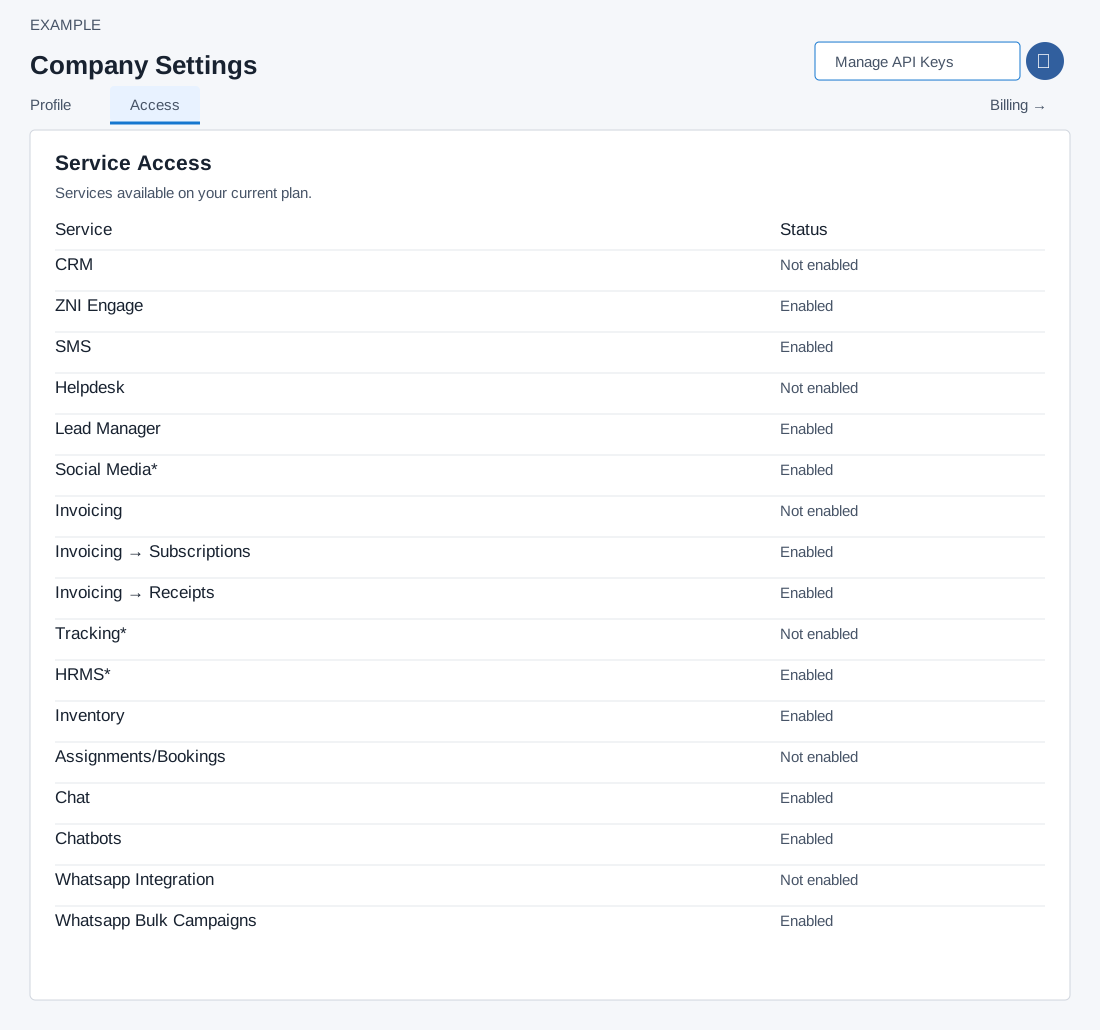
- Select Access. With either tab focused, Left/Right Arrow, Home and End move between Profile and Access.
- Find the service in the Service / Status table: CRM, ZNI Engage, SMS, Helpdesk, Lead Manager, Social Media, Invoicing, Invoicing → Subscriptions, Invoicing → Receipts, Tracking, HRMS, Inventory, Assignments/Bookings, Chat, Chatbots, Whatsapp Integration or Whatsapp Bulk Campaigns.
- Read its Enabled or Not enabled status. This displays company plan services. Individual permissions are managed separately in User roles.
- Use Billing to review the company's plan and billing information if a required service is unavailable.
Other controls and recovery
Manage API Keys opens API-key settings. The settings icon opens personal Notes. Billing is a navigation link, not a third tab or save button. Individual user details belong in Your profile and integrations; team organization belongs in Departments.
| Problem | Next step |
|---|---|
| All fields are mandatory | Check every required field in the form submitted. Values in the other form do not satisfy it. |
| Duplicate name, invalid country or industry | Use a distinct company name and choose an available country or industry entry. |
| Invalid timezone for country | Wait for Country to refresh its choices, then select a timezone from that list and recheck the currencies. |
| No access to update settings/profile | Ask an administrator to make the change. |
| Unexpected values after reload | Compare both forms and record the affected field and message for support. Do not repeatedly resubmit an uncertain change. |