WhatsApp template variable mapping
Connect approved template placeholders to CRM fields and inspect the resulting labels before use.
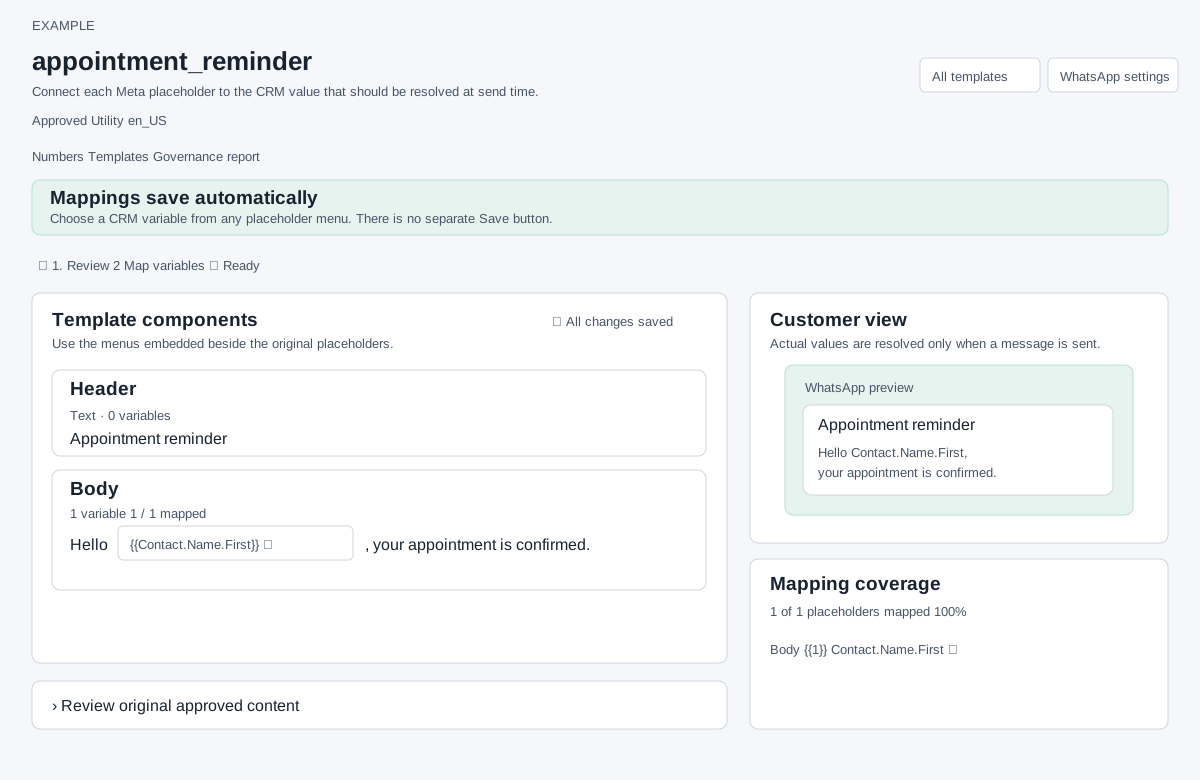
Open and check
Admin → WhatsApp Management → Templates → Map variables or View template on an Approved row. The account must have WhatsApp in its plan and the user must be an administrator. The page verifies that this approved template belongs to the company. Saving also requires WhatsApp settings management permission and a valid security token. The header shows template name, status, category and language; All templates and WhatsApp settings navigate back.
Components and formats
Template components display Header, Body, Footer, Buttons or Action when present. Text Header, Body and Footer show the original text with a dropdown at each {{placeholder}}. Each distinct placeholder in each location counts separately; repeated occurrences in one location share a mapping. Header format is shown beside its variable count. An IMAGE header offers an image gallery; VIDEO and other media formats are read-only here. Buttons and Action show their labels and types, including phone, URL or other action, but have no editable button parameter control on this screen. The original-content disclosure displays component text and button labels; it is a review view, not an editor.
Meta provides the positional or named parameter format with the template. The CRM uses the fetched format during send preparation; this page has no format selector. Follow current provider requirements for template content and buttons in Meta, rather than treating this screen as a validator for those rules.
Choose values and save
- Open each text placeholder menu and choose a CRM variable, for example map body
{{1}}to{{Contact.Name.First}}for a reminder. Choose values appropriate to the message and available send context. - The selection saves immediately. Wait for All changes saved; there is no Save button. A successful save updates matching menus, coverage and preview labels. An error restores the previous selection and reports Mapping was not saved. Choosing Select One cannot clear an existing mapping; choose another value instead.
- Check Mapping coverage and the location-specific counts. A template with no counted text placeholders shows 100% and No variables required; this does not verify image selection, button parameters, recipient data or delivery.
Available CRM variable choices
The selector begins with Select One, then groups the following exact tokens. Invoice, order and subscription values depend on the context supplied by the particular send; a mapped label alone does not guarantee a value.
| Group | Choices |
|---|---|
| CONTACT | Contact.Name.First, Contact.Name.Last, Contact.Name, Contact.ID, Contact.Company.Name, Contact.Product.Required |
| PROFILE | Contact.Phone, Contact.Email, Contact.Whatsapp |
| STAFF | Staff.Name, Staff.Email, Staff.Phone |
| INVOICE | Invoice.No, Invoice.Date, Invoice.Amount.Gross, Invoice.Amount.Receipt, Invoice.Amount.Pending, Invoice.Status |
| ORDER | Order.ID, Order.Amount.Paid, Order.Status, Order.Quote.Id, Order.Quote.Type, Order.Quote.Amount.Payable |
| SUBSCRIPTION | SUBS.ID, SUBS.NAME, SUBS.DESCRIPTION, SUBS.REMARKS, SUBS.DATED, SUBS.DATE.CREATED, SUBS.DATE.STARTED, SUBS.DATE.ENDING, SUBS.STATUS, SUBS.AMOUNT |
Each displayed choice is wrapped in double braces. The selector does not include context-only Task, Ticket or Remarks options.
Image header gallery
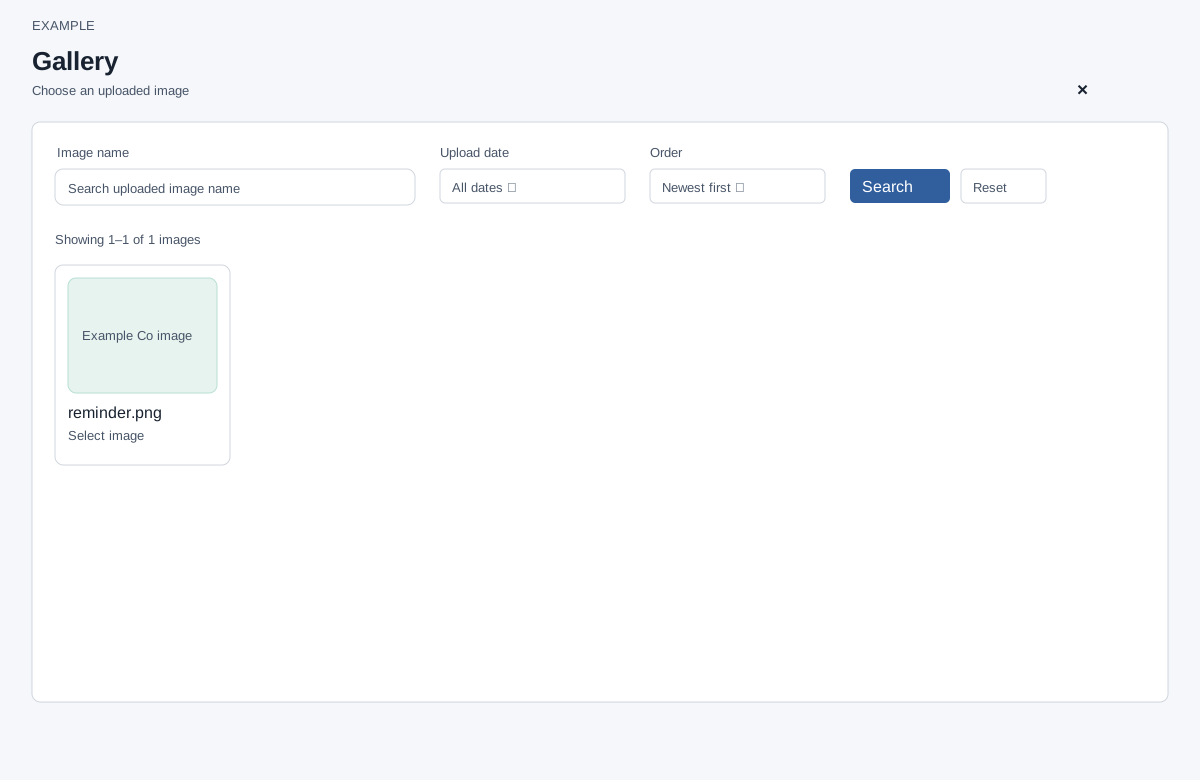
- For an IMAGE header select Choose from gallery. Search uploaded image name, choose Upload date (All dates, Today, Last 7 days, Last 30 days) and Order (Newest first or Oldest first), then Search. Date and order changes also refresh results; Reset restores defaults. Use page controls when provided.
- Select an available image. The dialog closes and the page saves its public URL as the header image mapping; on success both component and customer preview update. The selected image must be available in the gallery. Close the dialog without selection to leave the mapping unchanged.
If the gallery cannot load, retry after checking access. If Image was not saved or an image is unavailable, choose an available image again and check the reported error. Gallery selection is not an upload control. If the image is not in the gallery, open File Manager from the top navigation, choose Upload File, add the image in Upload Files, and choose Done. Return to the template and reopen the gallery; the image must be available to your account. Upload changes the file library. See File Manager for more detail.
Preview and recover
Customer view shows the approved layout and mapped variable labels, not actual recipient values. Actual values are resolved when sending. Open Review original approved content to compare the unmodified text and buttons. If a mapping fails, retry the selection, refresh for an expired security token and verify permissions and approval; an approval change can make the template invalid. If no components are found, fetch the latest definition and reopen the template. Mapping updates the local CRM mapping, not the Meta template, its category or its approval.