WhatsApp templates
Review the local library of WhatsApp templates fetched from connected WhatsApp Business Accounts, and open approved templates for mapping.
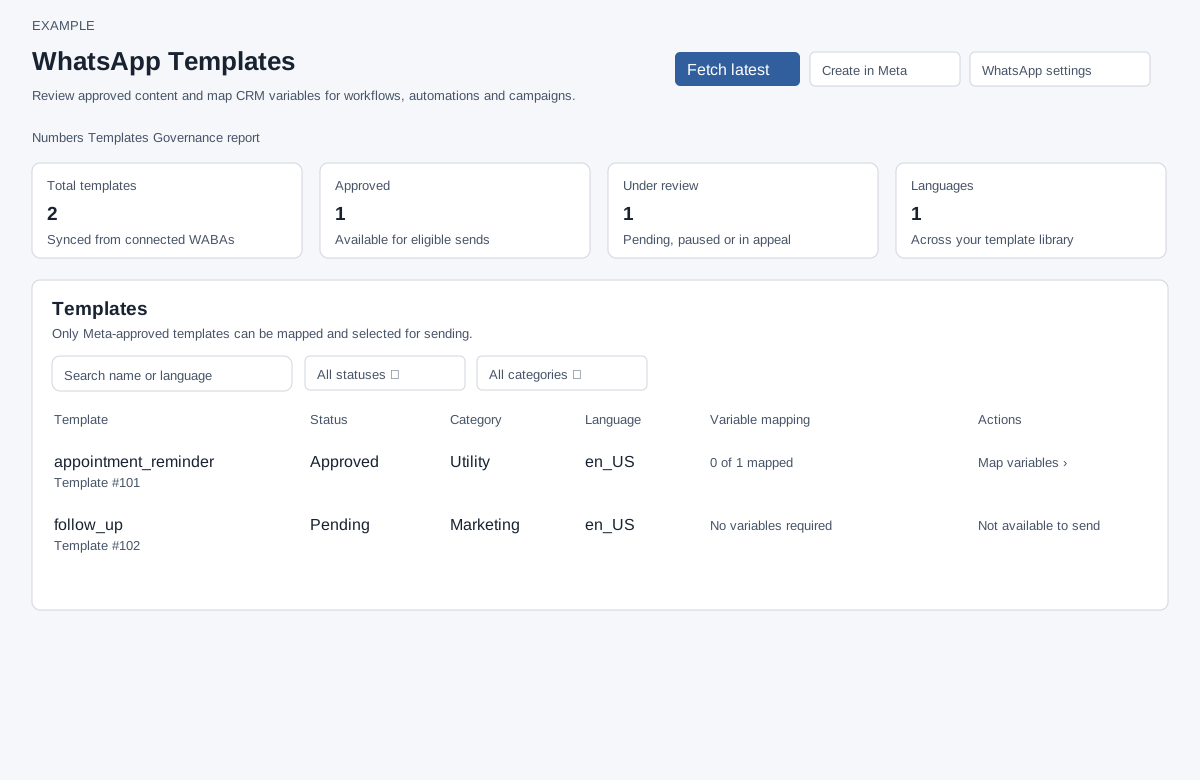
Access and preparation
Open Admin → WhatsApp Management → Templates. The WhatsApp integration must be included in the plan, and the signed-in staff role must be ADMIN. Fetching and saving also require permission to manage WhatsApp settings and a valid security token. Connect a WhatsApp Business Account first.
Create, change and review content
- Select Create in Meta to open WhatsApp Manager in a new tab. Create or edit the name, language, category, content and buttons there, and follow Meta's current review process. The CRM page does not provide a creation, editing, deletion or review-submission form.
- Return to Templates and select Fetch latest after the provider has updated the template. In the empty state, Fetch latest templates performs the same operation.
- Check the resulting row and approval status. Only Approved rows offer Map variables or, when there are no text placeholders, View template. Other rows show Not available to send.
Meta owns its template format and approval rules; consult its current instructions in WhatsApp Manager for supported formats, limits and review outcomes. Fetching updates local records, including status, category, language, components and parameter format; templates absent from a successfully fetched account are marked Removed locally. If several accounts are connected, earlier accounts may have completed before a later account fails.
Find and interpret a template
The summary shows total, Approved, Under review (Pending, Paused and In appeal), and distinct languages among up to 1,000 retrieved records. The count cards do not change with the local filters. Search matches name, language, status or category; combine it with Status (All statuses, Approved, Pending, Paused, Rejected, Disabled) and Category (All categories, Marketing, Utility, Authentication, Service). Clear the search and filters if no rows match. In appeal and Removed can appear in All statuses but have no dedicated filter option.
Each row shows template name and local number, status, category, language and mapping coverage. Coverage counts distinct placeholder-and-location pairs found in Header, Body and Footer text, not button parameters or media. No variables required means that count is zero; it is not a test send. For example, choose the appointment_reminder utility template and open Map variables to connect its body placeholder to a contact name.
Recovery and verification
On successful fetch, the page reports success and reloads. If no business account is connected, connect one before retrying. If a fetch fails, review the connection and retry; an account's failed fetch does not reconcile its missing templates. Refresh the page if the security token is invalid. If an approved template does not appear, clear filters, confirm the correct account and provider status, fetch again, and remember the page retrieves at most 1,000 local records. This page has no delete or edit button; changes must be made in Meta and fetched again.