File Manager
Find uploaded files and exports, copy a link, or add documents for use in the CRM.
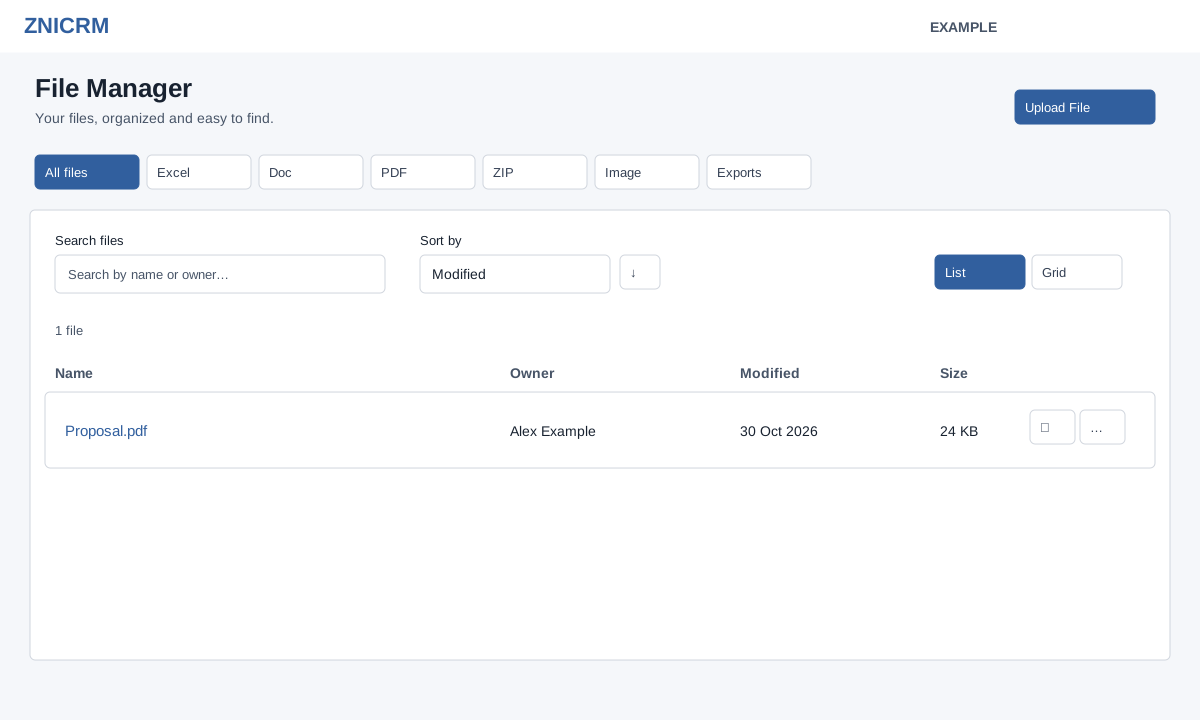
Find and open files
Choose File Manager in the main navigation. Select All files, Excel (including CSV), Doc, PDF, ZIP, Image or Exports. Search by name, description or owner, sort by Modified, Name, Size or Owner, and use the direction button to reverse the order. Modified uses the stored file date. The system first loads at most the newest 500 private GLOBAL files available to the user, then applies search, type filter and sorting to that subset. Administrators see company files in this scope; other users see their own. Exports selects files whose description is exactly “Export Data”. Switch between List and Grid; use Load more when offered to fetch the next 50 matching files from that subset. If an older file does not appear, changing sort or search cannot include files beyond the initial 500. Clear search or change filters if no files match.
Select a filename or its More actions → Open to open it. The link button copies the file URL; if copying fails, open the file and copy its address. File opening may display or download depending on type and browser; unavailable or unsupported files can lead to an error page. A JPEG file may upload but fail to open in the file viewer; use a supported alternative such as JPG if needed.
Upload and delete
- Choose Upload File, then drag files into the dialog or choose files. The dialog accepts up to 10 at a time, but the system accepts only mp3, mp4, png, gif, jpeg, jpg, csv, doc, pdf, docx, xls and xlsx. The dialog advertises a broader set, including presentations; those outside the system list are rejected.
- Check upload feedback and choose Done; closing the dialog reloads the list. Search for the filename to verify it appears.
- Administrators see Delete in a file’s action menu. Confirm only when the file should be permanently deleted, then check that it disappears from the list.
If loading fails, choose Try again. If an upload fails, check the file type and displayed error, then retry.
For links served by the separate file CDN, see Open a stored file.
For the older embedded picker, see older gallery picker and older gallery upload; availability depends on the calling page.