Supplier reconciliation
Record supplier invoice amounts, payment progress and commissions against an itinerary. Create the itinerary before linking a reconciliation record to it.
Find a reconciliation record
- Open Travel CRM → Reconciliation. Travel access and advanced storage are required. Reconciliation permission exposes editing; operations permission is also required.
- Select payment Status: All, Pending, Partial, Paid, Disputed or Overdue. Choose an Itinerary and Apply.
- Review the loaded rows before adding another record. Overdue is derived from a non-Paid record whose due date is before today; it is not a form status. The page loads up to 500 reconciliations, 300 itineraries and 500 suppliers.
Add or update supplier reconciliation
- Select Add Reconciliation, or Edit on the intended row.
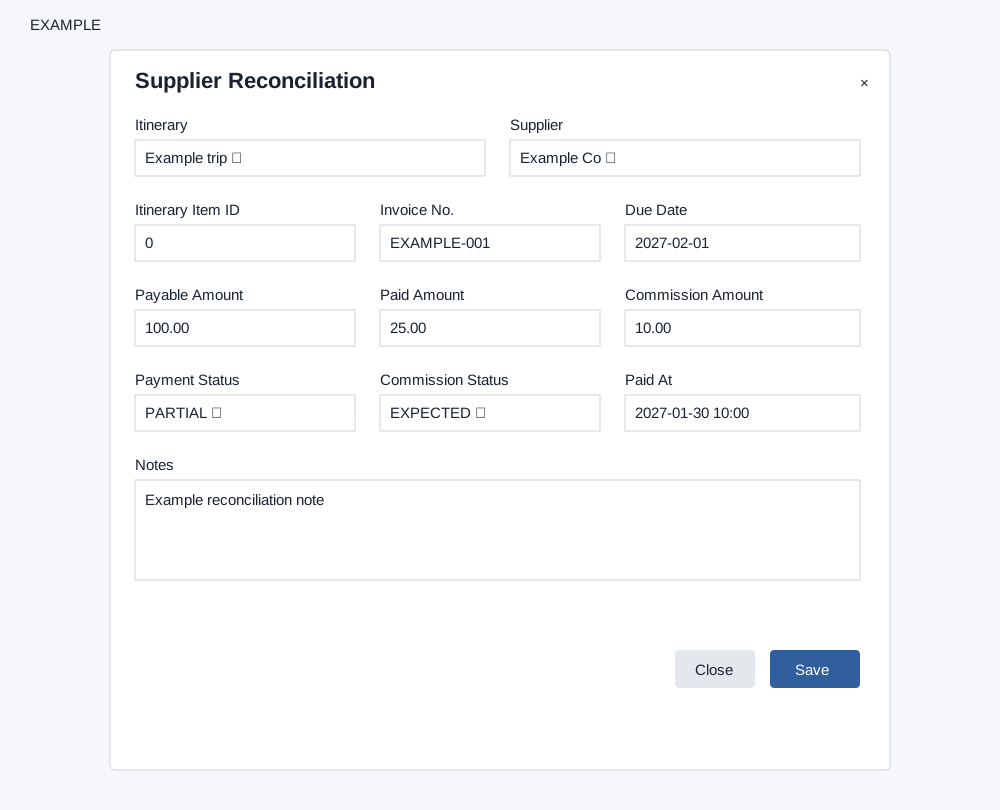
- Select the required Itinerary. Choose a supplier if applicable and enter an Itinerary Item ID only when that item belongs to the itinerary.
- Complete the reference, amounts and statuses below. Review Payment Status separately from Paid Amount; the status is not calculated from the amount.
- Select Save. The list reloads. Reopen the row and verify the saved amounts, dates and statuses before treating the record as reconciled. Close dismisses the editor.
| Field | Use |
|---|---|
| Supplier; Itinerary Item ID | Optional links. A selected supplier must belong to the company; an item must belong to the selected itinerary. |
| Invoice No.; Notes | Supplier reference and supporting reconciliation context. |
| Due Date; Paid At | Expected payment date and recorded payment date/time. Enter the actual dates relevant to the record. |
| Payable Amount; Paid Amount; Commission Amount | Stored amounts rounded to two decimals. Enter and verify each independently. |
| Payment Status | Pending, Partial, Paid or Disputed. |
| Commission Status | Pending, Expected, Invoiced, Received or Waived. |
Example: for an Example Co hotel invoice, record 1,200 payable and 400 paid, then explicitly choose Partial. Record a 60 commission as Expected until received. Saving records this information; it does not transfer money or pay the supplier.
Delete or recover from an error
Delete asks for confirmation and permanently removes the reconciliation row. Check the itinerary, supplier and reference before confirming. If Save reports an error, correct the required itinerary, supplier/item relationship or permission. Refresh and check the row and figures before retrying. Reopen the record to confirm it was saved.
Itinerary builder · Contact travel dashboard
If loading or saving fails, ask an administrator to check the deployment; do not assume a blank result establishes that no records exist.