Group manifest and rooming
In the Travel sidebar, select Group Manifest.
Open this workspace from Travel CRM. Create an itinerary first. Travel access and the appropriate action permissions are required; advanced storage enables manifest and readiness.
Manifest permission exposes controls; operations permission is also required.
Traveler and room records
Filter by an itinerary or All itineraries and select Apply. The page loads up to 300 itineraries and 500 travelers and 500 rooms. Traveler rows show name, type and age group, itinerary, masked passport and expiry, visa and insurance, and preferences; room rows show room, itinerary, dates, traveler names and confirmation. Itinerary links open the builder. Delete asks for confirmation; refresh and inspect the list after a change.
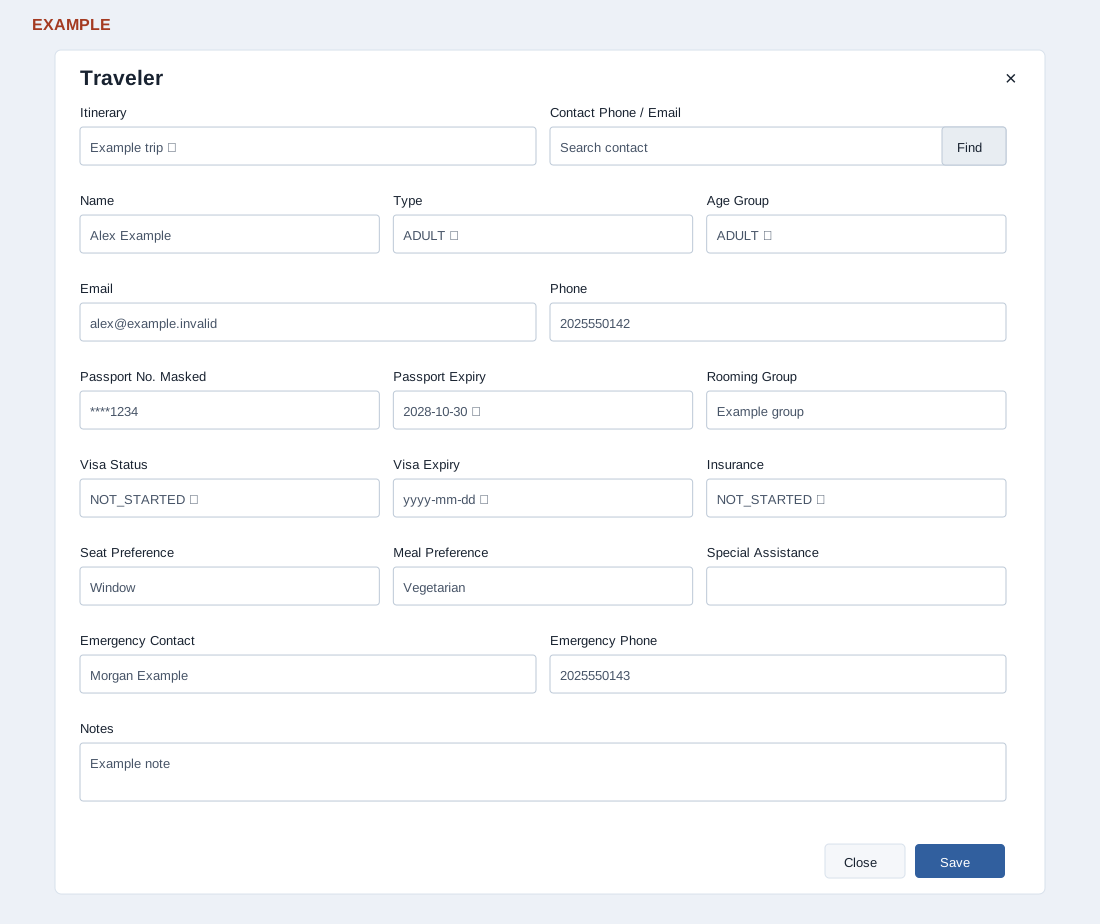
Select Add Traveler. Itinerary and Name are required. Choose Type (Adult, Child, Infant, Senior or Staff) and Age Group (Adult, Child, Infant or Senior); optionally link a contact by phone or email using Find and selecting a result. The selection fills Name, Email and Phone only where those fields are blank. Enter already masked passport data: a full passport number is stored as entered, without automatic masking. Record Email, Phone, masked Passport No., Passport Expiry, Rooming Group, Visa Status and Expiry, Insurance, Seat Preference, Meal Preference, Special Assistance, Emergency Contact and Phone, and Notes. Visa choices include Not Started, Not Required, Pending, Submitted, Approved, Rejected and Expired; insurance includes Not Started, Not Required, Pending, Issued and Expired. New entries default to Adult type and age group and Not Started for visa and insurance. Save reloads the list; inspect the row or use Edit/Delete. Delete confirms and marks the traveler inactive; it does not delete the CRM contact.
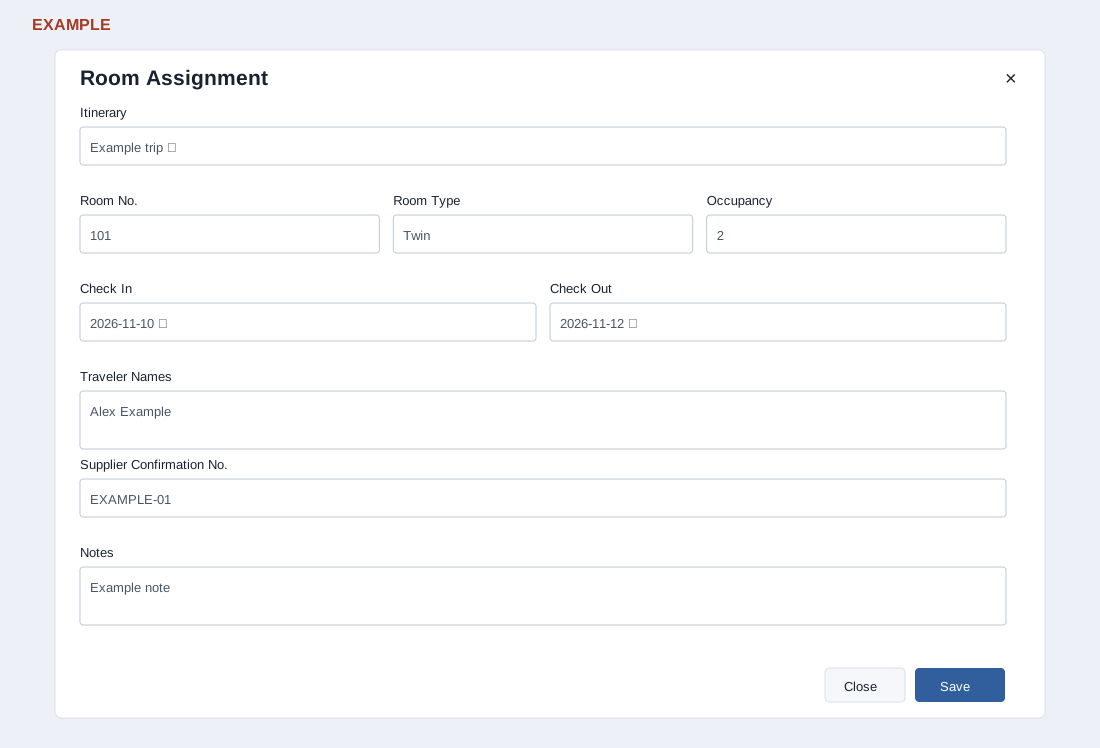
For a room, select Add Room and supply required Itinerary, Room No. and Room Type. Occupancy defaults to one; values below one are changed to one; Check In, Check Out, Traveler Names, Supplier Confirmation No. and Notes are optional. Save reloads the list. Review rooming details and use Edit/Delete when needed. Traveler Names is free text, not a link that automatically assigns manifest records. Delete confirms and marks the room inactive. These forms do not validate that check-out follows check-in; verify the dates. Example: record an Example Co traveler and room, then check both lists and the readiness report; editing one does not automatically update the other.
If a list or save fails, ask an administrator to check setup and permissions.