Travel supplier directory
Availability depends on your account configuration and permissions.
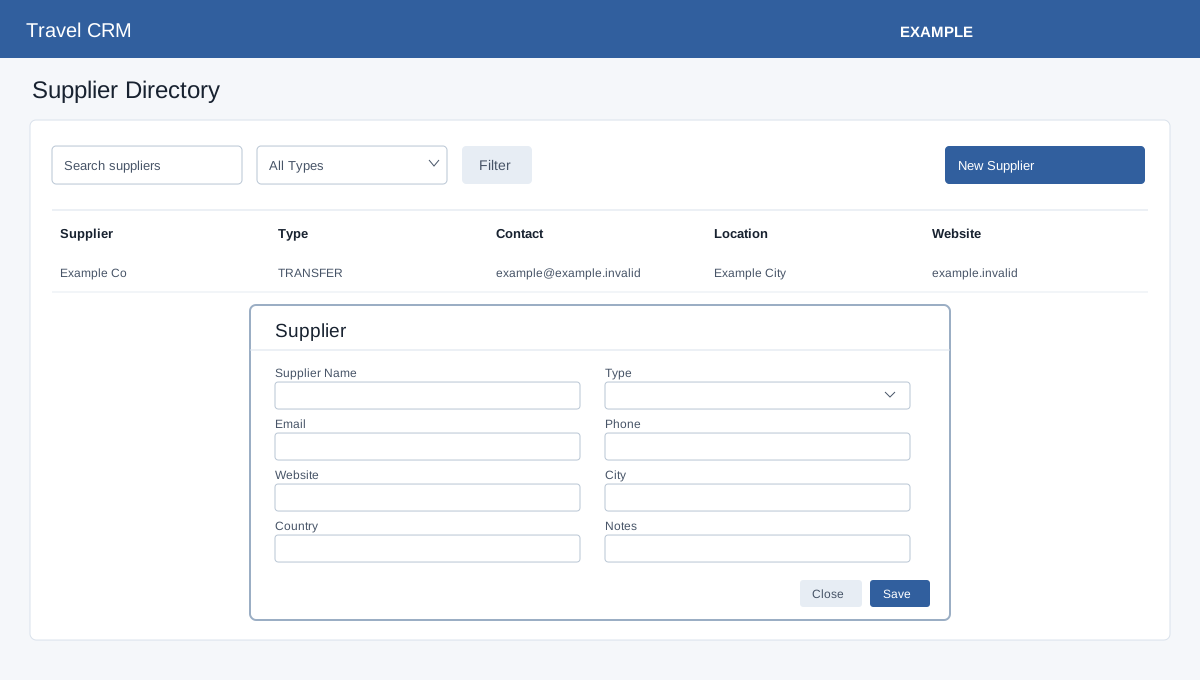
Maintain supplier details used when preparing itineraries and recording supplier reconciliation.
Find a supplier
- Open Travel CRM → Suppliers. Travel access and foundation storage are required; supplier permission enables changes.
- Enter search text and select a type, then choose Filter. The directory loads up to 300 matches.
- Review Supplier, Type, Contact, Location, Website and Notes to identify the correct record before editing.
Create or edit
- Select New Supplier or a row’s Edit.
- Enter the required Supplier Name and choose Type: General, Hotel, Flight, Transfer, Activity, Cruise, Rail, Insurance, Visa, Transport, DMC, Guide or Other.
- Optionally enter Email, Phone, Website, City, Country and Notes. For example, create “Example Hotel Supplier”, Type Hotel, and use [email protected] in a demo.
- Select Save, then find and reopen the row to verify its values. Close or × dismisses the unsaved dialog.
Remove a supplier from the directory
Select Delete on the intended supplier and review the confirmation. This marks the supplier inactive. Verify that the correct supplier disappears from the active directory.
If a supplier is missing or a save fails
Clear search or change the type and Filter again; consider the 300-row limit and whether the supplier was made inactive. Check the required name, permissions and any storage warning. Check the saved row before retrying to avoid creating a duplicate.
Itinerary builder · Contact travel dashboard
If loading or saving fails, ask an administrator to check the deployment; do not assume a blank result establishes that no records exist.