Travel AI planner
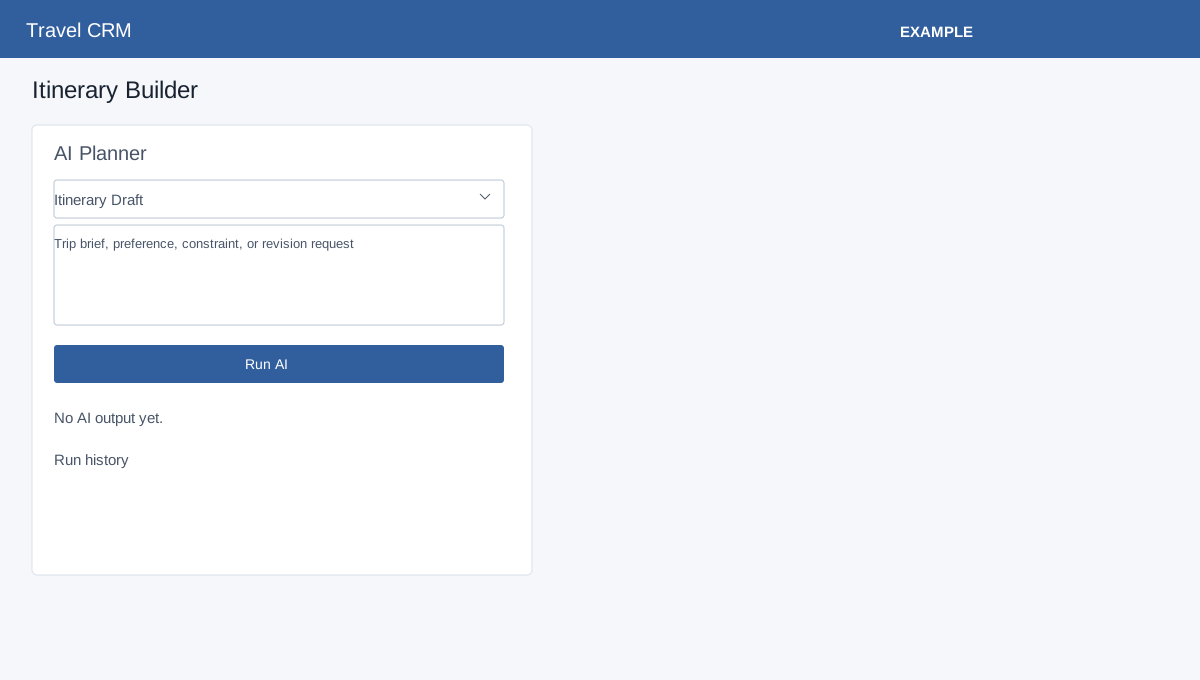
Open the corresponding workspace from Travel CRM. Travel access and the specific action permissions described below are required. Create an itinerary before linking records to it.
Open AI Planner
Open an existing itinerary in the builder. Travel access, builder access and AI permission are required; an administrator must enable Travel AI and install its storage and company settings prerequisites. The panel displays a warning when these are missing.
Run and review
Choose Itinerary Draft, Validate Itinerary, Revise Itinerary, Destination Content, Customer Summary, Supplier Message or Live Option Summary. Enter the trip brief, preferences, constraints or revision request in the text area, and select Run AI. Run AI sends the brief and itinerary context to the configured AI provider, records the run, and deducts credits on successful generation. It checks the balance against the configured maximum before requesting output. The result displays credit cost and remaining balance; the panel shows the five most recent runs. Failed generation or billing can also be recorded; check the history and balance before retrying after an uncertain response. Read the output and history in the panel. Review suggestions for accuracy and suitability before using them; the run produces output rather than automatically booking travel.
If a run fails, read the displayed error and check AI permission, administrator settings and storage with your administrator.
Itinerary builder · Contact travel dashboard
Setup check limitation: If loading or saving fails despite no setup warning, ask an administrator to check the deployment and permissions.