Advanced template editor
Arrange a reusable template visually, then explicitly save its HTML and CSS.
Open and edit
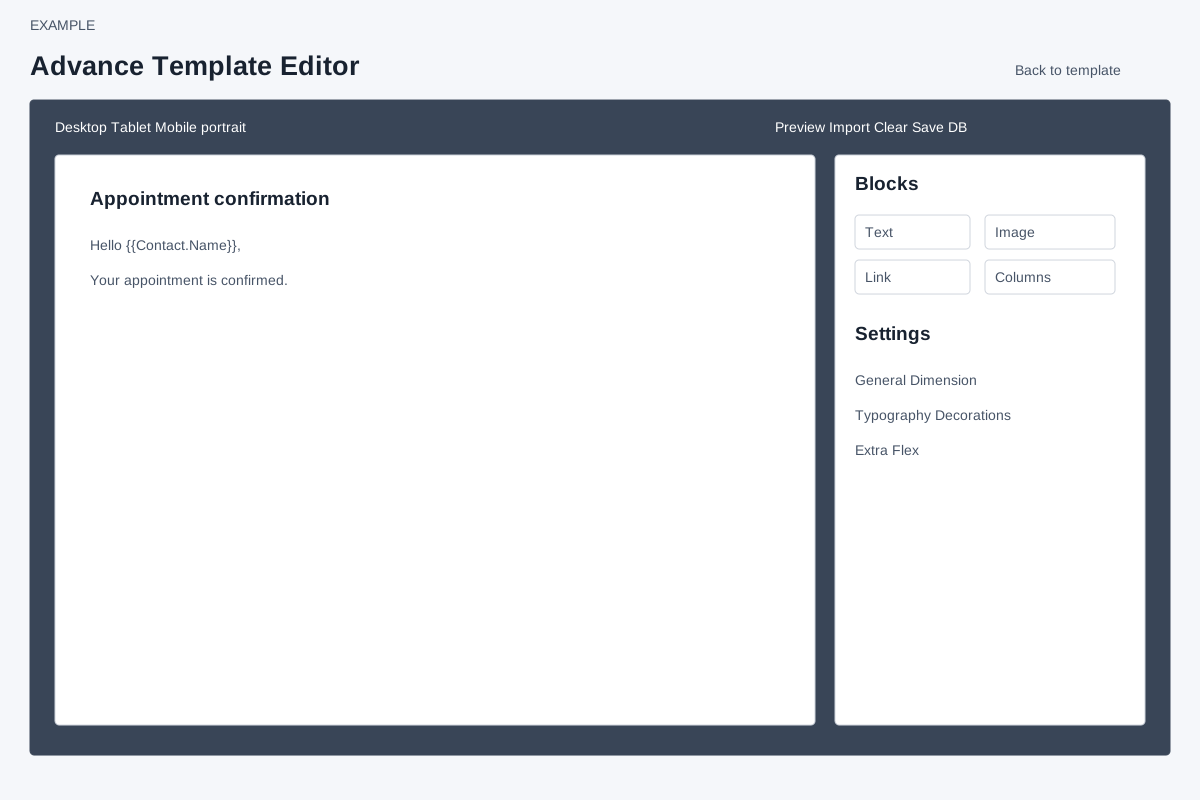
Admin → Settings → Templates → Edit → Advanced Editor opens a new tab for a company template. ADMIN role is required. Existing HTML and CSS are fetched and loaded into the canvas; a fetch error is logged without a visible recovery message, so if the canvas unexpectedly appears blank, return to the basic editor and check the template before saving. Select elements on the canvas to edit them, and use the editor's block and style panels to arrange content. Available editor plugins include tabs, slider, custom code, image editing, tooltips and typed text; availability depends on the selected element and editor state.
Style controls include General positioning, Dimension width/height/margin/padding, Typography font/color/alignment, Decorations borders/shadows/background, Extra transitions/transforms and Flex. Settings exposes element-specific traits. Desktop, Tablet and Mobile portrait controls change the editor device view. Import Template accepts pasted HTML/CSS. Canvas clear asks for confirmation and clears the canvas; it does not save the template.
Editor toolbar and panels
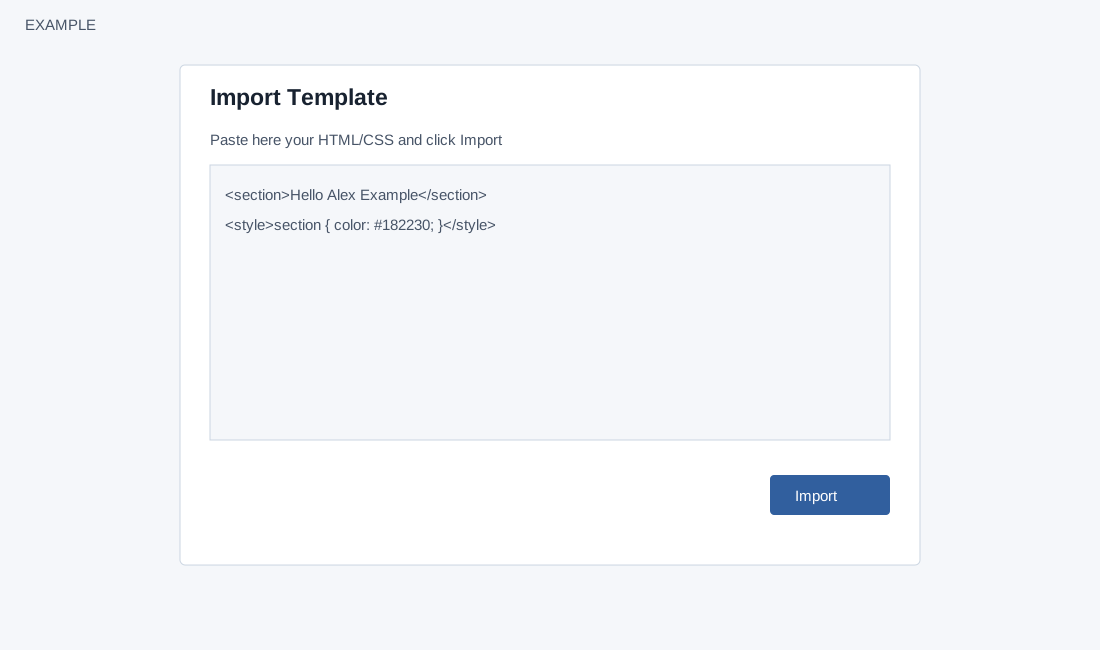
Use Show Borders to make component boundaries visible; Preview shows the design without editing outlines, and Fullscreen changes the workspace view. Undo and Redo step through editor changes. Export opens the editor’s export view; Import opens Import Template, initially containing the current HTML and CSS. Paste reviewed HTML/CSS and choose Import to place it in the canvas. These actions do not save the template to the CRM. Choose Desktop, Tablet or Mobile portrait to inspect the layout at that device width; this is a preview state, not a guarantee of how every email client renders.
Blocks opens the drag-and-drop palette. The bundled preset configures Basic column layouts (one, two, three and 3/7 columns), Text, Link, Image, Video, Map, Link Block, Quote and Text section. Its Forms group includes Form, Input, Textarea, Select, Button, Label, Checkbox and Radio. Extra components include Navbar, Countdown, Tabs, Slider and Typed text. These are editor components; adding a form or interactive element does not establish that a recipient’s email client supports or submits it. Drag a block to the canvas and select it to adjust its contents. The asset manager is preloaded with external sample images and configured to embed assets as base64; no account-specific upload destination is configured in this page. Do not treat sample images as approved brand assets.
Layers shows the component hierarchy; select a layer to work on that element. Style Manager contains a collapsible Settings area for the selected element’s traits, followed by style sectors. The controls displayed depend on the selected component. No CRM variable insertion control is configured on this advanced page; use the basic editor’s variable guidance and verify placeholders in the resulting HTML rather than assuming a block adds one.
Style a selected element
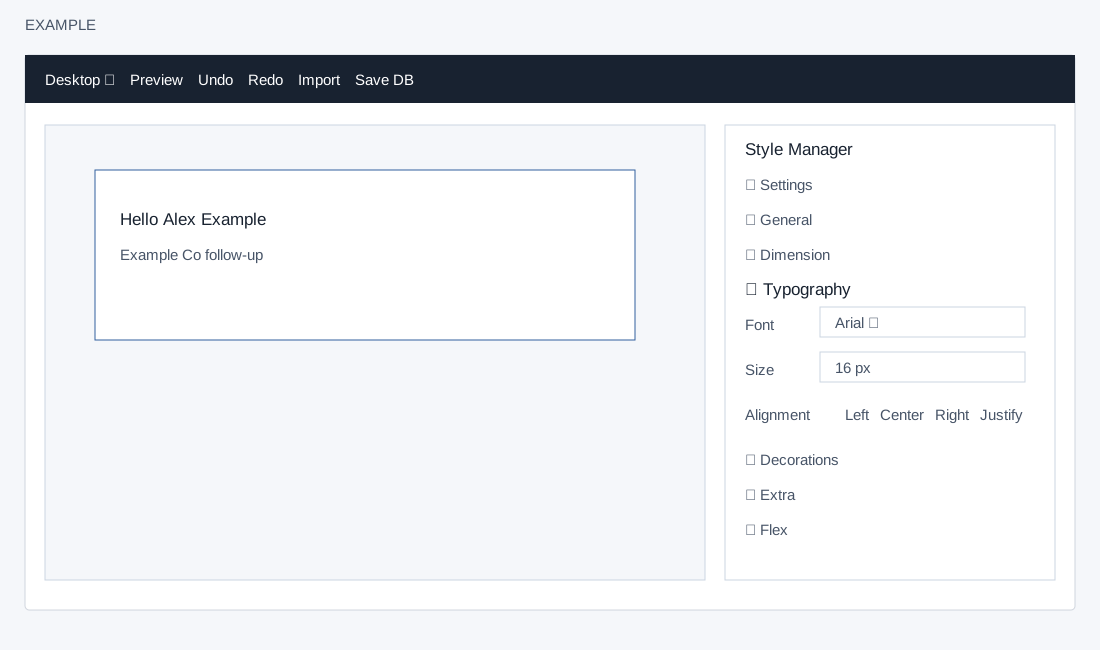
| Sector | Configured controls |
|---|---|
| General | Float alignment (none, left, right), display, position and top/right/left/bottom offsets. |
| Dimension | Width, flex basis, height, maximum width, minimum height and individual margin and padding sides. |
| Typography | Font, size, weight, letter spacing, color, line height, left/center/right/justify alignment, none/underline/line-through decoration and text shadow. |
| Decorations | Opacity (0–1), corner radii, border, box shadow and background, including repeat, position, attachment and size. |
| Extra | Transition property, duration and easing; perspective; rotation and scale on X, Y and Z. |
| Flex | Enable or disable flex; direction row, reverse row, column or reverse column; justify start/end/space between/space around/center; align start/end/stretch/center; child order, grow, shrink, basis and self-alignment. |
For example, place a Text section for Example Co’s follow-up message, select its text, adjust typography and inspect Desktop and Mobile portrait before saving. Use Undo if the layout moves unexpectedly. Clear canvas asks for confirmation, removes canvas components and also clears browser local storage for this origin; it does not itself save the cleared design. Confirm only when that browser-wide effect is intended.
Save and verify
Use the floppy-disk Save DB control; autosave is disabled. It posts the current HTML and CSS. The displayed Saved notification follows a successful HTTP response and does not inspect the returned text. Reopen the template to check that the content was saved. Return to the basic editor and reopen or refresh to verify the expected content. The editor refuses empty content; a cleared canvas should not be treated as a saved deletion. Network failure displays an error; retain the design and retry after checking access.
Saving changes reusable template content and does not send it. The basic editor's Save writes its own content and clears the separate CSS field; review advanced designs carefully if switching editors.