Edit a CRM template
Write and format reusable company template content.
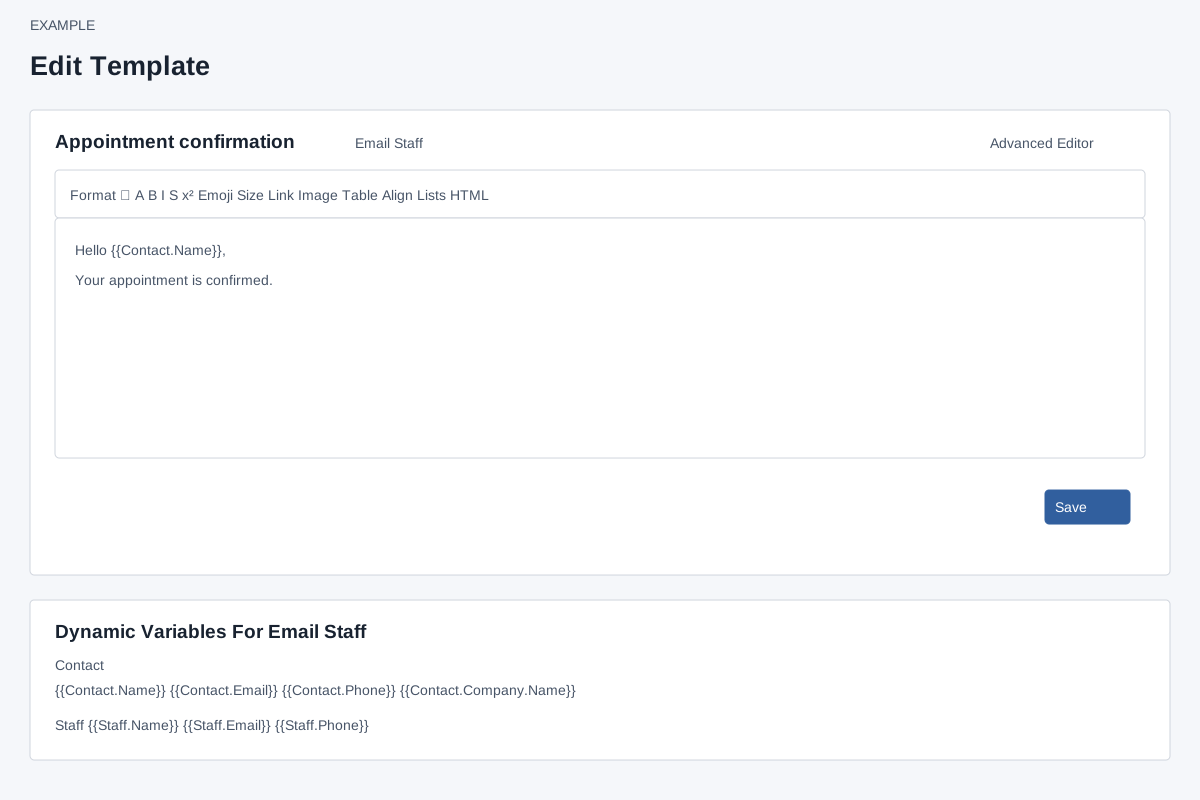
Open and compose
Admin → Settings → Templates → Edit. ADMIN role is required; the page checks that the template belongs to the company. The heading displays name and category. Compose in the rich-text area and use the toolbar for formatting, foreground/background color, bold, italic, strike-through, superscript/subscript, emoji, font size, highlight, links, image insertion or upload, tables and cell/border colors, alignment, lists, horizontal rule, remove formatting, mention, image resizing, clean paste, fullscreen and HTML view. Uploading an image creates a stored file.
Insert variables
Use the mention control to select a supported dynamic variable, or enter its exact displayed token. The panel below the editor lists tokens and labels by category. Proposal offers Contact and Staff; helpdesk reply, closure and internal note offer Ticket, Contact, Staff and General; CSAT offers survey links, Ticket and Contact. General and Email Staff offer Contact, Staff, General, Billing, Orders and Subscriptions. Actual values depend on the later workflow and context; review a populated message before sending.
For example Hello {{Contact.Name}} places the contact name at the point of use. Contact options include name, email, phone and company; Staff includes name, email and phone. Ticket and survey options are specific to the helpdesk categories. Billing/order/subscription values require corresponding data and context.
Variable reference by category
Contact: {{Contact.Name}}, {{Contact.Email}}, {{Contact.Phone}}, {{Contact.Company.Name}}. Staff: {{Staff.Name}}, {{Staff.Email}}, {{Staff.Phone}}. General: {{Remarks}}. Ticket (reply, closure and internal note): {{Ticket.ID}}, {{Ticket.Subject}}, {{Ticket.Status}}, {{Ticket.Priority}}, {{Ticket.Category}}, {{Ticket.CreatedOn}}; CSAT instead offers the first three and {{Helpdesk.Survey.Link}}, {{Survey.Link}}.
General and Email Staff also show Billing aliases {{INVOICE.NO}}, {{INVOICE.DATE}}, {{INVOICE.AMOUNT.GROSS}}, {{INVOICE.AMOUNT.RECEIPT}}, {{INVOICE.AMOUNT.PENDING}}, {{INVOICE.STATUS}}, {{Subscription.ID}}, {{Subscription.Name}}, {{Subscription.Status}}, {{Subscription.Date.Start}}, {{Subscription.Date.End}}, {{Subscription.Amount}} and {{TICKET.ID}}; Orders {{Order.ID}}, {{Order.Amount.Paid}}, {{Order.Status}}, {{Order.Quote.Id}}, {{Order.Quote.Type}}, {{Order.Quote.Amount.Payable}}; Subscriptions {{SUBS.ID}}, {{SUBS.NAME}}, {{SUBS.DESCRIPTION}}, {{SUBS.REMARKS}}, {{SUBS.DATED}}, {{SUBS.DATE.CREATED}}, {{SUBS.DATE.STARTED}}, {{SUBS.DATE.ENDING}}, {{SUBS.STATUS}}, {{SUBS.AMOUNT}}. The source groups these aliases under Billing even though some refer to other contexts.
Save and verify
Select Save to submit nonempty content, then reopen and check it. Empty content is not saved. The basic save passes content without separate CSS; the class writes an empty separate CSS field, so verify designs created with Advanced Editor before and after a basic save. Save changes reusable content; it does not send a message. Advanced Editor opens in a new tab. A return to the basic page may require refresh to show the advanced changes.
If a record is unavailable, return to the list; if a save does not appear, check content is nonempty and reopen it. The basic page does not present a separate save confirmation.