Real Estate sale details
Open a sale from Sales to review its allocation, commercial documents and activity. The page links back to its buyer requirement and, when permitted, offers Record brokerage fee.
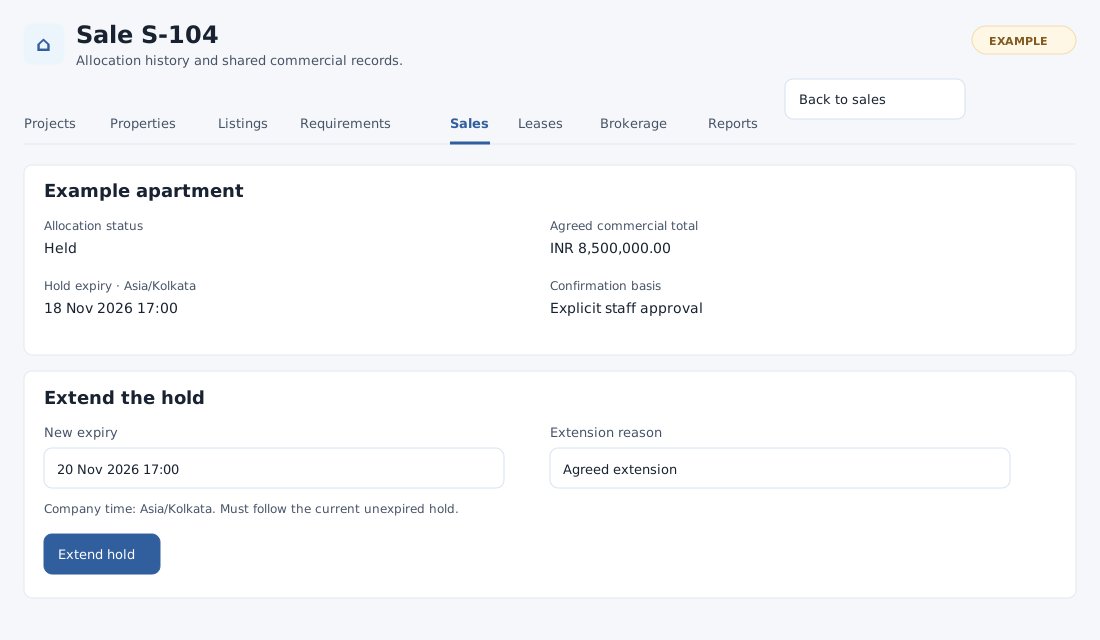
Review and progress the allocation
The property panel shows status, agreed total, hold expiry in company time, confirmation basis, notes and any completion or release evidence. Sales management and write access to the buyer are required for changes. At hold creation, confirmation and completion, acknowledge every current or future committed tenancy and enter the actual agreement when prompted. The acknowledgement does not cancel a tenancy.
- Extend the hold: for an unexpired Held sale, enter a new company-time expiry later than the existing expiry and current time, and an extension reason. The listing must remain active and the new expiry within its mandate. Select Extend hold.
- Confirm the sale: while the hold is unexpired, enter the confirmation reason and select Confirm sale. Staff approval requires explicit authorized approval. For a settlement threshold, link an authorized non-void invoice, record settlements reaching the threshold and have settlement permission. A quote alone is insufficient.
- Complete the sale: on a Confirmed sale, enter the completion date and evidence/reference. The date cannot precede confirmation or be in the future. Optionally select Create a task assigned to me, enter a handover due date/time and optional notes. Without a task selection, leave handover due and notes empty. Select Complete sale and confirm; the active sale listing closes and an optional handover task is created.
To end an open allocation, enter a reason under Release property hold or Cancel confirmed sale, select the action and confirm. Held becomes Released; Confirmed becomes Cancelled. Existing quotes, invoices and settlements remain unchanged and need separate financial handling. The allocation itself does not transfer legal ownership.
Quote, invoice and settlement
For a field-by-field walkthrough and examples, see sale quote, invoice and wallet settlement.
With the appropriate finance permissions, the Shared quote and invoice section displays authorized documents, totals and invoice settlement status. A linked document may be hidden when your financial scope does not permit its details.
- On an open sale with no linked quote or invoice, expand Create sale quote. The buyer needs an existing company-office address. Enter required net amount, rounding adjustment and printed bill-to address; enter the property line description, optional terms and each applicable explicit tax amount. Net plus taxes plus rounding must equal the agreed commercial total. Choose Create shared quote.
- When eligible, choose Convert quote to invoice. Alternatively, expand Link an existing issued document, enter its positive quote or invoice ID and choose Link existing document. It must be within your invoice scope and match the buyer, deal, property and agreed total. Linking does not change allocation status.
- For an authorized non-void invoice, expand Settle invoice from existing customer wallet. Enter a positive amount, settlement date, recorded payment mode (or Unspecified), and optional remarks; choose Record wallet settlement. This spends existing wallet funds; it does not collect external cash. Add verified funds through the existing finance workflow first.
Verify or recover
Check the updated status, document rows, invoice settlement and activity after each action. If a form is unavailable, check status, expiry, tenancy scope, finance access and permissions. If the record changed while you worked, reload it, review the current state and re-enter the action. If a response is uncertain, check history before repeating a financial action.
Document and completion checks
Quote amounts and taxes use at most two decimal places; the required rounding adjustment accepts −99.99 to 99.99 in 0.01 steps. If a quote is already linked, its linked invoice must be the conversion of that quote. If an invoice is already linked, the quote must be its source. A document linked to another sale or fee cannot be reused here. Completing the sale also requires its allocated listing to remain Active. When Create a task assigned to me is selected, the handover due date/time is required.