Real Estate brokerage fee details
Open a fee from Brokerage. Its terms identify the source agreement, actual payer, agreed amount and basis, due milestone, notes and any recorded evidence. Management requires access to both the source customer and payer; financial actions require additional permissions and document access.
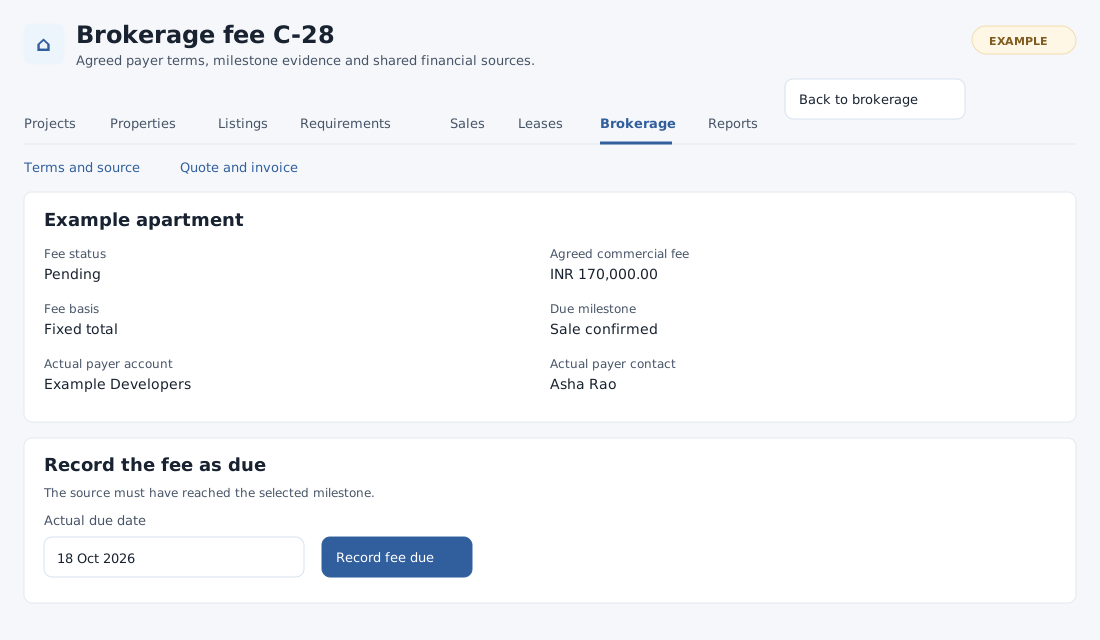
Record the milestone
For a Pending fee, enter the actual Actual due date and choose Record fee due. For an explicit staff milestone, also enter the approved milestone reference. For a source milestone, the sale must already be confirmed or completed, or the lease activated, as selected. The due date cannot be before the recorded source event or in the future. Check the fee now shows Due.
Bill and settle the fee
For the full form and correction walkthrough, see brokerage billing and corrections.
- For a Due fee without a linked document, expand Create brokerage quote. Choose an active Brokerage Service item; the payer contact needs an office address. Enter the required fee net amount, rounding adjustment and printed payer bill-to address, the fee line description, optional terms and applicable explicit tax amounts. Net plus taxes plus rounding must equal the agreed fee. Choose Create fee quote. If no active Service item is available, set one up in the product catalog.
- When eligible, choose Convert fee quote to invoice. Alternatively, expand Link an existing payer document, enter its positive quote or invoice ID and choose Link existing fee document. The authorized document must match the actual payer, selected deal, total and a valid Service line.
- For an authorized non-void invoice, expand Settle fee invoice from payer wallet. Enter a positive amount, settlement date, payment mode (or Unspecified) and optional remarks. Choose Record payer wallet settlement. This spends existing payer wallet funds; verified external funding is recorded separately through the finance workflow.
The document table shows the original commercial charge and invoice received summary where your financial scope permits. A linked document may exist even if its details are hidden.
Reconcile corrections
When an authorized invoice is available, Financial sources and reconciliation displays the original charge, CRM settlements and received summary, CRM outstanding, external credits and refunds, the fee and collections after corrections, outstanding and any overcollection requiring review. Original settlement rows retain receipt, date and amount.
- Expand Record external correction evidence and choose Externally issued credit or Actual external refund, as your permissions allow.
- Enter the positive evidenced amount, actual evidence/payment date, correction reason, external document/transaction reference, issuer/sender and payee/recipient. For a refund, select its original fee receipt; do not select one for a credit. The date cannot precede the source invoice or receipt or be in the future. Cumulative credits cannot exceed the original charge; refunds cannot exceed their source receipt.
- Select Record external evidence and verify the new history row and reconciliation. The latest 100 correction rows are shown; totals include all authorized evidence.
Evidence records are immutable. They do not issue a CRM credit note, reverse wallet settlement, change tax or initiate a bank payment. Original invoice and receipt rows remain unchanged. Use the appropriate external finance process for those actions.
Void or resolve a problem
For a Pending or Due fee without an issued invoice, enter a reason under Void an unissued fee, select the button and confirm. A quote remains as history. Issued fees cannot be voided here; use evidenced corrections as appropriate. Check the resulting status and activity. If an action is missing or rejected, review its status, source milestone, access and financial scope. Reload a changed record and inspect history before repeating an uncertain save.
Document fields and navigation
Use the section links Terms and source, Quote and invoice, Reconciliation and External corrections to move between the fee details. Quote amounts and taxes use at most two decimal places; the required rounding adjustment accepts −99.99 to 99.99 in 0.01 steps. If a quote is already linked, the linked invoice must be its conversion. If an invoice is already linked, the quote must be that invoice’s source. A document already linked to a different sale or fee is rejected.