Department details and membership
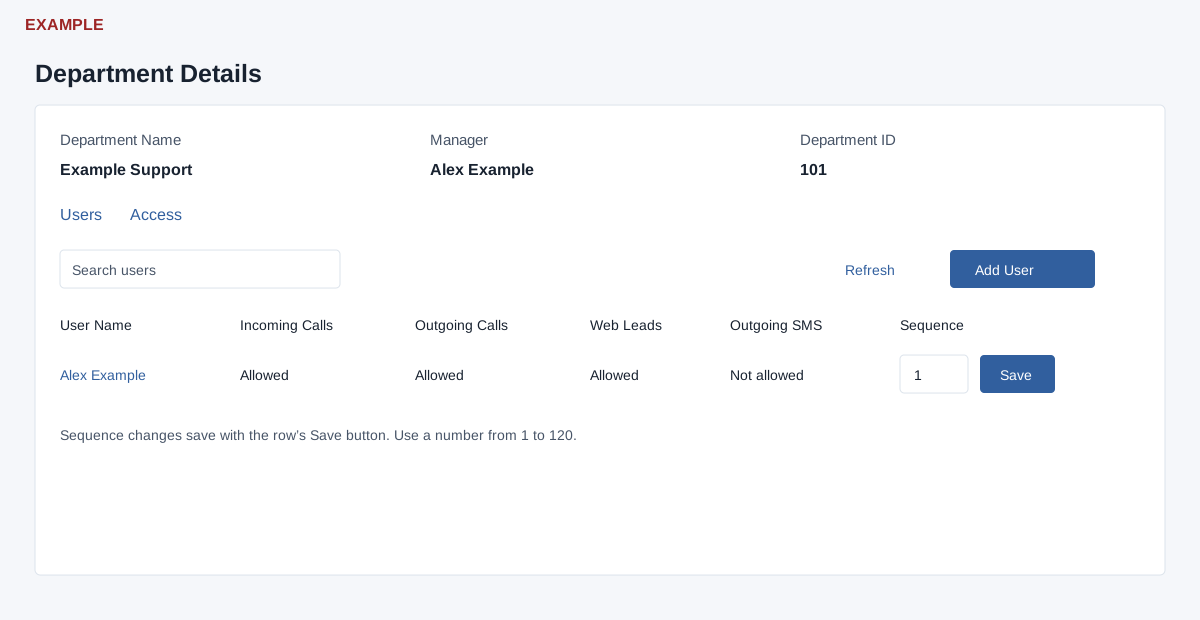
Department Details shows manager and department ID, Support department, a user search, Refresh and Add User. Support department saves on change; the page says incoming calls and web leads for a support department are added directly to Helpdesk. Select an available user and Add User; the list reloads. Enter Call sequence as an integer from 1–120 and select the row’s Save; verify the success message. The row shows Allowed or Not allowed for Incoming Calls, Outgoing Calls, Web Leads and Outgoing SMS; these are displayed values, not row toggles. Select the user name to open their profile, where the Departments tab provides removal. Changes can affect routing; confirm the intended department before saving.
Change membership and routing
- Open a department from Account Settings → Departments. The Users tab shows the department name, manager and ID, a user search, Refresh and Add User. Search filters displayed rows; Refresh reloads the page.
- Choose Add User, select an available user, and select Add User. Cancel or × closes the dialog; success reloads the list. If the selector is empty or the request fails, check the user and department with an administrator.
- To set a call sequence, enter a whole number from 1 to 120 in that user’s row and select its Save. Verify the status message; reload before retrying an uncertain result.
- Open Access and check or uncheck Support department. The change is sent immediately; read the response and reload to verify. The page says incoming calls and web leads for a support department are added directly to Helpdesk.
For an Example Support team, choose Alex Example and sequence 1, then verify the row. The four call and lead values in the table are display-only. Open a user name and use that user’s Departments tab to remove a membership.