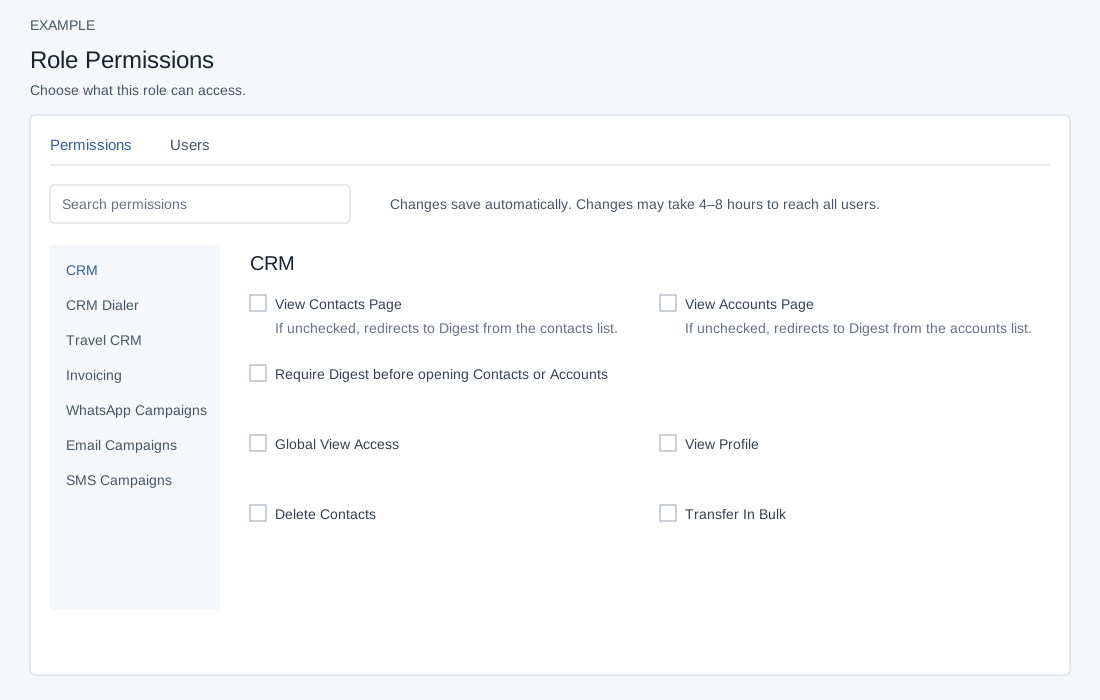
Choose the actions available to a role and review its assigned users before changing access.
Example: Showing a portion of the permission editor.
Open and change permissions
As an administrator open Account Settings → HRMS → User Roles, select the role name and open Permissions. Use Search permissions to narrow the controls and the category navigation to jump to a group. Each checkbox sends its own change immediately; there is no overall Save button. The page warns changes may take 4–8 hours to reach all users. Check the success message and reload the role to verify. Reopen the role and check that the intended permissions were saved. If an error appears, reload and inspect the saved state before retrying. A role change affects users assigned to it; check User List first. Individual feature access, plan support, account configuration and record scope can impose additional restrictions.
The descriptions below reflect the editor’s stated purpose for each control. They do not prove every downstream screen enforces it identically. For example, a sales role might need contact list and profile access but not bulk transfer; enable only the duties intended and verify with an authorized account.
The editor descriptions are not universal enforcement guarantees. For example, the Account Settings bulk transfer screen and its bulk transfer operation require ADMIN even if Transfer In Bulk is enabled. User administration screens likewise check ADMIN, despite the HRMS checkbox descriptions.
CRM
Permission
Effect described by the editor
View Contacts Page
If unchecked then the user is redirected to Digest when opening the CRM contacts listing page.
View Accounts Page
If unchecked then the user is redirected to Digest when opening the CRM accounts listing page.
Require Digest before opening Contacts or Accounts
Not applicable to Administrator roles. If checked, the Contacts and Accounts lists can be launched only from the new Digest. Individual contact and account pages keep their existing permissions.
Global View Access
If checked then user can access CRM data of all users. Required in case of Billing users.
View Profile
If checked then only a user can view and edit the profile data of a contact and company.
Delete Contacts
If checked then user can delete contacts and send them to recycle bin.
Transfer In Bulk
If checked then user can transfer contacts in bulk.
Change Account Type
If checked, then user can change account type e.g., Vendor, Customer, Reseller, etc.
CRM Dialer
Permission
Effect described by the editor
Create Dialer Batches
If checked then user can create dialer batches from manual entry or later queue setup flows.
Import Dialer Files
If checked then user can upload CSV based dialer source files for background processing.
Create From Filters
If checked then user can build dialer batches from saved CRM reporting filters within their allowed CRM visibility.
Work Assigned Queues
If checked then user can open assigned dialer batches and submit dispositions.
Claim Shared Queue Items
If checked then user can claim next items from department or global shared queues.
Assign To Users
If checked then user can assign dialer batches directly to individual users.
Assign To Departments
If checked then user can assign shared batches to departments that they are allowed to target.
Assign Globally
If checked then user can create queues visible to every user who has dialer access.
Promote To CRM
If checked then user can promote qualified dialer outcomes into CRM contacts and follow-up flows.
View Dialer Reports
If checked then user can access dialer productivity and batch level reports.
Start Auto Dialer Sessions
Allows automatic dialer sessions when the rollout is enabled. See the Dialer session guide for supported modes.
Travel permissions combine: the permission manager treats any builder, product, template, supplier, operations or document grant as general travel write access; each of those six checks accepts that general write access. Travel read or reports permits reports. Therefore clearing just one of these boxes does not necessarily remove its access. Administrators also receive overrides. Verify effective access with an authorized account.
Travel CRM
Permission
Effect described by the editor
Access Travel Module
If checked then user can open Travel CRM screens for Travel industry companies.
Itinerary Builder
If checked then user can create, edit, clone, and publish travel itineraries.
Travel Products
If checked then user can manage travel metadata, media, and product-backed itinerary items.
Itinerary Templates
If checked then user can manage reusable itinerary templates and travel playbooks.
Suppliers
If checked then user can manage travel suppliers used in packages and reconciliation.
Operations
If checked then user can manage manifests, readiness, reconciliation, and service follow-ups.
Documents
If checked then user can manage itinerary documents and customer offline packs.
Reports
If checked then user can access Travel CRM reporting and dashboards.
Aggregator Integrations
If checked then user can manage travel aggregator settings in admin.
Travel AI
If checked then user can run Travel AI planner actions when admins enable AI for the company.
Travel Admin Settings
If checked then user can configure Travel CRM admin settings.
Invoicing
Permission
Effect described by the editor
Allow Quotes Access
If checked then user can create quotes for their customers.
Allow Invoice Access
If checked, then user can create invoices for their customers.
Manage Subscriptions
If checked then user can create and manage subscriptions. Plan should support Subscription for this to work.
Manage Receipts
If checked then user can manage receipts. Plan should support Receipts for this to work.
Complete Invoicing Access
If checked, then user can create quotes and invoices for all customers. Individual quote and invoice permissions are also required.
Whatsapp Campaigns
Permission
Effect described by the editor
Allow Sending Campaigns
If checked then user can send bulk whatsapp campaigns.
For example, the Email Groups page requires both email sending and group permissions. Some SMS group management actions also require an administrator; a group checkbox alone does not grant every operation.
Email Campaigns
Permission
Effect described by the editor
Allow Sending Emails
If checked then user can send email campaigns.
Allow Managing Groups
If checked then user can create and manage email groups.
SMS Campaigns
Permission
Effect described by the editor
Allow Sending SMS
If checked then user can send SMS from CRM panel.
Allow Sending Bulk SMS
If checked then user can send bulk SMS from SMS panel.
Allow Managing SMS Groups
If checked then user can manage and edit SMS groups.
Web Leads (Engage)
Permission
Effect described by the editor
Allow Web Leads
If checked then user can receive leads from the web via ZipCall Contact form or APIs.
Assign Incoming Chats
If checked, then user can receive chat requests from WhatsApp, Engage Chats and other platforms.
Telephony Access
Permission
Effect described by the editor
Allow Incoming Calls
If checked then it will allow incoming calls to land on the user's phone number when you put the department in the IVR.
Allow Outgoing Calls
If checked then user can make outgoing calls to the CRM entries directly from our panel. A webhook is required to configure to make outgoing calls.
Inventory
Permission
Effect described by the editor
Add Stock
If checked then user can add stock in to the inventory.
Delete Stock
If checked then user can discard, refund or delete stock from the inventory.
Manage Products
If checked then user can create new products & raise PO for them.
Chatbot Management
Permission
Effect described by the editor
Allow Chatbot Management
If checked then user can create & manage chatbots & assign to chat services.
Project Management
Permission
Effect described by the editor
View Project Tasks
If checked then user can view assigned project tasks and permitted project board items.
Create Project Tasks
If checked then user can create and update project tasks within allowed scope.
Manage Project Templates
If checked then user can create and edit project templates, stages, defaults, and workflow-ready setup.
Manage All Project Tasks
If checked then user can view and manage project tasks across all users and departments.
Assign Project Tasks
If checked then user can assign project tasks to users or departments.
Move Project Stages
If checked then user can move project tasks across configured stages.
Comment On Project Tasks
If checked then user can add comments, blockers, and notes to project tasks.
Complete Project Tasks
If checked then user can add completion details and complete project tasks.
View Project Reports
If checked then user can access project dashboards and reports.
Manage Project SLA
If checked then user can configure project SLA deadlines and escalation links.
Manage Subscription Recurrence
If checked then user can bind subscriptions to recurring project tasks.
Claim Department Tasks
If checked then user can view and claim project tasks assigned to their departments.
HRMS
Permission
Effect described by the editor
Add Users
If checked then user can add new users.
Manage Users
If checked then user can suspend, restore users.
Delete Users
If checked then user can delete users.
Assign Licenses
If checked then user can assign licenses. Consider enabling this permission with "Add User".
Manage Payroll
Allows users to create a salary structure, assign it to users, manage leaves & attendance and perform other payroll based tasks. This permission is intended for payroll administrators.
View Payroll
Payroll based view permission. No changes can be done by the user.
Users tab
Open Users to see up to 1,000 users assigned to the role, with name, email and phone; the list includes users of all statuses. Search, sort or page through the list; select a name for the user profile. Return using Back to User Roles.