Partner purchase: choose the customer
Select the exact customer company before preparing a plan purchase. This is step 1 of the partner purchase workflow.
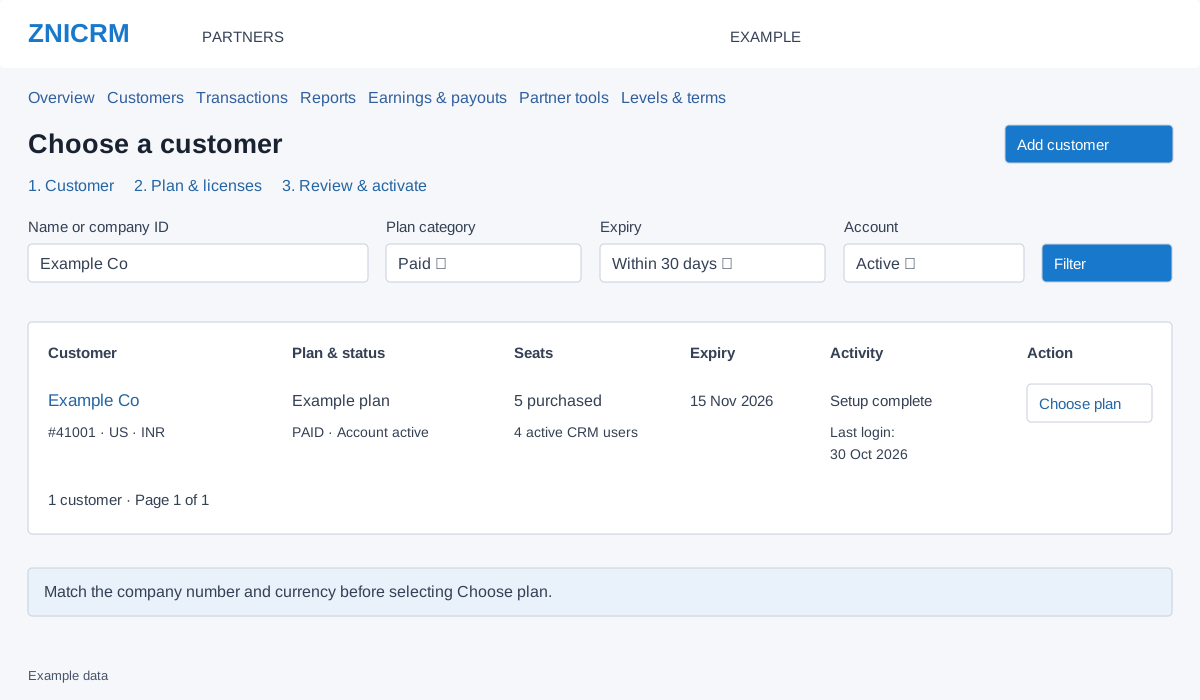
Find the company
- Open Partner tools → Open plan calculator, or start a purchase from Partners. Customer management requires an active reseller or partner membership and administrator access.
- Enter part of the company name or its exact numeric company ID in Name or company ID. The search accepts up to 150 characters.
- Choose Plan category: All plans, Paid or Free. Choose Expiry: Any expiry, Within 7 days, Within 30 days or Expired. Expiry filters apply to paid plans; the day ranges select upcoming expiries.
- Choose Account: All accounts, Active or Inactive, and select Filter.
- Check Customer, Plan & status, Seats, Expiry and Activity. Compare purchased seats with active CRM users; check company ID and currency to distinguish similar names. The name opens customer details.
- Select Choose plan on the intended customer to open step 2: Plan & licenses.
Use Previous and Next where available to move through matching customers. If no customers match, broaden a filter. Add customer opens the creation form; check for an existing company first. An inactive account may appear in the list, but purchases require an active associated customer.
Example: filter for Example Co with Paid and Within 30 days, check its expiry, then choose its plan to prepare a renewal. Selecting a row or opening a quote does not confirm payment.