Find a customer subscription to edit
Use Invoicing → Edit subscription to locate a recurring agreement and open its customer management screen.
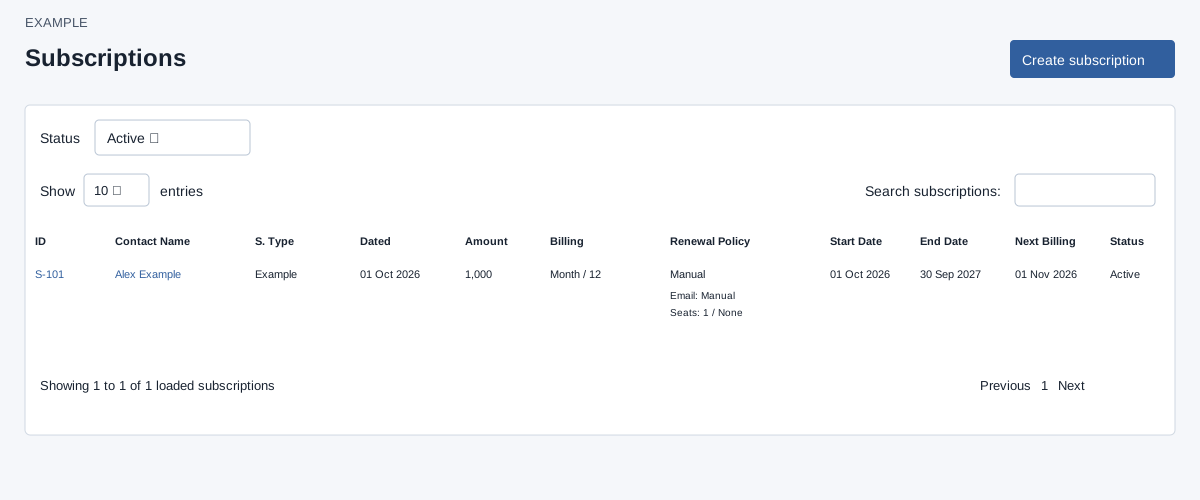
Select the agreement
- Open Invoicing → Edit subscription. Subscription access is required. Administrators can see company subscriptions; other users see subscriptions for accounts they own.
- Choose Status: Active, Expired or Cancelled. Active is the default. Select Filter resets to Active; it does not show all states.
- Use Search subscriptions, column sorting and the page-size control to inspect the loaded records. The list returns at most 1,000 matching subscriptions, newest ID first; these table controls cannot search beyond that loaded set.
- Check the contact, subscription type, term dates, amount, billing mode, renewal policy and next billing date. Select the subscription number to open its billing and lifecycle controls in a new tab. The contact name opens the contact.
- On the detail screen, verify the agreement before changing billing or lifecycle settings. Create subscription starts a new agreement and is not an edit action.
When the agreement is missing
Check account ownership and the selected status. Active includes unexpired Active/PastDue and unelapsed Grace; Expired includes Completed, Expired and elapsed Grace. Paused is absent from these selectable status groups. This selector therefore cannot be used to find every paused agreement; use the accessible contact’s Subscriptions section instead. See the register guide for the full column reference.