Google Ads lead-form integration
Route incoming Google lead-form submissions into CRM contacts.
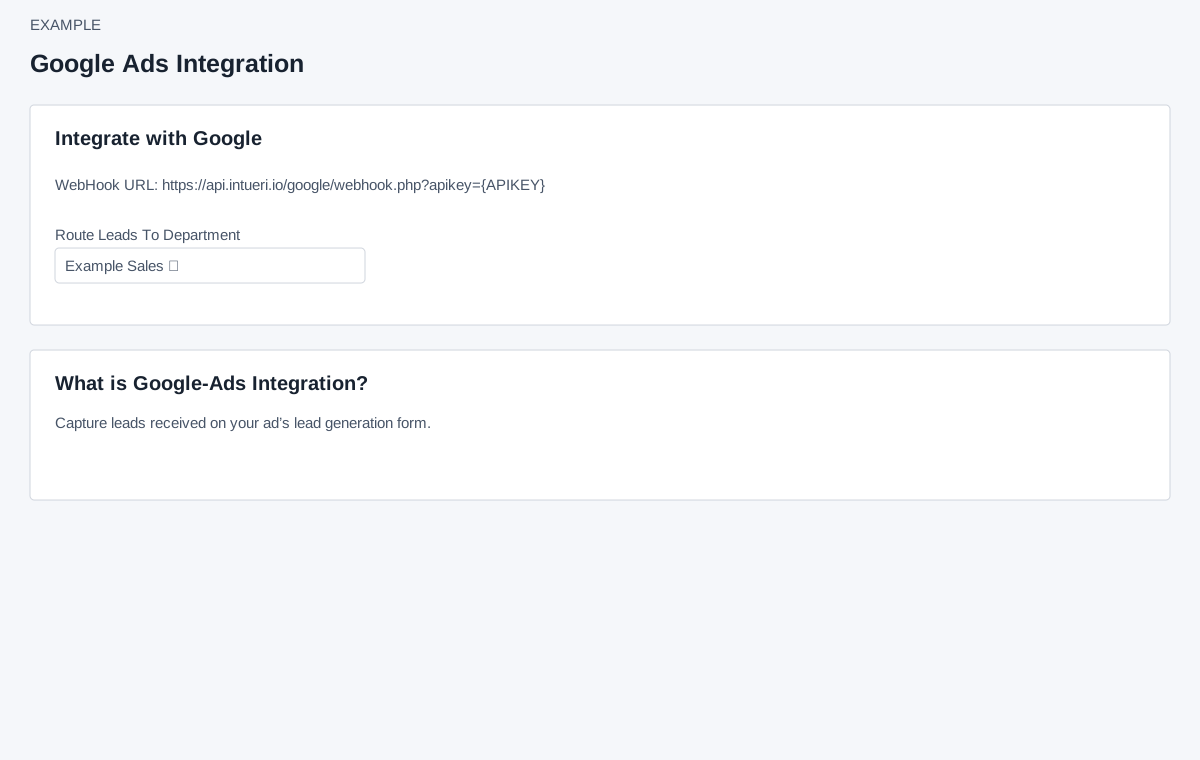
Open and prepare
Account Settings → Integrations → Google-Ads requires ADMIN and Standard Integration access. The page shows a WebHook URL with a linked {APIKEY} placeholder, not a filled-in company key. Open the API Keys link, obtain the appropriate CRM key and substitute it in the URL for the provider setup. Treat the resulting full URL as a credential. Configure it in the relevant Google lead form according to current provider instructions.
Choose the lead route
Route Leads To Department offers Default and available departments when departments are listed. Changing the selection immediately saves the route; there is no Save button. A success toast says routing changed; reopen the page to verify. A positive department is validated against the company on save; Default uses zero. If no departments are listed, no choices appear. Advanced lead-routing rules can influence the eventual assignment; see Lead Routing.
After setup, check an appropriately authorized incoming lead in CRM and its assignment. An incoming lead must include an email address or phone number. A missing route, invalid key or missing contact data can prevent expected results; review the provider delivery and CRM configuration. This page has no test or sync action. The separate Google Ads API connection handles conversions rather than this webhook.