Create and manage lead routes
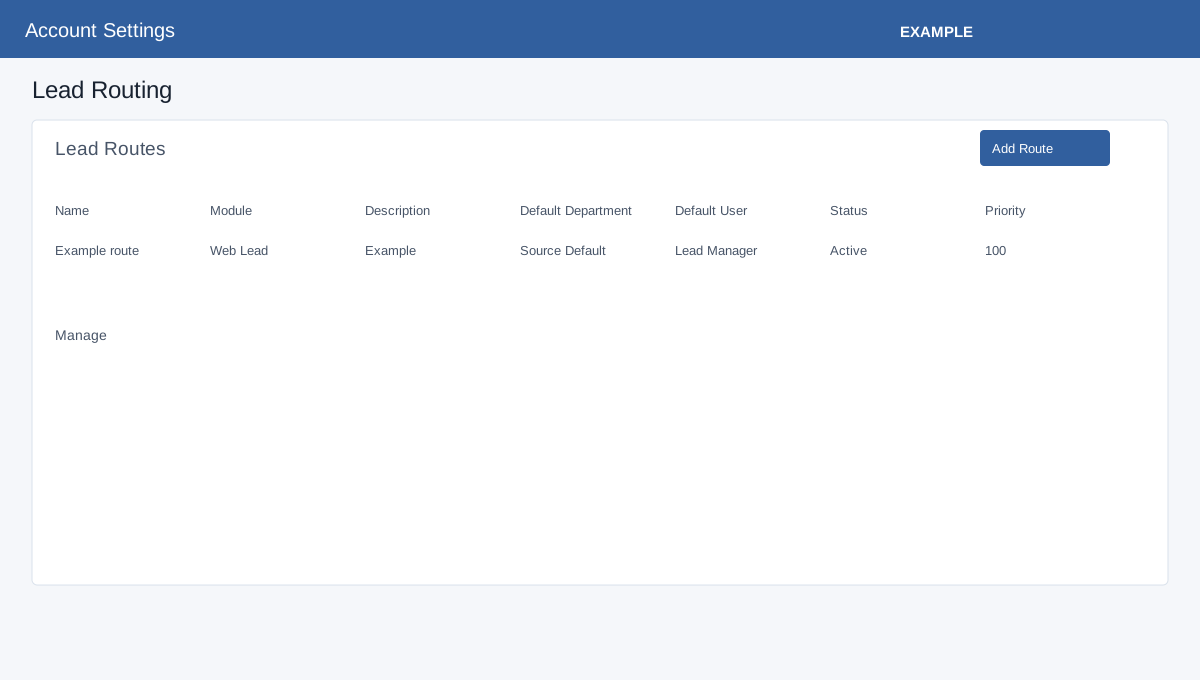
Open Account Settings → CRM Data → Lead Routing. Administrator access and the Lead Routing entitlement are required. Add Route supplies Route Name (required), Description, Module, Default Department (Source Default or an available department), Default User (Lead Manager or an active user), Priority (minimum 1; lower numbers are evaluated first), and Status Active/Inactive. Modules are All Modules, Web Lead, Facebook, WhatsApp, Google Ads, IndiaMART, TradeIndia, JustDial, Contact Form, Calendly, Inbound Email, AI Chat, Engage and API. Save creates the route; open Manage from the list.
Manage route and evaluation order
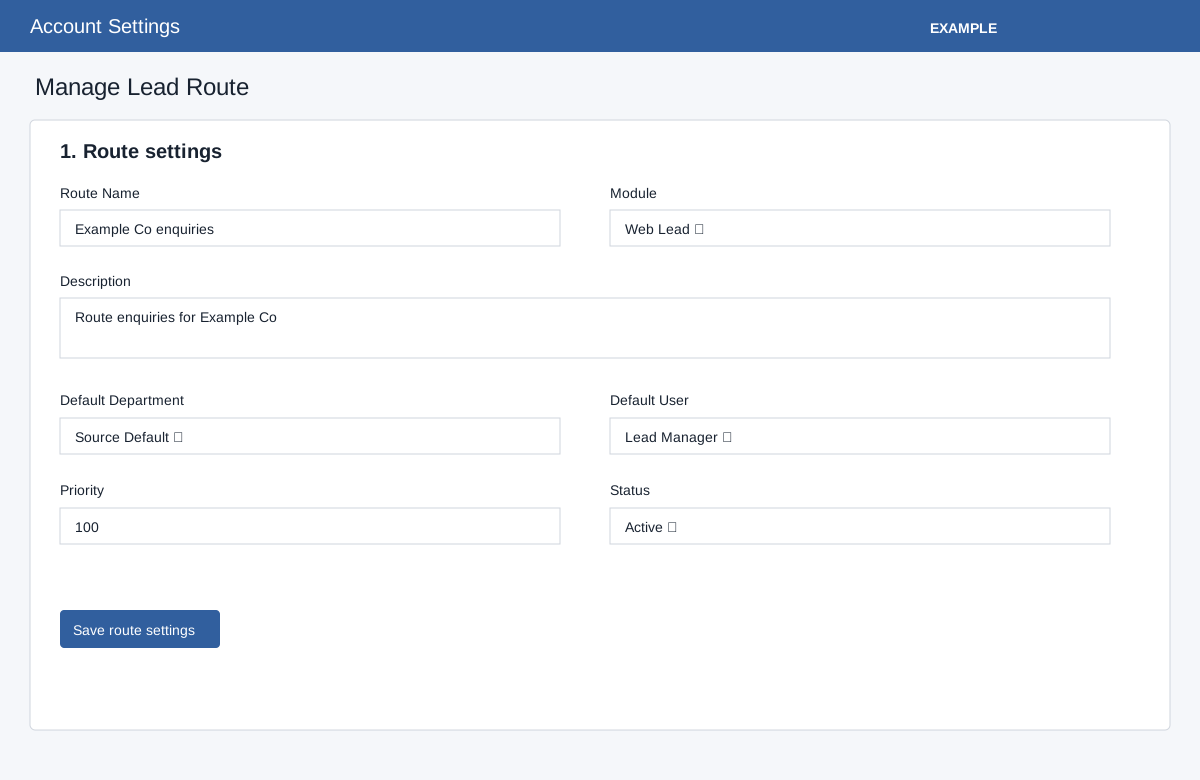
On Manage Lead Route, edit the same fields and select Save route settings. The resolver checks routes for the specific module first, then All Modules; within each scope it checks lower priority numbers first (ties use ID order), up to 100 routes per scope and 200 active rules per route. The first matching valid rule wins. If none matches, a valid configured route default wins before later routes; without a route default evaluation continues to later routes, then source fallback. Invalid targets can be skipped. Fallback department applies when no active rule matches; Source Default preserves the incoming source default. Lead Manager selects the eligible owner, so a preferred user is not a guarantee of final assignment. A Facebook or All Modules route exposes synchronized Ad Account, Campaign, Ad Set/Ad Group, Ad, Page and Lead Form selectors. The account narrows campaigns; choose a specific object to enable the button. Use stable object IDs (EQUALS for one, IN for comma-separated IDs), not display names; Create rule from selection opens a prefilled rule that must still be reviewed and saved.
Route fields
| Field | Choice and effect |
|---|---|
| Module | Scope the route to one supported inbound module or All Modules. |
| Default Department | Choose Source Default to retain the incoming default, or select a department. |
| Default User | Lead Manager chooses an eligible owner; alternatively select an active user. |
| Priority and Status | Lower priority runs first within its scope. Inactive routes do not participate. |
Field mappings and rules
Add Field requires Label, Field Key and Payload Path; choose Module, Type (TEXT, NUMBER, DATE, PINCODE, STATE, CITY, COUNTRY, EMAIL, PHONE) and Status Active/Inactive. Save Field reloads; Edit changes a mapping and Disable deactivates it.
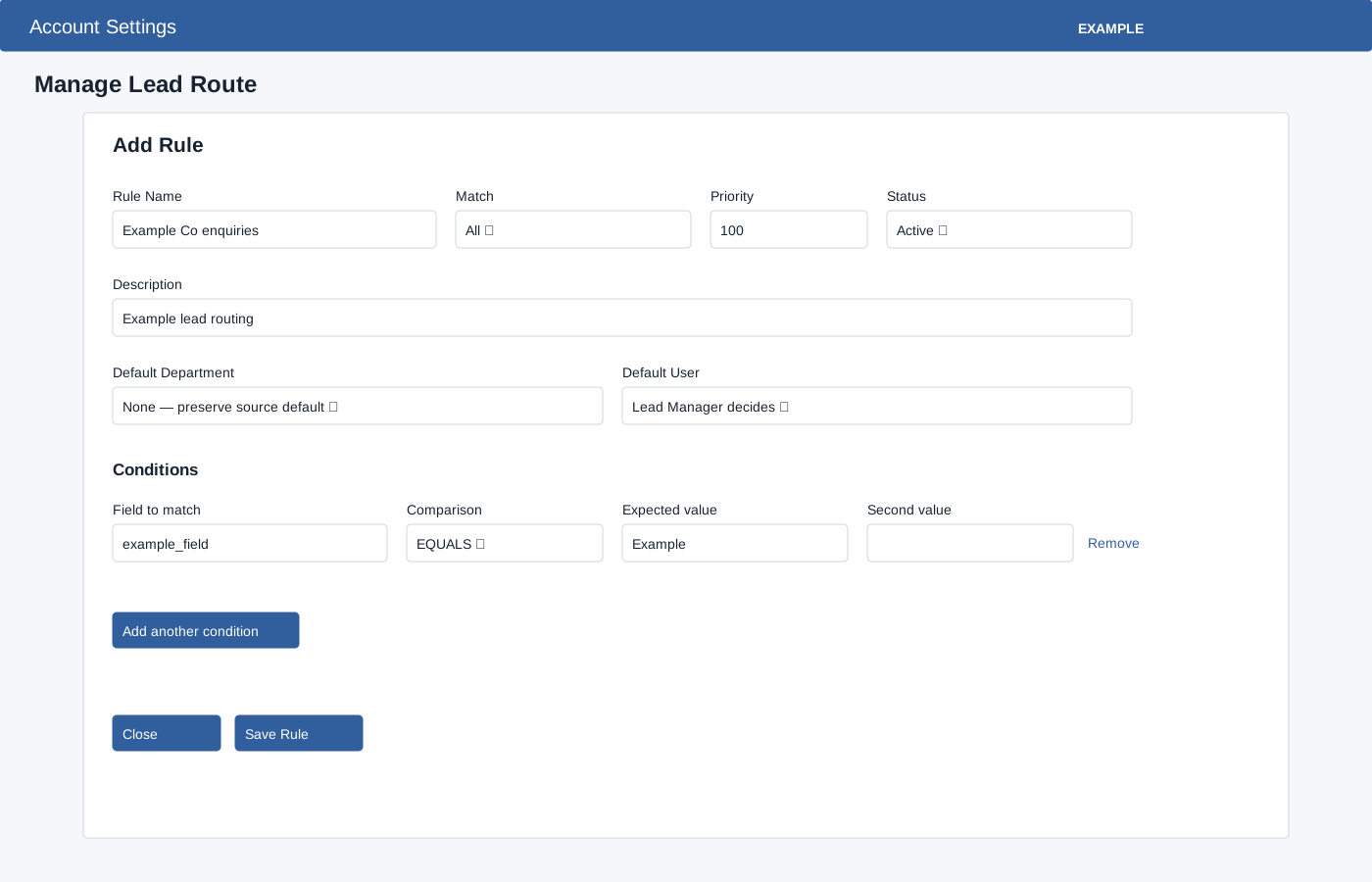
Add Rule requires Rule Name and at least one condition. Choose Match All or Any, Priority (lower wins among rules), optional Description, Default Department (None preserves source default), optional Default User (Lead Manager decides or a user) and Active/Inactive status. Add another condition supplies Field to match, Comparison, Expected value and Second value for BETWEEN; Remove deletes that condition in the editor. Comparisons are EQUALS, NOT_EQUALS, CONTAINS, NOT_CONTAINS, STARTS_WITH, ENDS_WITH, IN, NOT_IN, EXISTS, NOT_EXISTS, GREATER_THAN, LESS_THAN and BETWEEN. Save Rule reloads; Edit and Disable are row actions.
Preview and verify
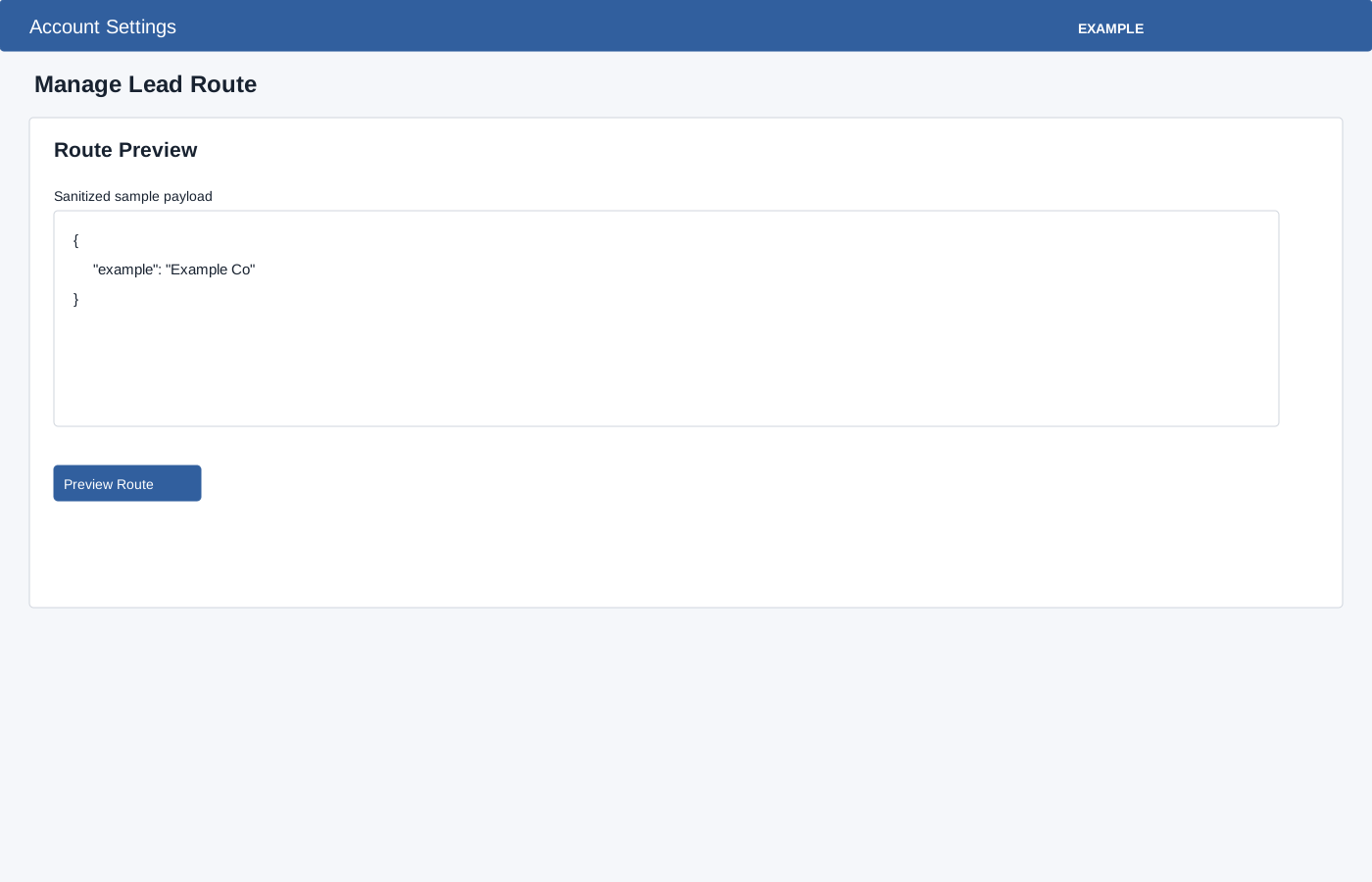
For a test, enter a sanitized JSON payload in Route Preview and choose Preview Route. Preview checks active routes in their actual priority order and does not create a contact or change an assignment. Preview uses saved active rules, not unsaved dialog edits; save the intended rule first, then inspect the returned result, then test a controlled inbound lead and verify department/owner in CRM and queue logs. Check access, field paths, module precedence, priority and displayed errors when results differ. A Facebook object rule also depends on its integration routing setting and synchronized catalog. If the request expires, refresh and retry. Preview accepts valid sanitized JSON up to 32,768 bytes; it does not prove final owner eligibility.