Facebook integration
Connect Facebook Pages and direct incoming lead-ad submissions to CRM departments.
Controls depend on your account and permissions.
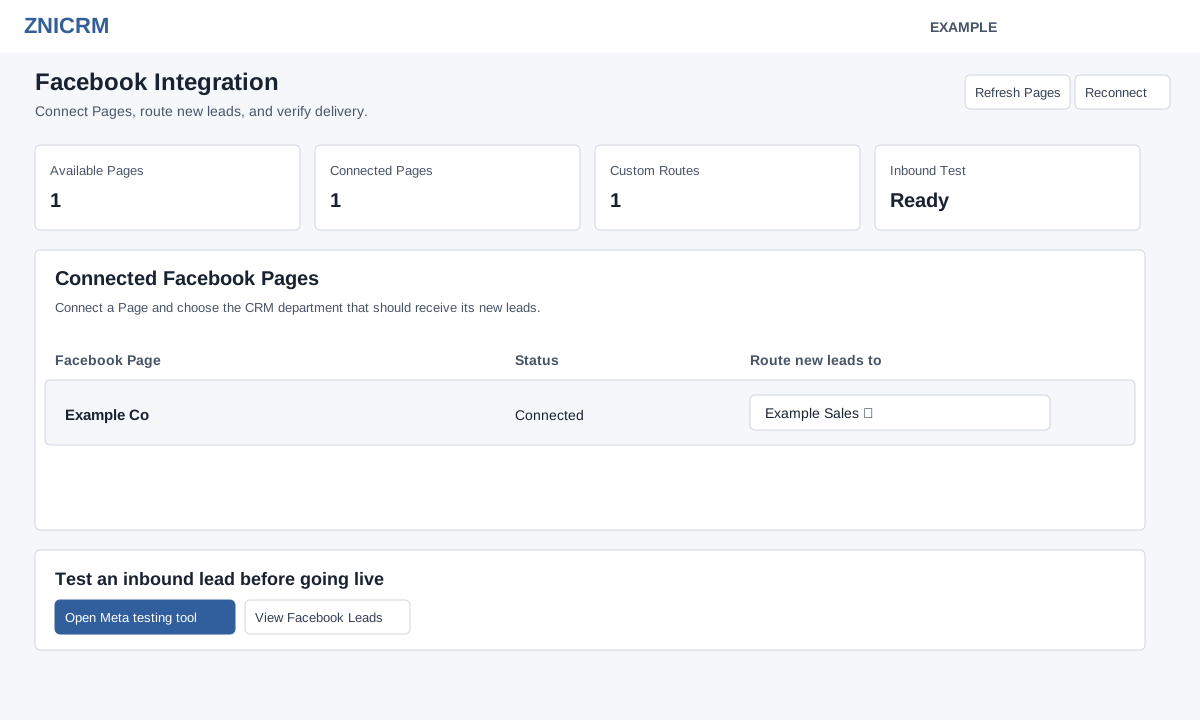
Open and prepare
- Account Settings → Integrations → Facebook
- An active company administrator with Standard Integration access must have access to the Facebook Page and permission to grant Page and lead access. The lead form must contain an email address, phone number, or both.
Accounts using the older Facebook Integration screen have a separate Page list and authorization flow.
Connect and route Pages
- Choose Connect Facebook or Reconnect and complete Meta authorization using an account that manages the target Page.
- Use Refresh Pages or Get fresh Page list to reload the authorized list. Under Connected Facebook Pages, find the Page and select Connect Page if it is not connected.
- For a connected Page, choose Default CRM route or the intended department under Route new leads to. The route saves immediately when selected; check the success message and reopen or refresh to verify. Connect Page subscribes the Page to Meta lead notifications and reloads on success.
- For example, route the Example Garden Page to Example Sales. Confirm the selected route before running any test.
For the actual retrieval, recognized identity fields, assignment and failure checks, see Facebook lead retrieval and field handling. Page routing is a default; advanced inbound routing and Lead Manager can affect the final owner.
Verify and troubleshoot
- The page links to Meta’s Lead Ads Testing Tool, Facebook Leads and CRM Contacts. An authorized administrator can remove any old Meta test lead, then create a controlled test lead in Meta for the same Page and form, then check the report and route; the page says to allow up to two minutes. A test creates data.
- If a Page is missing, review the app’s Page permissions in Facebook Business Integrations, reconnect and refresh the Page list. If data is missing, check the lead report and department routing.
Operations and data controls
- Authorized company administrators with integration version 1 may see Marketing API, reporting and delivery controls. Open Manage assets and sync or Configure Conversions API for the related screens.
- Disconnect stops Page subscriptions and clears Facebook credentials but retains synchronized history. Delete integration data is available only after disconnect and removes integration caches, lead payloads, sync facts, queue copies and CAPI events; the page says ordinary CRM contacts, deals and conversations are not deleted. The confirmation prompts require DISCONNECT FACEBOOK or DELETE FACEBOOK DATA respectively. Review the consequences before either operation. If an action says the request expired, refresh and try again.